
Yes, Ready or Not supports crossplay between PC, PS5 and Xbox Series X|S. PC players on Steam and the Epic Games Store can join the same sessions as console players.
Turn on Cross-Play in the main menu's gameplay settings before trying to join.
A PC host using mods can't host console players, even with that setting enabled. An Epic account is optional for crossplay itself, but linking one adds cross-platform friend search and invitations.
Mods and account features can explain why friends on supported platforms still struggle to get into one lobby.
Confirm the platform pair before setting up invitations
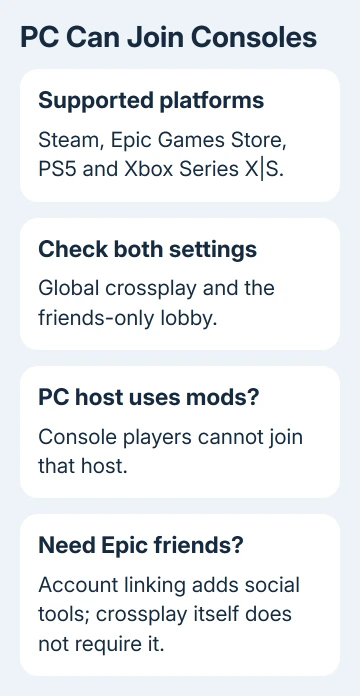
The platforms that can play together are Steam, Epic Games Store, PS5 and Xbox Series X|S. A friend playing on one of those platforms doesn't need to switch to your storefront or buy your platform's edition just to share a session.
Check the actual game and platform with each person in the group. The PC version isn't restricted to other PC players, and the console-to-console pairing isn't a separate matchmaking group that excludes Steam.
VOID Interactive's crossplay instructions confirm those platforms and explain the account and lobby settings.
The console release introduced crossplay on July 15, 2025, so information from the game's PC-only period won't answer the current question.
Keep platform compatibility separate from a failed invitation. A join error doesn't change the supported platform list. It means the group needs to check its settings, the host's mods or the way the invitation is being sent.
For comparison, Valorant keeps PC and console matches separate. Each game sets its own rules, so a restriction you've run into there doesn't automatically apply to Ready or Not.
1. Enable crossplay from the main menu
Return to the Main Menu, open Settings > Gameplay Options and scroll to the bottom. Turn Cross-Play on. This setting isn't accessible mid-game, so leave the active session before looking for the control.
The first multiplayer session can show a one-time prompt asking whether to enable crossplay. Accepting or declining that prompt isn't permanent: the gameplay option lets you change the choice later.
Have the host and joining players check their settings. Public lobbies follow the host's crossplay setting, and a player needs crossplay enabled to join a host whose crossplay setting is enabled.
If an invitation to a crossplay lobby arrives while your setting is off, the game can prompt you to enable it before joining. Read that prompt instead of assuming it wants an account link.
Crossplay permission and Epic account linking do different jobs.
For a grayed-out option on console, check the console account's cross-network or parental restrictions with the account organizer. Those console account rules can stop the game changing the setting.
2. Check the friends-only lobby's own setting
When creating a Friends-Only lobby, review its crossplay option as well as the global gameplay option. The creation screen lets the host choose whether that particular lobby allows crossplay.
That choice isn't saved for the next lobby and doesn't change the global setting. A host who checked the gameplay menu yesterday should still review the new friends-only lobby before inviting a mixed PC-and-console group.
Ask each player to return to the main menu while the host creates the lobby with the settings your group needs. Then send a fresh invitation after checking its crossplay choice.
That way, you're testing the new settings in a fresh lobby instead of trying to join one created with different settings.
I'd check these two settings before changing accounts. A lobby-level choice is quick to correct, while unlinking the wrong account can create a much longer problem.
If a friend can see the invitation but can't join, move to the host-mod check. If your friend is missing from the list, use the account and overlay section instead.
3. Keep PC host mods out of a console session
Mods are allowed on PC but aren't supported on consoles. When the PC host uses mods, console players can't join that host, even when crossplay is on. The restriction includes mods that only seem cosmetic to the PC player.
Use an unmodded PC host for a mixed-platform group. Follow the installed mods' removal instructions so the person hosting is running the game without mods. Turning on crossplay doesn't turn off the host's modifications.
Check the host before asking every console player to reinstall. Sending more invitations from a modded PC session won't let console players join it.
If you need to locate the installed files while following a mod's removal instructions, the PC game directory guide shows how to open the installation folder from its launcher.
The installation folder and your saved progress are different things, so keep track of which one you're working in.
4. Link Epic only when you need its friends system
An Epic account isn't required for crossplay, and Steam players don't have to install the Epic Games Store launcher just to enable it. Linking adds the Epic Friends List, cross-platform friend search, invitations and the social overlay.
To use those features, open Main Menu > Settings > Gameplay Options, find Multiplayer Options and select Account Linking. Complete the prompts for your chosen account.
Epic Games Store players have this linking handled automatically.
After linking, the button becomes inactive and shows the link status. That appearance is expected. An inactive linking button doesn't mean the game can't connect to a console.
Open the overlay with Shift+F3 on PC. On Xbox, use the View button; on PlayStation, use the touchpad. The overlay lets you see your linked account's friends and manage invitations.
The in-game friends list is also available without linking, but then shows platform friends who are online and in-game. With linking, it can also show Epic friends who are online and in-game.
Check that your friend has launched Ready or Not.
Don't unlink an account just to refresh a missing friend. Changing the platform account attached to the same Epic account can trigger a 12-month cooldown.
Keep the existing account connection while checking lobby settings and online status.
When a supported group still can't join
If joining still fails with mods removed and crossplay on, note the error's exact wording, each player's platform and whether the lobby is public or friends-only. Note whether invitations are missing or fail when accepted.
Capture a visible Windows error with Snipping Tool.
Send the details to support@voidinteractive.net, the address listed by Steam Support. Request help for the join error affecting your group's particular platforms.
Once those settings are correct, support needs the details of the failed invitation to help with the connection.
The Short Version
Ready or Not connects PC with PS5 and Xbox Series X|S. Check global and friends-only lobby crossplay settings, use an unmodded PC host and link Epic when you want its cross-platform friends tools.
Linking isn't required for crossplay itself.
Checked November 9, 2026.

Isaac Smith is the founder and editor of PC Glance, a website that covers computers, laptops, and technology. He is a tech enthusiast and a computer geek who loves to share his insights and help his readers make smart choices when buying tech gadgets or laptops. He is always curious and updated about the latest tech trends.