
No, AirPods earbuds need a compatible case to recharge; loose earbuds won't charge on a wireless pad. Replace the case if yours is lost. AirPods Max are different: their cable plugs into the headphones directly.
If the case is still with you but its cable is missing, another compatible cable or a supported wireless charger may solve the problem. That's different from charging earbuds with no case at all.
Work out whether the case or its cable is missing
For regular AirPods and AirPods Pro, put the earbuds inside a compatible case to charge them. The cable or charging pad powers the case, and the case supplies the earbuds through their charging contacts.
Wireless charging works through a compatible case, not the loose earbuds. A phone's charging pad can't replace that connection. Keep the earbuds somewhere secure while arranging a case rather than trying to balance them on a charger.
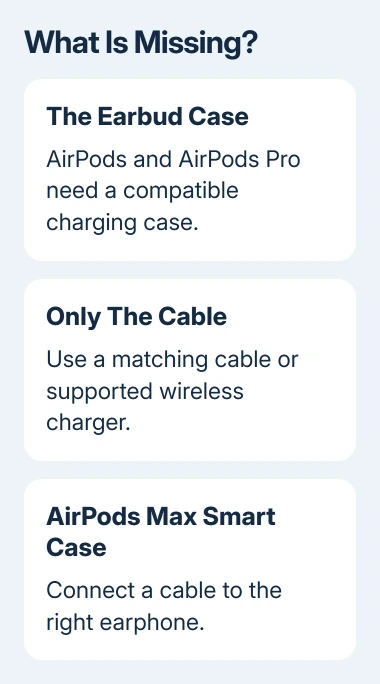
I'd check whether the missing item is the whole case or just the cable before buying anything. A cable replacement is a smaller problem, and a wireless-capable case may already work with a charger you own.
If the case is present and powered but one earbud won't gain charge, use the AirPod charging checks. A dirty contact or an uncharged case needs troubleshooting rather than a missing-case replacement.
Match a replacement to the actual AirPods model
On a paired iPhone or iPad, open Settings > Bluetooth, find the AirPods, and tap the information button beside them. Read the model information. If they aren't available there, the model number is also printed on each earbud.
Check which generation that model number belongs to before ordering a case. Apple's AirPods identification page lists earbuds and charging cases separately, including which earbuds each case supports.
AirPods 1 and AirPods 2 can use the listed Lightning Charging Case or Wireless Charging Case for those generations. That shared compatibility doesn't extend to every later case that looks similar from the outside.
Standard AirPods 4 use a different case from the Active Noise Cancellation (ANC) version. The ANC case doesn't support the standard earbuds, and the standard case isn't a substitute for the ANC version.
AirPods 5 also have separate standard and Wireless Charging Case variants. Match the exact variant rather than treating every case labeled AirPods 5 as interchangeable. Have support confirm compatibility from the earbuds' model numbers.
AirPods Pro need a case matched to their generation and supported version too. A USB-C port or a similar white shell isn't enough to confirm the right replacement. Check the compatibility listing before paying for a used case.
If the original case is missing, open Find My > Devices and select your AirPods before buying. What Find My shows for the case depends on its model. If it doesn't show the case's location separately, that doesn't mean its battery is empty.
If it can't be recovered, contact Apple AirPods service or an authorized service provider and request a replacement charging case. Give them the earbuds' model numbers and your serial number so the replacement can be matched correctly.
Set up the replacement case with both earbuds
Start with both earbuds in the compatible replacement case. Connect the case to power, close its lid, and wait 20 minutes. That wait is part of replacement setup; it doesn't mean every empty battery will be fully charged in that time.
Open the lid and check the light. If it's already flashing white, move on to pairing. If it isn't, use the control sequence for your generation. A flashing white light means the AirPods are ready to connect.
For AirPods 1, 2, 3, AirPods Pro 1, and Pro 2, leave the lid open and press the rear setup button for 15 seconds. Wait for the status light to flash amber, then white.
For AirPods 4 or 5, or Pro 3, double-tap the front while the light is on. Double-tap again when it flashes white, then double-tap a third time when it flashes faster. It should flash amber and then white.
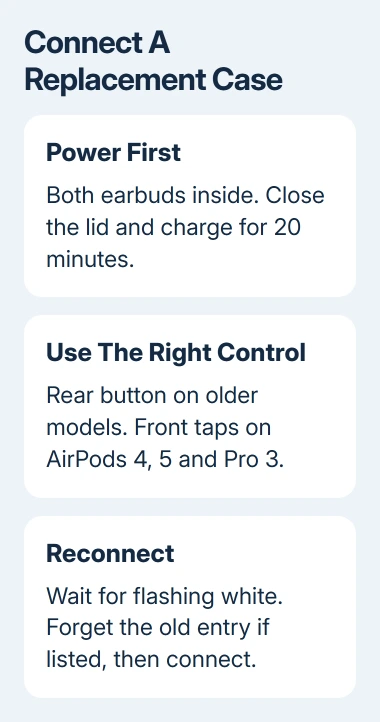
With the light flashing white, close the lid. Open Settings > Bluetooth before using the connection animation. If the old AirPods entry is listed, tap its information button, choose Forget This Device, and confirm.
Open the case lid again and go to the device's Home Screen. Tap Connect in the setup animation, then Done. If no old AirPods entry existed, skip the forgetting step and continue with that connection process.
If the case never reaches a flashing white light, ask the replacement provider to check compatibility and setup. Give them the light sequence you saw. Repeatedly trying a different model's reset instructions won't resolve a mismatched case.
Use another charger when the case is still available
Check the port on the case before choosing a cable. Some cases use Lightning; others use USB-C. Connect a matching cable to a suitable USB power source, then close the lid with the earbuds inside.
All AirPods charging cases support a cable. Wireless charging depends on the case, so a USB-C port alone doesn't mean a charging pad will work. Standard AirPods 4 and their ANC version show that difference.
Place a supported wireless case on a compatible Qi-certified mat, light facing up and lid closed. Check that it shows it's charging. If it doesn't charge, use a cable while checking the case's wireless compatibility.
With the earbuds in the case, its light indicates their charging status. Green means fully charged; amber means less than one full charge remains. With the earbuds removed, the light shows the case's charge instead.
If the case won't take power by cable either, return to the charging-fault checks or request service. Replacing a missing cable won't fix a damaged case port, and ordering another pair of earbuds won't repair that port either.
Charge AirPods Max directly
AirPods Max don't depend on the Smart Case for charging. Connect the appropriate USB-C or Lightning cable to the port on the bottom of the right earphone, then connect the other end to a USB charger or port.
The cable depends on which AirPods Max model you have. The Smart Case has an opening for that charging port, so it can stay on during charging, but the case itself isn't the source of charging power.
If the headphones keep draining while stored, the AirPods Max power guidance explains their power-saving behavior. They can still charge by cable without the Smart Case.
The Short Version
Loose AirPods and AirPods Pro need a compatible case. Recover or replace the missing case, match the generation, then follow replacement setup. AirPods Max charge through their own cable port with or without the Smart Case.
Checked November 9, 2026.

Isaac Smith is the founder and editor of PC Glance, a website that covers computers, laptops, and technology. He is a tech enthusiast and a computer geek who loves to share his insights and help his readers make smart choices when buying tech gadgets or laptops. He is always curious and updated about the latest tech trends.