
A printer doesn't need Wi-Fi for a firmware update when its maker offers a USB or wired-network method. Check your model's instructions for that alternative before another wireless attempt, especially if the file transfer keeps failing.
Firmware is the software inside the printer. Updating its Windows driver changes the computer's printing software instead, so a successful driver installation doesn't mean the printer's firmware has been updated.
1. Check whether the printer is already installing
Read the printer's display and updater window first. Has it found the printer, started transferring the file or begun installing firmware? Save its message to record the stage that failed.
Do not turn off the printer, restart the computer or remove its update connection while firmware is installing. If progress seems stuck, check your model's update time and follow its support instructions before interrupting it.
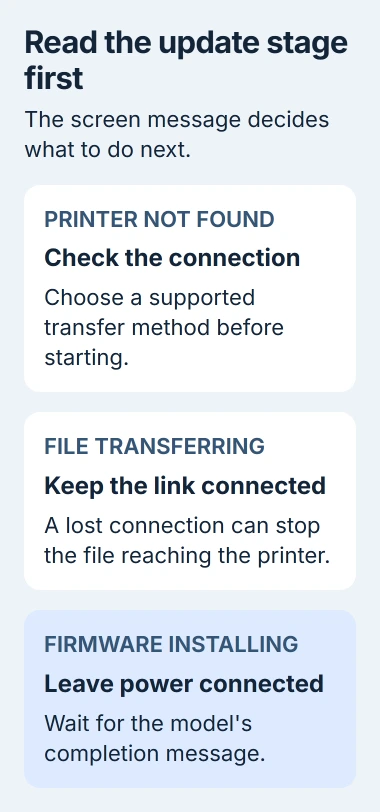
Before a new attempt begins, place the printer nearer the router and check its wireless status. For an HP that hasn't joined the network, use the model-specific Wi-Fi setup instructions rather than repeatedly starting its updater.
If your printer has a connection report, check its network name and any failed wireless checks. A disconnected printer needs different checks from one that's connected but invisible to your computer.
Try the update once the connection is steady. If it still drops before installation starts, use another connection method supported by your printer.
2. Use Ethernet when the model supports it
Check the manual for Ethernet support. If available, connect the printer to the router by Ethernet cable and follow its wired setup procedure. Keep the update computer on the same local network.
With Ethernet, the printer receives the file through the cable. Your computer may still use Wi-Fi; if that connection drops too, switch it to a stable connection. Check that the updater finds the right printer before you continue.
Check the model and any serial number shown in the updater. The printer may appear differently after you change its connection, so make sure you haven't selected a nearby printer with a similar name.
The Windows printer installation instructions cover adding a printer after connecting it. That sets up printing from your computer. Updating the firmware still needs the model's firmware tool.
After the wired update finishes, check the installed firmware version, then return to the Wi-Fi fault. The wired transfer worked, but it doesn't explain why the wireless connection dropped.
3. Check for a manufacturer-supported USB updater
Some printer firmware packages let you connect the computer and printer directly with a USB cable. Check that the package supports this method and your operating system before connecting the cable or starting the updater.
Use the firmware package for the complete model name. The printer's setup app, Windows driver and firmware updater may be separate downloads. Look for the firmware instructions included with that model's package.
HP's USB firmware instructions provide one example using a bundled transfer utility. Use that procedure only if your package contains the files it names. It won't apply to every HP printer or other brand.
Follow the package's connection and driver requirements. If it needs the print driver first, install that before opening the updater. Plugging in a cable doesn't always give the tool a working connection to the printer.
If the utility can't detect the device, check its cable requirements and supported printer list. I'd get the printer detected before trying the update again; the tool needs a working connection to send the file.
4. Use a USB flash drive on supported HP Enterprise models
With a USB flash drive, the printer reads the firmware file straight from the drive instead of receiving it from your computer through a USB cable. On a supported printer, this also takes Wi-Fi out of the transfer.
HP says the printer must reach Ready to use the local Maintenance method. Check your model and firmware generation in its Enterprise and Managed configuration guide first.
Download the correct firmware package, extract it and find its .bdl file. Copy that file to the main folder of a suitable USB flash drive. The printer might not recognize a drive unless it's formatted as FAT32.
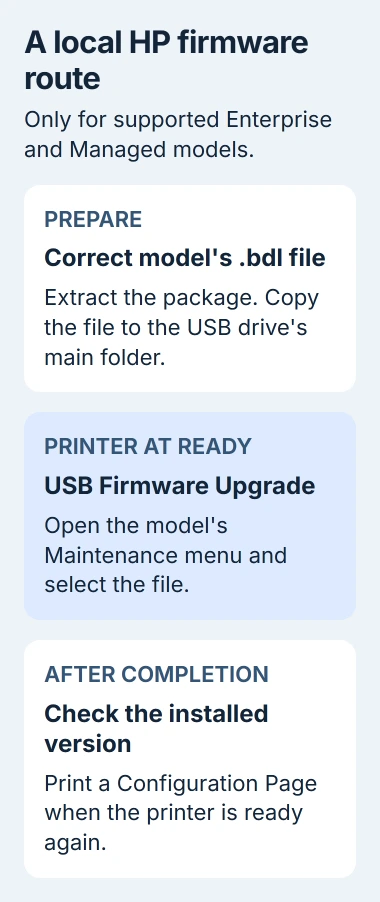
For FutureSmart 3, start with Device Maintenance on the printer. For FutureSmart 4, start with Support Tools. Open Maintenance > USB Firmware Upgrade, then insert the drive in the printer's front USB port.
Select the .bdl file and follow the confirmation prompts for that firmware version. Wait until the update finishes and the printer returns to Ready. It can take 30 minutes or more, so a brief pause doesn't mean it's failed.
For No USB Thumbdrive Files Found, put the extracted .bdl file in the drive's main folder. If it still isn't listed, follow the guide's checks for the drive's format or try another drive as it describes.
A home printer's USB socket may support photos or scanning without supporting firmware files. Use this method only if its manual offers USB Firmware Upgrade; otherwise, choose another supported method.
5. Confirm the installed version and then repair Wi-Fi
After the updater finishes and the printer is ready, print its configuration or status report. Compare the installed firmware version with the package you used. Downloading the file to your computer doesn't install it on the printer.
If the version changed but Wi-Fi printing still drops, tell support both things. The update finished, so the next job is checking the wireless connection rather than installing the same firmware again.
If your printer stays connected but Windows reports Offline, use the Windows queue and status checks. If its own wireless report shows a disconnection, follow the maker's network troubleshooting.
If every supported method fails, give the printer maker your model, firmware version, connection method and error. If the printer won't return to Ready, follow its recovery procedure before trying a normal update again.
The Short Version
Check the update stage, then use an offered Ethernet or USB method when Wi-Fi can't carry the transfer. Match the firmware to the printer and verify its installed version afterward.
Checked November 5, 2026.

Isaac Smith is the founder and editor of PC Glance, a website that covers computers, laptops, and technology. He is a tech enthusiast and a computer geek who loves to share his insights and help his readers make smart choices when buying tech gadgets or laptops. He is always curious and updated about the latest tech trends.