Reinstall the HP app or driver if printer setup fails or scanning stops working. Removing the printer from Windows alone won't remove that software, so start with the part that's causing trouble.
If the printer has lost Wi-Fi, reconnect it to the network first. Reinstalling makes more sense when it still connects but its software is missing, setup fails, or scanning doesn't work.
In this guide
Decide whether the app, driver, or connection needs replacing
Find the printer's complete model name, including its final letters. Read it from the label or the printer's own information screen. Keep that name handy when choosing software; a similar-looking model can need a different package.
The HP app is the setup and scanning application. The print driver handles jobs sent from Windows. A print queue is the printer entry you choose inside an application's Print window. Replacing one doesn't always replace the others.
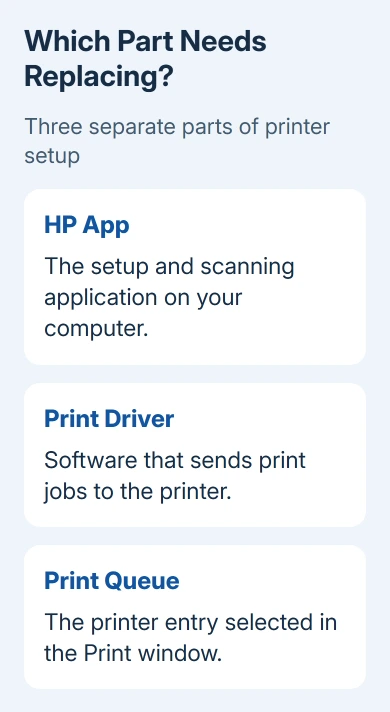
Reinstall the app if that's the part that won't open. For failed full-software setup, uninstall the matching HP package before running its replacement. If jobs go to an old printer entry, remove that queue and add the printer again.
I'd keep the printer's network settings intact during this job. A factory reset adds another setup task and isn't part of reinstalling software. For a changed router or password, use the HP Wi-Fi setup steps.
Remove the old HP software on Windows
Save your work and finish any printing you need from another installed printer. Disconnect the USB cable from the HP printer if you're using one. Leave a network printer powered on and connected to its router.
Open Start, search for Add or remove programs, and open the matching Settings page. Windows 11 calls the list Installed apps; Windows 10 uses Apps & features. Find the HP app or software named for your printer.
Choose its menu and Uninstall, then follow the removal prompts. Remove the software for this printer. Leave HP laptop utilities and software for other working printers installed.
For older full-feature software, search for Control Panel, open Programs and Features, select your HP printer software, and choose Uninstall. Restart Windows after the removal finishes, especially if the uninstaller requests it.
Use the normal Windows uninstaller rather than deleting driver folders or registry entries yourself. Deleting those files yourself can leave the software only partly removed.
Return to the printer list after restarting. On Windows 11, open Settings > Bluetooth & devices > Printers & scanners. On Windows 10, use Settings > Devices > Printers & scanners.
Select the old entry for this printer and choose Remove or Remove device, as offered by your version. This removes the queue you'll replace. It doesn't require resetting the printer's wireless network or deleting its stored fax settings.
Install the current package for the exact model
Open HP's printer setup page in your browser. Follow its model and download choices to get the HP app or the setup package offered for your printer. Use the official site rather than a driver download advertisement.
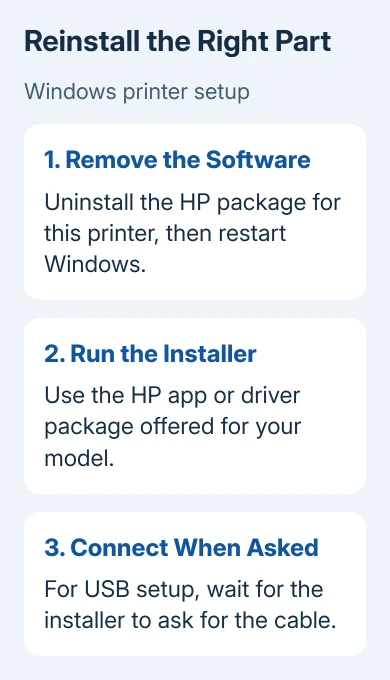
If your model needs full-feature software or HP Easy Start, open its Software and Driver Downloads page on HP Support. Check the detected operating system before downloading, particularly when using another computer to get the file.
Match the package to Windows or macOS and your system version. Choose the software offered for the computer you'll print from. Don't assume the original installation CD has the latest compatible version.
Run the installer, watching for its connection prompt. For USB setup, reconnect the cable when the installer asks. Connecting it early can start a separate Windows setup before the HP installer is ready.
For Wi-Fi setup, use the same network on both the computer and printer. Choose the printer matching your model and connection. When setup can't detect the printer, check its network connection before reinstalling the software again.
Use Windows setup when a manufacturer installer won't work
Windows can install many printers without a full manufacturer package. Open Printers & scanners, choose Add device on Windows 11, and wait for your printer to appear. Select its Add device button.
On Windows 10, choose Add a printer or scanner, select the discovered printer, and choose Add device. A USB printer may install automatically when connected. Let that process finish before sending a job.
Microsoft recommends this built-in printer setup for affected ARM PCs when a manufacturer's installer fails, unless the manufacturer gives other guidance.
Find the processor type under Settings > System > About > System type if you aren't sure whether this is an ARM PC. This matters on some Copilot+ PCs. An installer failure there doesn't automatically mean the printer itself is incompatible.
Windows' built-in setup can get printing working without adding all the scanning or maintenance tools in the HP package. If printing returns while scanning is missing, check which software your model offers for scanning.
Remove and add the printer on a Mac
Remove the affected printer entry from macOS, then add a fresh entry. This replaces its setup in macOS while keeping the printer's own network settings.
If a separate HP application is the part that fails, check its model-specific removal instructions before changing system files. These steps replace the printer entry; they don't uninstall every HP app.
Open Apple menu > System Settings > Printers & Scanners on recent macOS versions. Select the old printer entry and remove it. On older macOS, the minus button is in System Preferences > Printers & Scanners.
Choose Add Printer, Scanner, or Fax, select the printer, and click Add. AirPrint works without an extra print driver on supported models. Otherwise, use the model's current Mac software.
Confirm printing and scanning separately
Print a short document from the application you normally use. Check that its printer selector shows the newly added HP entry. Wait for the printed page to reach the output tray so you know printing works.
Then scan a page if your printer has a scanner. If that fails while printing works, use the HP scanning guide to check the scanning app and file destination instead of repeating the print installation.
Give HP Support the model, system version, connection type, and installer error. Ask which current package supports that combination. On a managed work computer, ask the administrator to install it.
The Short Version
Remove the affected HP software and old printer entry, restart, then install the package for your exact model. Reconnect USB when prompted, keep Wi-Fi settings intact, and confirm printing and scanning with separate jobs.
Checked November 12, 2026.