
The printer's Driver is unavailable message points to the Windows software needed to use that printer. Start with Windows Update. If the message stays, install the driver package that supports your Windows version and exact printer model.
An Offline label or a document stuck in the queue is a different starting point. Also check whether the computer uses an ARM processor before downloading another installer: some Windows on ARM PCs need the built-in Add device route instead.
In this guide
1. Confirm the message and the computer type
Open Settings > Bluetooth & devices > Printers & scanners in Windows 11 and select the printer. In Windows 10, use Settings > Devices > Printers & scanners. Check which printer entry shows the warning.
A home printer can appear more than once after a move from USB to Wi-Fi. Read the printer label to get its model, then note whether this entry uses USB or a network connection.
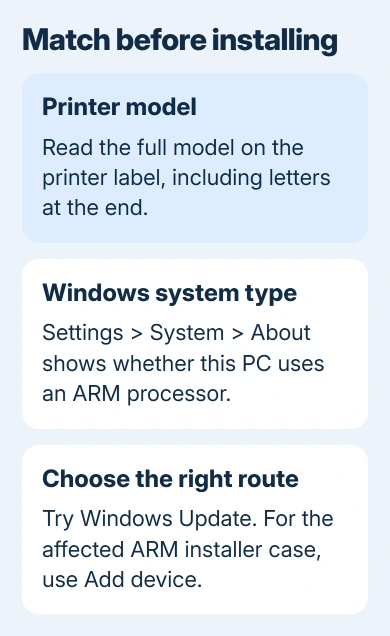
Next open Settings > System > About. Under Device specifications, read System type. If yours has an ARM-based processor, its driver needs to support ARM. A package labeled for an x64 PC isn't automatically suitable.
If the entry instead says Offline, use the printer offline checks for connection and queue settings. An unavailable driver needs the installation checks that follow.
Leave the printer switched on during discovery. For a network printer, put the PC and printer on the same local network. Guest Wi-Fi can provide internet access while preventing the two devices from seeing each other.
2. Let Windows Update look for the driver
In Windows 11, go to Settings > Windows Update. Click Check for updates, install what is offered, and restart if prompted. Then check Advanced options > Optional updates for a relevant driver update.
In Windows 10, open Settings > Update & Security > Windows Update. Check for updates and use View optional updates if that link is offered. Driver updates won't always appear, so an empty list isn't the end of the repair.
Microsoft recommends Windows Update for printer drivers, with the printer maker's package as another route when it doesn't find one.
After restarting, select your printer again in Printers & scanners. Open Printer properties and print a test page when that option is available. A completed page tells you more than the installer saying it finished.
If the driver warning disappears but the page never arrives, the next problem may be the connection or queue. Use the printer won't print guide rather than repeating the driver installation.
3. On an ARM PC, try Add device first
Some ARM computers, including some Copilot+ PCs, can't install a printer through the supplied installer or one downloaded from the manufacturer. In that case, use the Windows printer discovery controls first.
Open Settings > Bluetooth & devices > Printers & scanners > Add device. Let Windows search, then add the printer it finds. Follow any instructions shown for connecting or completing setup.
Use the manufacturer's specific Windows on ARM instructions when it provides them. Don't repeatedly run an incompatible installer, and don't assume a successful download means its driver supports your processor.
If discovery doesn't find a network printer, confirm its connection on the printer's own display or network report. Get Windows to find the printer before trying another driver.
When asking the maker for help, say that this is Windows on ARM and give the exact model. Ask whether its supported route is Windows Add device, an ARM-compatible package or another named method.
4. Get the exact model's official package
On a PC with an Intel or AMD processor, visit the printer maker's official support site. Search the complete model number, including any letters at the end, and select the Windows version and system type shown on your computer.
For example, a Brother owner can start at the official model download search, then select the printer and operating system. Use your own maker's site for another brand.
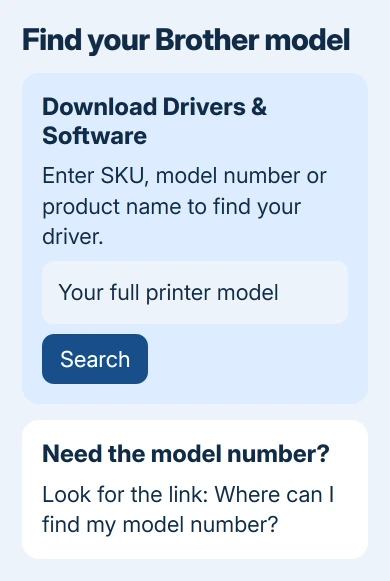
Download the current printer driver or recommended installation package. A scanner-only download doesn't replace the printing driver. Older discs can also contain software that predates your Windows version.
Open the installation package and watch its connection prompts. If it says to leave USB disconnected until asked, do that. A setup program may need to install its software before detecting the printer through that cable.
I'd keep the model's support page open until the test page prints. It helps you confirm whether the package supports printing, scanning, or both without guessing from the filename.
5. Remove the broken entry and add it again
If the correct package is installed but the old entry still reports an unavailable driver, remove that affected printer from Printers & scanners. Keep the model and connection details you wrote down so you can identify it again.
In Windows 11, select the printer and choose Remove. In Windows 10, choose the printer and use Remove device. Confirm the removal, then follow the official installer or Windows Add device route for your model.
For USB, reconnect the cable when the setup instructions request it. For Wi-Fi or Ethernet, add the printer discovered on the local network. Select this new entry when printing the next test page.
Don't erase every printer or empty system driver folders as a general cleanup. Removing a shared office queue can require information or administrator access to restore it. Change only the entry you've identified.
If the printer installs but lacks a feature such as duplex printing or scanning, check which package the maker requires for that feature. Basic printing and a full set of device features aren't always the same installation.
A working printer that ignores choices only in an older Word file needs the Word 2010 compatibility checks as a separate comparison.
6. Ask support for a supported driver route
For an older printer with no package for your Windows version, ask the maker whether Windows provides a compatible built-in driver. Give the full model, Windows version, system type and connection method.
For a work printer added from an organization's print server, give IT the complete warning message. The repair may need a server-side driver or permission that isn't available from your local account.
Include whether Windows Add device finds the printer and whether any test page completes. Those results help support tell whether the driver is missing or the PC can't reach a printer that's already installed.
The Short Version
Match the driver to your printer model and processor. Try Windows Update, or Add device if your ARM PC can't use the maker's installer. Install the matching package if needed, replace a broken entry, and print a test page to check it.
Checked November 13, 2026.






