An older document in Compatibility Mode can make Word 2010 ignore print choices, including page ranges, copies, paper size, or the selected tray. Try a separately converted copy first when new documents print correctly.
When every document has the problem, check the selected printer and its driver instead. Check whether the failure stays with one old file or affects every document using that printer connection.
In this guide
1. Compare the old document with a new one
Create a short blank document in Word 2010 and choose File > Print. Select the intended printer by its full name, then compare the same setting that fails in your older document.
For a copies problem, ask for two copies of that short document. For a tray problem, use the same loaded tray in both tests. Keep the comparison small so a wrong setting doesn't produce a stack of unwanted pages.
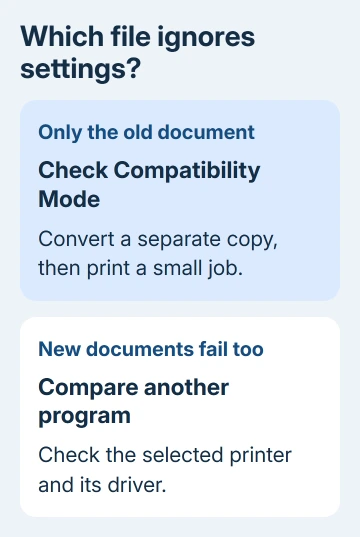
Look for Compatibility Mode in the old document's title bar. A .doc file uses an older format, but a .docx created for Word 2007 can also open in Compatibility Mode in Word 2010.
If the new file prints as requested and the older one doesn't, continue with conversion in step 2. If neither obeys the same choice, check the document and driver settings in steps 3 and 4.
The driver can still be at fault when the preview looks right. The preview displays your page layout, but can't tell you whether the printer will use the right tray or finishing option.
For the ordinary controls, the Word printing guide covers choosing pages, copies, and two-sided output. Continue here when those choices are present but aren't honored.
2. Convert a copy out of Compatibility Mode
Save a duplicate of the affected document with a new name before converting it. Keep the original to compare page breaks and other formatting after conversion.
In Word 2010, open the copy and choose File > Info > Convert when that command is offered. Accept the conversion message, save the document, and check that Compatibility Mode has disappeared from the title bar.
For an old .doc, use File > Save As and choose Word Document (*.docx) with a new filename. Clear the Maintain compatibility checkbox, whose label continues with previous versions of Word, if it is offered.
Microsoft's document conversion instructions explain the distinction between preserving compatibility and using the newer document mode. The .docx ending doesn't tell you the document mode Word is using.
Reopen File > Print and set the same page range, copies, or tray choice that failed. Print a small job. Success means the physical output now follows that choice, not simply that the dialog remembers it.
Several owners in the original printing thread reported improvement after conversion. A later owner said converting .doc files to .docx resolved most of their paper and tray problems.
That later report included Word 2016 too. It supports checking the document format before reinstalling a driver, but doesn't mean conversion repairs every printer or every damaged document.
Review tables, page breaks, headers, and equations in the converted copy before sending the finished print job. If the required content changes, keep the original and ask its author for a copy in the current format.
3. Match the document's paper and tray choices
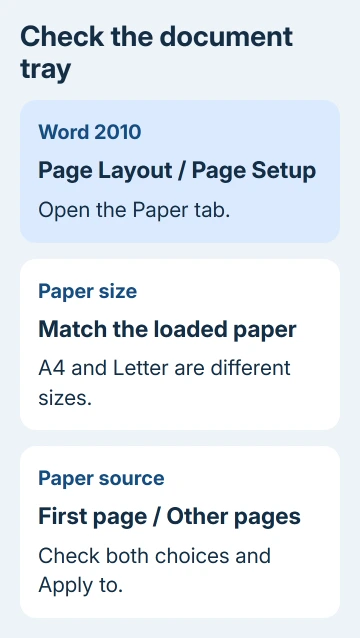
For paper-size problems, select Page Layout > Size in Word 2010. Match A4 or Letter to the paper actually loaded. The newer Word ribbon calls this tab Layout, so follow the label your version shows.
On the Page Layout tab, click the dialog launcher at the corner of the Page Setup group. On the Paper tab, inspect the paper size and the Paper source choices for the first page and other pages.
An old letterhead document may request a different first-page tray. That document choice can explain why the printer isn't using the tray you expected from its Windows default.
Set the intended source for both first and subsequent pages when they should match. Check Apply to before confirming, particularly in a document with separate sections, which can have different page settings.
Return to File > Print > Printer Properties and check the matching driver option. The names of trays, media types, duplex controls, and finishing features depend on the printer and its installed driver.
Choose a setting the printer physically supports. A driver option for a tray or duplex unit that isn't installed won't create that hardware, even if Word lets you choose it.
If paper size and source now agree but output still goes to the wrong tray, compare another program using the same printer. If that program uses the wrong tray too, check the driver next rather than converting more documents.
4. Check the printer driver when all files fail
Compare the printer's controls outside Word. In Windows 7, use Start > Devices and Printers; on Vista, use Control Panel > Printers. Right-click the intended device and inspect its printing preferences.
On Windows 11, printers are under Settings > Bluetooth & devices > Printers & scanners. Windows 10 uses Settings > Devices > Printers & scanners. These menus control the printer setup; they don't change your Word 2010 document's format.
Check the printer model and installed driver. A generic or incompatible driver may lack its tray or finishing choices. Get a replacement from the printer maker's support site matching both the model and Windows release.
For a printer shared by an organization, ask IT to update its queue and driver. Changing a local preference won't necessarily change what the print server provides.
A connection prompt that blocks Word before printing needs the unavailable default-printer checks instead of another file conversion.
If Windows reports that the printer driver is unavailable, solve that installation problem before testing Word-specific tray choices again.
I'd leave driver removal until the new-document comparison and format conversion are finished. The thread includes an owner whose problem continued with updated drivers across different printers, which makes a document comparison useful.
If conversion and matched paper settings fail, send IT or the printer maker a small sample and the exact setting the printer ignored. Include whether a new Word document and another program obey it, plus the printer model and driver name.
Office 2010 is unsupported. For a Word-only failure that survives these checks, have IT compare the sample in a supported desktop Word version before changing a shared printer setup that's otherwise working.
The Short Version
Compare a new document with the old one. Convert a separate compatibility copy when only the old file fails, match its paper and tray choices, and check the driver when the failure affects other files or programs too.
Checked November 16, 2026.