

Word can wait for a printer connection when Windows points it at an unavailable printer, even before you print. Turn off automatic default-printer management and set Microsoft Print to PDF as default. Several owners confirmed this worked.
This applies to the connection dialog that interrupts opening or using a document. A printer that accepts a job but produces no pages needs different queue and connection checks.
In this guide
1. Choose a local default printer
Cancel the connection dialog if it responds, then save the open document. Close Word before changing the default printer. Leave your physical printer installed for now so you can test it without setting it up again.
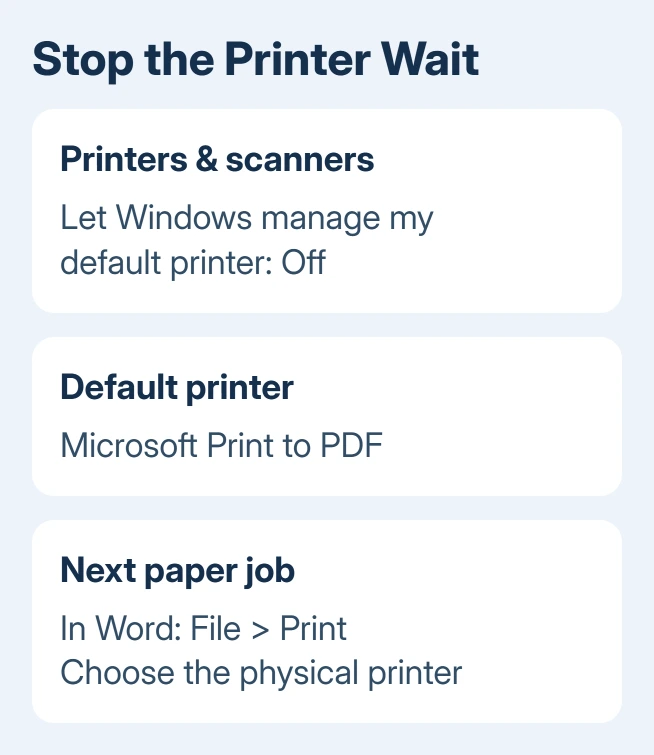
On Windows 11, open Start > Settings > Bluetooth & devices > Printers & scanners. Set Let Windows manage my default printer to Off. Select Microsoft Print to PDF, then choose Set as default.
On Windows 10, open Start > Settings > Devices > Printers & scanners. Disable Let Windows manage my default printer. Select Microsoft Print to PDF > Manage > Set as default.
Microsoft's default-printer instructions explain that automatic management can choose the last printer used. If Set as default is missing, check that automatic management is off first.
A frozen Windows printer list needs the Add device service checks before changing Word's default destination.
Reopen Word and the same document. If it opens without waiting for a connection, keep the PDF printer as default while you test the next print job. That points to printer selection, so leave your document alone while checking the printer.
If the list lacks Microsoft Print to PDF, don't select an unrelated network queue just to match these steps. Use an available local printer entry if you already have one, or ask IT to restore the Windows PDF printer feature.
2. Check the first real print job
A PDF default doesn't send paper to your physical printer. In Word, open File > Print and select the printer you actually want for that job. Check its name before pressing Print.
Start with a one-page document. If Word prints correctly and opens documents normally afterward, you can leave Microsoft Print to PDF as the Windows default and choose the physical device when needed.
Owners in Microsoft's forum fixed it by turning automatic management off and choosing the PDF default. Another owner could switch back to their original printer, but hadn't yet checked whether printing would bring the problem back.
That difference matters. Opening Word successfully is one check; printing and reopening it is another. If the connection prompt returns only after selecting a particular device, check that printer entry and whether you can connect to it.
I'd keep the local default while sorting out a remote printer that isn't always reachable. It takes one extra selection when you need paper, and stops Word starting with a queue you can only reach at another location.
For a Canon device that is also unavailable outside Word, use the Canon connection checks. A Word default-printer workaround doesn't reconnect a printer to Wi-Fi or repair its USB cable.
3. Remove an obsolete printer entry
Look through Printers & scanners for a printer from an old office, a replaced device or a network you no longer use. Several owners stopped the prompt by removing an unavailable printer entry from Windows.
Before removing a work printer, note its exact name and how it was added. A company queue may require a print-server address or IT permissions to restore. Remove only an entry you recognize as obsolete or have permission to reinstall.
On Windows 11, select the obsolete printer in Settings > Bluetooth & devices > Printers & scanners, then choose Remove. On Windows 10, select it in Settings > Devices > Printers & scanners, then choose Remove device.
Open Word again after removing that entry. If the prompt is gone, test the printer you still use. If removing one old printer stops the repeated connection attempt, leave the remaining entries in place.
If you still need the remote printer, ask IT for its current server address and whether your company network or VPN is required. Use those details when adding the printer again, rather than restoring the old queue without checking it.
An owner reported that the prompt still appeared occasionally after a change, although it then cleared by itself. Treat a shorter wait as an improvement, not a complete repair, and keep testing the device that triggers it.
4. Check PDF paper size only when the default change isn't enough
One owner got past the problem by changing Microsoft Print to PDF's paper size to A4. Another was already using A4 and needed only the default-printer change. This isn't a reason to force A4 on every computer.
Open the PDF printer's Printing preferences, then look in Advanced for Paper Size. Use the size required for your documents, such as Letter or A4, and apply the change before reopening Word.
On Windows 10, Microsoft Print to PDF > Manage leads to its preferences. On Windows 11, select the printer in Printers & scanners and open Printing preferences. The layout of the dialog depends on the printer driver.
If Word changes from waiting to reporting no installed printer, compare its list with Windows and check the driver before altering paper size.
Test the same document after applying the setting. If the prompt continues unchanged, restore any paper choice that your work requires and compare Word with another app next. Don't keep alternating paper sizes without a changed result.
If Word prints on the wrong paper but doesn't show the connection prompt, the Word printer-setting checks explain a separate document-format problem affecting older files.
5. Compare Word with another app
Open a small text document in another app and check whether it also waits for the printer. Owners reported the same wait in Word, Visio and other programs, so one damaged Word file didn't explain all the reports.
If several apps stall, keep the focus on Windows printer entries, the selected default and the printer driver. Ask IT or the printer manufacturer to supply the driver for that model and Windows release.
If only Word has trouble, test a new blank document. If only one file fails, ask support to check that file. When every Word file fails but other apps work, update Office and consider an Office repair through Windows app settings.
An empty Office printer list followed by a directory services error needs the Windows-versus-Office comparison.
For Office repair on Windows 11, open Settings > Apps > Installed apps and locate the Microsoft 365 or Office entry. Select Modify from its menu. On Windows 10, use Settings > Apps > Apps & features, select Office and choose Modify.
Run Quick Repair first where it's offered. If it doesn't help, Online Repair is the deeper option; it requires internet access. Before starting a repair, save your documents and exit the Office apps.
What to send IT when Word still waits
Record the exact prompt, Windows version, Word version and selected default printer. Tell IT whether Microsoft Print to PDF removes the wait, which physical printer brings it back and whether another app behaves the same way.
Ask for a check of the unavailable or stale queue, its driver and the print-server connection. If only Office still fails after repair, send Microsoft 365 support a small sample document and explain what happened in the other apps.
The Short Version
Turn off Windows default-printer management and select Microsoft Print to PDF. Reopen Word, then test a paper print job. Remove obsolete printer entries selectively; ask IT to check the remote queue if choosing it brings the wait back.
Checked November 17, 2026.






