

An Active Directory Domain Services is currently unavailable error can appear when Office loses its printer list. Set a Windows default printer first. If other apps print but Office still lists nothing, check Office next.
Clicking Add Printer inside Office can trigger this message. A printer missing from Windows altogether needs a Windows installation check instead. This tells you whether to check Office or the printer connection.
In this guide
1. Choose an installed printer through Windows
Close the Find Printers message and save your Office files. Open Windows' printer settings directly, rather than repeatedly using Add Printer inside Word or Excel. Check whether the intended printer is already listed there.
On Windows 11, open Settings > Bluetooth & devices > Printers & scanners. Set Let Windows manage my default printer to Off. Select an installed printer and choose Set as default.
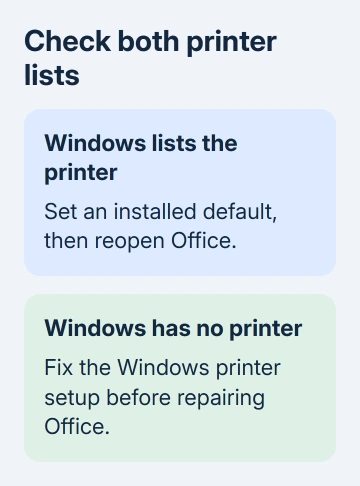
On Windows 10, open Settings > Devices > Printers & scanners. Clear automatic default-printer management, select the printer, choose Manage, and then Set as default.
For the original Windows 7 and Office 2010 combination, open Control Panel > Hardware and Sound > Devices and Printers. Right-click the installed printer and choose Set as default printer.
To check with a printer that saves a file on your computer, choose an installed entry: Microsoft Print to PDF on newer systems or Microsoft XPS Document Writer on older ones. Check which entry your computer actually has.
Reopen Office and check File > Print. If the destination appears, try a small document. These virtual printers save a file. Select your physical printer when you want to print on paper.
One owner in the original discussion restored Office 2010 printing and saving by making XPS Document Writer the default. Another reported success after correcting the default and spooler state.
If Word pauses while opening documents rather than showing this directory error, use the separate printer connection wait checks. The messages look related but interrupt different parts of the workflow.
2. Check whether Windows can print to that same device
In Windows 11's printer settings, select the printer, open Printer properties, and use Print Test Page on the General tab. On Windows 10, open the printer's Manage page to reach Printer properties.
On Windows 7, right-click the printer in Devices and Printers and choose Printer properties, then print its test page. Use the same physical printer that is missing from Office, rather than a second queue with a similar name.
A successful test page means Windows can send a job to that printer. Try a short file from Notepad too. If both work and every Office app has an empty list, check Office in Safe Mode next.
If the test page fails, check the printer's power, connection and installed driver first. For a shared office printer, ask IT whether its print server and required company network or VPN are reachable.
Microsoft's app printing checks distinguish Windows printer failures from faults confined to an app. Reinstalling Word won't reconnect an unreachable printer.
If all Windows printers are unavailable, press Windows + R, enter services.msc, and check Print Spooler, the service responsible for queued print jobs. Use Restart if you have permission, then reopen the printer list.
Restarting that service affects other queued printing on the computer. On a managed machine, ask IT before interrupting jobs. If the service immediately stops again, give IT that result instead of repeatedly restarting it.
3. Compare a blank Office file and Safe Mode
Create a blank Word document, type a short line and open File > Print. Then check a blank Excel workbook. If both applications lose all destinations, the problem affects more than a single damaged document.
Close Word, press Windows + R, enter winword /safe, and check a blank document again. For Excel, close it and use excel /safe. These commands put Word or Excel in Office Safe Mode without changing how Windows starts.
If the printer list returns in Safe Mode, check the application's add-ins. In normal Windows Word or Excel, open File > Options > Add-ins, choose COM Add-ins > Go, and note which items are checked before disabling them.
Restart the application and check the list again. If printing returns, turn on each entry separately and check again. Ask the add-in's supplier or your administrator to update the entry that makes printers disappear.
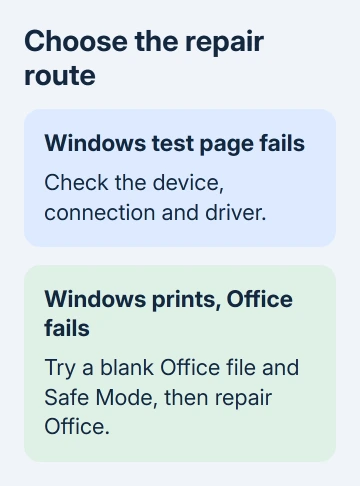
If Safe Mode still shows an empty list while Windows prints, continue to repair. Changing margins or page ranges won't help an application with no visible print destination.
4. Repair Office before considering a reinstall
Save documents and exit every Office app. Press Windows + R, enter appwiz.cpl, and select the installed Microsoft Office or Microsoft 365 product. Choose Change to open its repair options.
For Click-to-Run, try Quick Repair first. If the fault remains, Online Repair repairs more components over an internet connection. For an MSI installation, select Repair and follow its prompts.
After repair, open a blank document and check the printer list before turning your usual add-ins back on. Test one real print job when the printer returns. The printer list can work even when the paper job fails.
The original Office 2010 asker restored printing by removing and reinstalling Office after ordinary Repair failed. Later owners reported that reinstalling didn't solve their copy of the error, so it isn't a universal cure.
Before uninstalling old Office, make sure you have a legitimate installer, your license details and a way to reinstall it. A preloaded Starter edition may lack a reusable installer. Avoid the discontinued Fix It package in the thread.
If Word instead names a template when opening its galleries, follow the Word template-error checks. That named-file error needs different handling from a blank printer list.
When the printer list still stays empty
Send your administrator the full error, your Windows and Office versions, your printer model and what happened when you printed a test page. Include the blank-file and Safe Mode results, plus whether Word and Excel fail together.
Ask IT about Office printer access and the queue driver. On a company domain, have them check printer discovery through the company directory too. A home workgroup PC doesn't need Active Directory installed to fix this error.
Office 2010's support period is over. For that installation, ask about moving to supported Office and Windows versions rather than rebuilding an obsolete setup around a repair download that no longer exists.
The Short Version
Choose an installed Windows default and reopen Office. For an Office-only failure, try Safe Mode before application repair. Reinstalling helped the original owner but failed for others; have a valid installer before removing old Office.
Checked November 17, 2026.






