
Drag a Galaxy S9 notification pop-up downward to reply in a small window over your current app. The app needs to support both Multi window and Edge lighting; if dragging doesn't work, check its support and notification settings.
A brief banner, an Edge lighting alert and a floating app window work differently. Check which one you're seeing before changing settings. Newer Galaxy phones can have menus that your S9 doesn't offer.
1. Expand the notification while it is visible
Wait for a message notification while another app is open. When the notification pops up, drag downward on it. If the messaging app supports this feature, its content can open in a small window over your current screen.
Samsung describes that gesture in its Galaxy S9 notification-window instructions. It lets you reply during a video or game without switching away to the full messaging app.
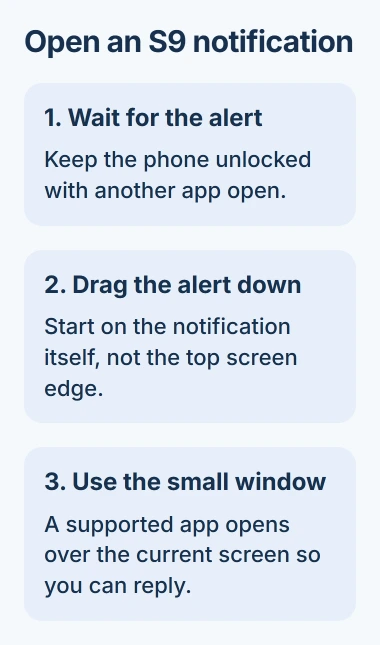
Start dragging on the notification itself, away from the screen's top edge. Swiping down from that edge opens the notification panel instead.
If the notification has disappeared, send another test message instead of swiping where it was. Use the same app each time and a conversation with someone who knows you're testing it.
Even if tapping the notification opens the full app, dragging it downward may open a window. Tapping and dragging do different things, so try dragging before deciding the feature is missing.
2. Check the S9's supported-app list
On the original Galaxy S9 layout, open Settings > Display > Edge screen > Edge lighting > Manage notifications. Locate your messaging app and check its switch.
This S9-specific supported-app route shows which apps you can use. To open a notification in a window this way, the app needs both Edge lighting and Multi window support.
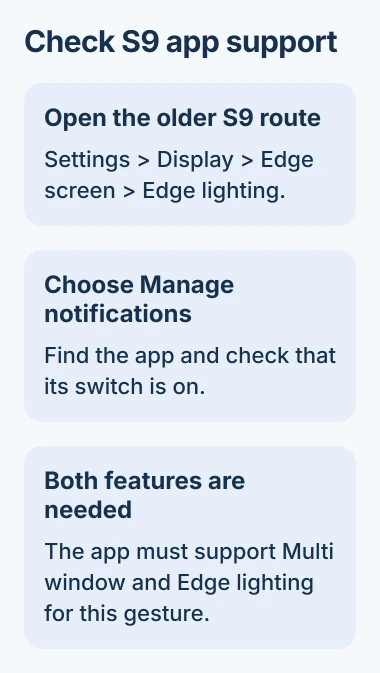
If it is listed and switched off, enable it and try another incoming notification. If it isn't listed, choosing a different lighting effect won't add support to that app.
Menu names can vary with your software and region. If you don't see that Display route, search Settings for Edge lighting, then check your model's manual for the controls that let you choose apps.
A newer Galaxy's Lighting effect menu may not exist on your S9. Use the controls available for your phone's model and software version.
If pop-ups work in other supported apps, open the failing app's settings next. I'd check those before considering a phone reset.
3. Make sure the app can send the notification
Open Settings > Apps, choose the app that isn't working, then open Notifications. Check that notifications are allowed. If you see categories, open the one for the messages you're testing.
A category is one type of alert from an app, such as incoming messages. Even with the app's notifications turned on, one category can be switched off or set to arrive silently.
Google's Android notification controls let you turn notifications off or receive them silently. Labels vary, so check the app and category names shown on your S9.
If you see Show as pop-up in the category, turn it on for the alerts you want. Apps can offer different controls, so an option in another app's settings may not appear here.
Send a new message with your phone unlocked and another app open, then pull down the notification panel. If the message is there but didn't pop up, it reached your phone. Check how that alert is set to appear.
For alerts that can wait until later, the Android notification guide explains silencing one category without blocking the whole app.
If nothing arrives until you open the app, check its background activity restrictions. A notification-window setting can't display an alert the app hasn't delivered yet.
4. Use Smart pop-up view when that option exists
Some versions of One UI, Samsung's phone software, have Settings > Advanced features > Smart pop-up view. If your S9 shows that option, open it and turn on the supported apps you want to use.
The earlier One UI instructions show this Advanced features setting on an S10. Use those steps only if your S9 has the same control.
With an app enabled here, its next notification can appear as a small floating icon. Tap that icon to open the window, read the message and reply. This works differently from dragging down a banner.
The window's controls let you change how see-through it is, minimize it, expand it or close it. Closing the current window doesn't necessarily stop the app's next notification from popping up.
To stop that app's floating notifications, go back to Smart pop-up view and switch it off there. Keep its ordinary notifications turned on if you still want messages in the notification panel.
I'd turn on one messaging app and test it first. Enabling every app at once can leave you sorting through several kinds of alerts without knowing which setting caused each one.
5. Separate window support from screen-off alerts
For an S9 using One UI, open Recents and tap an app's icon. The Open in split screen view option, when offered, shows that the app supports that Multi window action.
The S9 Multi window instructions explain that this option appears only for supported apps. It tells you whether split screen is available; the app still needs alert support for notification pop-ups.
If the pop-up works while another app is open but not with the screen locked, check lock-screen notification settings separately. Decide whether message content should be visible there before enabling previews.
A lock-screen preview shows a message while your phone is locked; the reply window works over an open app or game. Changing one setting doesn't automatically change the other.
If it still fails, find your Android version under Settings > About phone > Software information. Tell Samsung or the app's support team that version, which app failed and whether its alert reached the notification panel.
Also tell support whether the app appears in Edge lighting or Smart pop-up view. That helps them check whether your phone is missing the feature, the alert is turned off or dragging has stopped working.
The Short Version
Drag a visible S9 notification downward, check its Edge lighting app support, and confirm the message category can show alerts. Use Smart pop-up view only when your software offers it, and test unlocked and locked behavior separately.
Checked November 4, 2026.

Isaac Smith is the founder and editor of PC Glance, a website that covers computers, laptops, and technology. He is a tech enthusiast and a computer geek who loves to share his insights and help his readers make smart choices when buying tech gadgets or laptops. He is always curious and updated about the latest tech trends.