
Android's battery settings can stop an app when the screen turns off. First, let that app work in the background, especially if your music, download, or tracking starts again as soon as you unlock the phone.
Samsung's sleeping-app lists and Pixel's Battery Saver can cause this. If the app crashes while you're using it, you'll need different checks, so start by watching exactly when it stops.
1. Check whether the app stops or just goes quiet
Start your music, download, or tracking, then lock the phone and wait for it to stop. Unlock it and check whether playback or the download continues, or whether the app opens from its starting screen again.
Samsung says restricted background activity can interrupt audio when a phone sleeps. Check that setting first if your app works with the screen on but stops when you lock it.
Status: reviewed November 3, 2026. Samsung and Google describe separate battery and background-data controls. Menu wording depends on your phone and Android version.
If messages arrive in the app without making a sound, check its Android notification switches. Letting an app run in the background won't unmute its alerts.
If the app throws you back to Home while you're using it, follow the Android app-crash checks. Keep going here when locking the screen is what triggers the interruption.
I'd change the permission for that one app before changing battery settings for the whole phone. That makes the result easier to judge and lets your other apps keep saving power.
2. Let the affected app use battery in the background
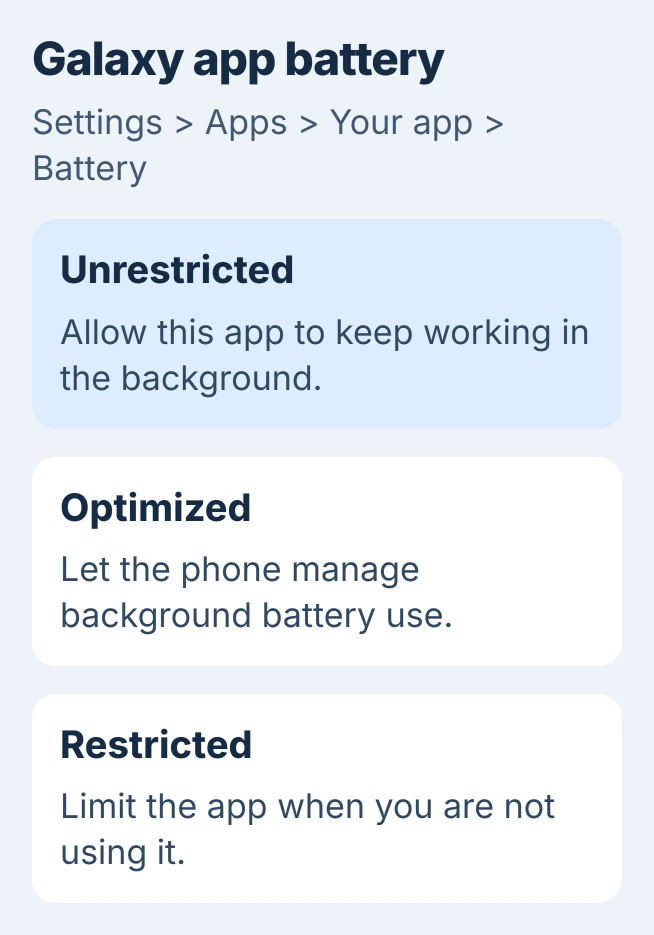
On a Samsung Galaxy, find the affected app under Settings > Apps and open its Battery page. Choose Unrestricted, then reopen the app and repeat your screen-off check.
The three choices control what happens when you leave an app. Restricted limits background use. Optimized manages it based on how you use the app. Unrestricted lets it keep working.
This can use more battery, so change it only for the app you need running. If it doesn't help, you can put that app back on Optimized while checking the other causes.
On a Pixel, open Settings > Battery > Battery usage. Choose View by apps if needed, select the app, then open Allow background usage. Check that background use hasn't been turned off.
Google's Pixel battery instructions give that route. Settings > Apps > App battery usage also lets you review apps. Available choices depend on the app and Android version.
If enabling background use restores playback or syncing, leave that permission on. If the app still stops, check the separate sleep list on Galaxy or the saver mode on Pixel.
3. Remove a Galaxy app from the sleeping lists
A Galaxy has another set of controls that can stop apps in the background. Search Settings for Sleeping apps, open the matching result, and check both Sleeping apps and Deep sleeping apps.
Select the affected app and use Remove. Depending on your software, touch and hold its entry, or open the three-dot menu and choose Remove apps before selecting it. You're taking it off the sleep list, not uninstalling it.
Samsung states that deep-sleeping apps work only when you open them. Its sleeping-app guide also describes Never sleeping apps, where you can add an app that must remain available.
The longer route on some Galaxy versions is Settings > Battery and device care > Battery > Background usage limits. Newer layouts can show Battery directly in Settings; searching for the list avoids the layout difference.
Start your music or other activity again after removing the entry. If it keeps going when you lock the screen, leave it off the sleep list. If it still stops, a power-saving mode for the whole phone may be limiting it.
4. Check Power saving or Pixel Battery Saver
On Galaxy, go to Settings > Battery and turn Power saving off for a comparison. On Pixel, open Quick Settings by swiping down, then switch Battery Saver off. Restart the affected activity and lock the screen again.
Google says standard Battery Saver limits background apps and stops location services while the screen is off. That means an app recording your route can behave differently from a music player.
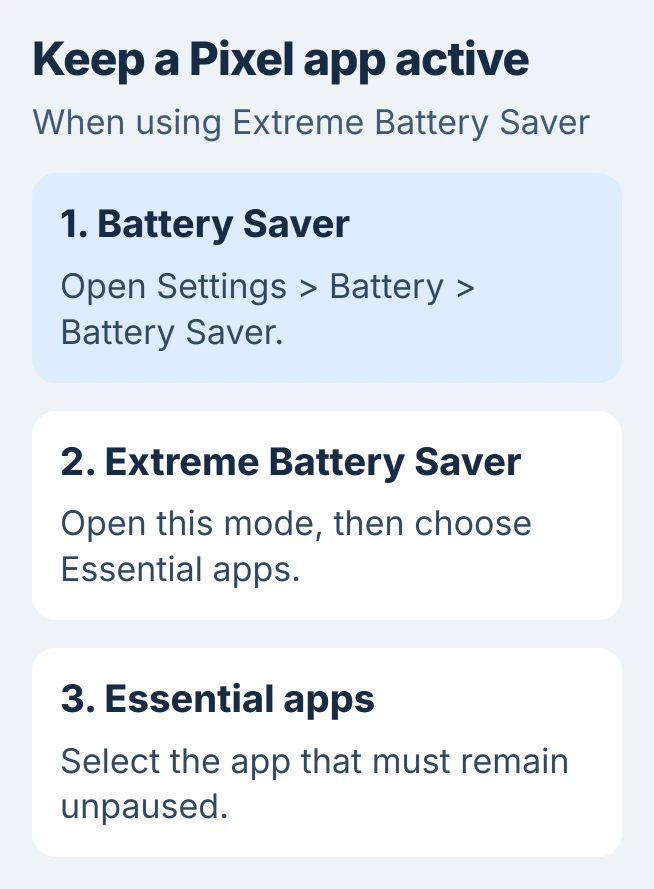
Pixel's Extreme Battery Saver pauses most apps. If you need that mode, open Settings > Battery > Battery Saver > Extreme Battery Saver > Essential apps, then choose the app you need to keep active.
If the interruption starts at the same battery percentage each day, review Battery Saver > Schedule and reminders on Pixel. An automatic schedule can explain why the app behaves normally earlier in the day.
Once you know which saver stops the app, either make an exception for it or turn that saver off during the activity. Allow for the extra battery use on a long recording or journey.
5. Check data access when the app only works on Wi-Fi
An app can stay open but lose access to data. Compare Wi-Fi with cellular data. If it stops only on cellular after you lock the phone, check Data Saver before changing more battery settings.
For Pixel, open Settings > Network & internet > Data Saver > Unrestricted data. Enable the affected app. Google's Data Saver instructions explain this exception.
On Galaxy, search Settings for Special access. Open Apps that can always use data and enable the affected app's switch. Samsung gives this route for allowing an app through Data Saver.
Try the download or stream on cellular with the screen locked. If it now works, that points to data access rather than the app closing. This exception lets the app use your data allowance while the screen is off.
6. Check the app's own playback rules and updates
If the phone's restrictions aren't responsible, open the app's own settings. Look for a sleep timer, playback limit, or background-play option. Some services limit background playback by subscription or content type.
Install an available app update through its store, then check for a phone software update. Samsung includes both in its audio-interruption repair steps.
If the app still stops, contact its developer. Include your phone model, Android and app versions, whether it works on Wi-Fi, how long after locking it stops, and whether it starts again when you unlock the phone.
Those details help the developer check background playback, the connection, or a crash. They also give them steps to repeat, which is more useful than a report that the app randomly closes.
The Short Version
Allow the app to work in the background, then check sleeping lists or saver modes. For cellular-only interruptions, check Data Saver. If nothing changes, review the app's playback rules and report when it stops after locking.

Isaac Smith is the founder and editor of PC Glance, a website that covers computers, laptops, and technology. He is a tech enthusiast and a computer geek who loves to share his insights and help his readers make smart choices when buying tech gadgets or laptops. He is always curious and updated about the latest tech trends.