
To disable notifications on Android, open Settings > Notifications > App notifications, select the app, and switch its notifications off. This stops that app's alerts while leaving other apps available to notify you.
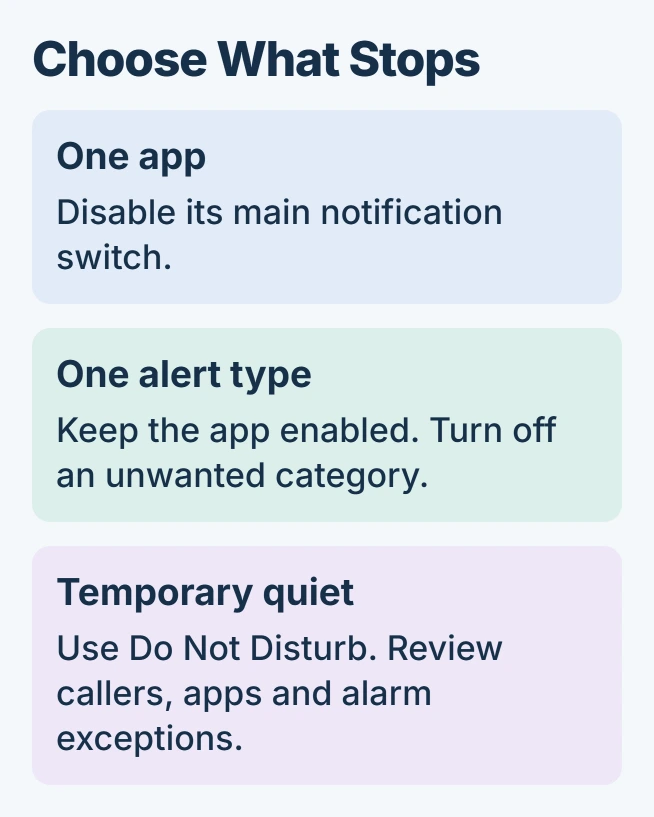
For unwanted promotions inside an otherwise useful app, disable its notification category instead. For a temporary quiet period, Do Not Disturb can filter interruptions without requiring every app to be switched back on later.
Turn off the app that sends the unwanted alerts
Open Settings > Notifications > App notifications. Find the app under the recent list, or change the list to All apps. Select it and turn off its main notification switch.
Google documents that route in its Android notification controls. Labels vary by phone; the important check is that the settings page names the app actually sending the alert.
Status: Google and Samsung notification instructions checked November 1, 2026. App switches, categories and temporary modes have different effects. No phone settings changed.
An alert already on screen offers a shortcut: swipe down, touch and hold the notification, then open its Settings. This reaches the relevant sender without guessing from a similar app name.
Swiping an alert away only dismisses that item. It does not remove the sender's permission to deliver the next one.
For an unfamiliar website named inside a Chrome notification, use the Android website-alert removal steps. Blocking the entire browser also removes alerts from sites you intended to keep.
Keep useful alerts by disabling only a category
Leave the app's main switch on, then inspect its notification categories. Turn off the category that describes the unwanted alerts, such as promotions, while retaining categories needed for messages or account activity.
Categories depend on the app. When no separate category exists, check its own notification preferences. Without separate categories or in-app options, the remaining choices are silencing or blocking that app.
On a Galaxy, open Settings > Notifications > Advanced settings and enable Manage notification categories for each app. Then return to App notifications, choose the app, and open Notification categories.
Samsung says that extra switch enables category management in its notification guide. It exposes the controls without disabling alerts. Switch off the unwanted categories afterward.
Wait for the next relevant event and check the result. If a promotion still appears, hold that notification to confirm which app and category actually sent it before changing more settings.
Choose silence or a temporary pause when alerts still matter
Google says Silent notifications remain visible in the notification shade without sound or vibration. Choose that option when reading the alert later is useful but an interruption is not.
A silent message can still share reading status; the Android receipt switches control that separately inside the messaging app.
For a quiet session across apps, open Settings > Modes > Do Not Disturb on phones with the current Modes layout. Review Notification filters, including people, apps and alarms, then enable the mode.
Google's Modes instructions explain these exceptions and the duration controls. Older phones can place Do Not Disturb under Sound & vibration; search Settings if Modes is absent.
Do Not Disturb is not a guarantee of complete silence. Allowed callers, apps or alarms can still interrupt according to the configured filters, and Google states that critical system notifications remain available.
Find the sender when the interruptions continue
If the app name disappears too quickly, check Settings > Notifications > Notification history when the phone provides it. On Galaxy models, Samsung places history under Notifications > Advanced settings.
Notification history must be available and enabled to help with later dismissed alerts. Use the record to identify the sender rather than assuming every alert with the same icon belongs to the same application.
The Android screen-time guide explains the separate notification-count view in Digital Wellbeing. A count can identify a busy app, but changing the report's view does not change notification permissions.
For an unavailable or locked notification switch, give the phone maker the app name and Android version. Ask the administrator for help on a managed phone. Some system alerts offer fewer controls than downloaded apps.
The Short Version
Disable the app's main switch for a lasting block, or turn off one category to keep useful alerts. A Silent category still delivers alerts to the shade; Do Not Disturb temporarily filters interruptions.

Isaac Smith is the founder and editor of PC Glance, a website that covers computers, laptops, and technology. He is a tech enthusiast and a computer geek who loves to share his insights and help his readers make smart choices when buying tech gadgets or laptops. He is always curious and updated about the latest tech trends.