
Pixel call vibration has separate controls, so messages can buzz while incoming calls stay silent. Open Sound & vibration > Vibration & haptics and check the call setting before changing keyboard or notification feedback.
Watch what happens when someone calls. A call that appears without a buzz needs different checks than a call that never reaches your phone.
1. Turn on vibration for incoming calls
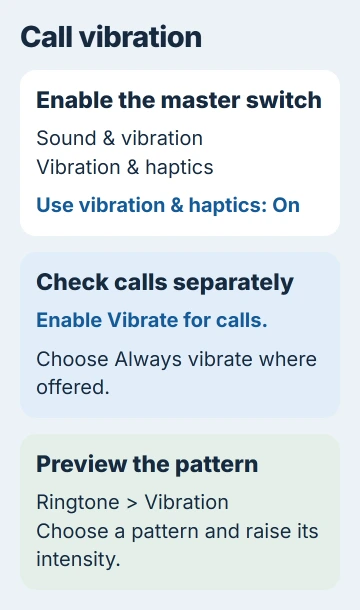
Open Settings > Sound & vibration > Vibration & haptics. Turn on Use vibration & haptics if it's off, then check the call controls too. The main switch isn't the only setting that matters.
Labels vary with the Android version. Look for Vibrate for calls, and choose Always vibrate where that choice appears. On versions with a Ring vibration slider, move it away from the off position.
Google says you can also use the volume-panel route to call vibration: press a volume button, open its menu, and expand the controls if the call setting isn't visible.
Have someone call your number with the phone locked. Look for the incoming-call screen and feel for a buzz. Use a regular phone call for this check because text messages have separate vibration settings.
If the call now vibrates, leave the other settings alone. If it appears without a buzz, check the ringtone's vibration next. If no call screen appears, check whether calls are reaching your phone or being filtered.
2. Preview the ringtone's vibration pattern
Open Settings > Sound & vibration > Ringtone > Vibration if your version offers that screen. Choose a pattern, tap it to preview the vibration, and raise its intensity to a level you can feel.
Some versions include Matches ringtone, which makes the vibration follow your chosen sound. Use the pattern and intensity controls your phone offers. An older Pixel may not have every option available on a newer one.
I'd try a strong vibration first, then lower it once calls work. It's easier to tell whether vibration is weak or missing without changing several unrelated settings.
Check whether the preview buzzes. If it does, your phone can vibrate with that setting. A mode could still be stopping incoming calls from alerting you.
If neither the preview nor calls vibrate, check sound mode, then continue to the restart and update step. If the preview works but calls don't, check Modes and call filters next.
3. Choose Vibrate instead of Mute
Press either volume button and tap the sound-mode control beside the volume slider. Choose Vibrate for calls that buzz without ringing. Mute is a different setting, so a silent phone isn't necessarily set to vibrate.
Turning media volume up won't fix this. Media volume controls music and videos; call volume controls how loudly you hear the other person during a call. Neither controls vibration for incoming calls.
Have someone make another regular call to your phone. If it vibrates now, the sound mode was the problem. If it goes silent again after a routine starts or you change locations, check for an automatic rule.
Under Settings > System > Rules, check for a rule that switches your phone to silent, vibrate, or Do Not Disturb at a certain location or Wi-Fi network. Change that rule if the problem keeps returning there.
If only one contact has the wrong sound, the Android ringtone controls explain how to change their ringtone. That changes the sound; you'll still need call vibration enabled.
4. Check Modes when calls are being silenced
Open Modes from Quick Settings after swiping down from the screen's top edge. Temporarily turn off an active Do Not Disturb, Bedtime, or Driving mode, then check a call from the same number again.
If calls alert normally with the mode off, open Settings > Modes, select that mode, and review Notification filters > People. Adjust who can call through instead of turning every notification back on.
A schedule can turn a mode back on after you've switched it off. Check its automatic activation controls if calls go silent at bedtime or during a drive.
If app messages are silent too, check the Android notification switches for that app. App notifications and filters for regular phone calls have separate settings.
If a regular call never appears but a messaging-app call does, tell your carrier. WhatsApp or another app can receive calls even when calls to your mobile number aren't getting through.
5. Compare adaptive vibration, then restart and update
On a Pixel 7 or later, including Fold models, Adaptive vibration can adjust vibration strength to suit your surroundings. Look under Sound & vibration > Vibration & haptics if your phone supports it.
Turn it off temporarily if calls vibrate too weakly. Compare a call with your phone resting on the same surface. If the strength doesn't improve, restore your preferred setting and continue with the other checks.
Pixel 6a has a different Adaptive alert vibration option. Check the description of the setting your phone offers, since the feature name and options differ between models.
Restart the phone if the controls look correct but vibration still fails. Pixel 6 and later normally open the power menu with Power + Volume Up; Pixel 5a and earlier use the Power button. Choose Restart.
Next, open Settings > System > Software update and install an offered update. Older builds can label this System update. Finish the restart, then repeat the call and pattern-preview comparison.
If previews and calls still don't vibrate, contact Pixel Support. Give them your model and Android version, and say whether touch feedback works and incoming calls appear on screen. Those details help explain what's failing.
The Short Version
Enable call vibration, raise the pattern's intensity and select Vibrate. Review Modes when calls are silenced. Compare the ringtone preview with an incoming call, then contact support if vibration stays absent.
Checked November 5, 2026.

Isaac Smith is the founder and editor of PC Glance, a website that covers computers, laptops, and technology. He is a tech enthusiast and a computer geek who loves to share his insights and help his readers make smart choices when buying tech gadgets or laptops. He is always curious and updated about the latest tech trends.