
Android screen time is in Settings > Digital Wellbeing, sometimes named Digital Wellbeing and parental controls. Tap the usage chart to see which apps occupied the screen and for how long. Check the displayed day before comparing totals.
This answers how long apps were in use. Battery consumption, notification counts and how often an app was opened are separate measurements, even when the phone shows them near the same chart.
Open the usage chart and read its selected measure
Find Digital Wellbeing in Settings, or search Settings for that name. On the first visit, complete any profile setup requested. Google describes the chart as today's activity in its Digital Wellbeing instructions.
Tap the chart, then an app for more detail. If the view is showing a count of notifications or openings, switch the displayed measure to Screen time to read app-use duration.
Status: Android and Samsung usage-report controls reviewed November 1, 2026. Device layouts differ. No phone history was accessed, and no personal screen-time total is claimed.
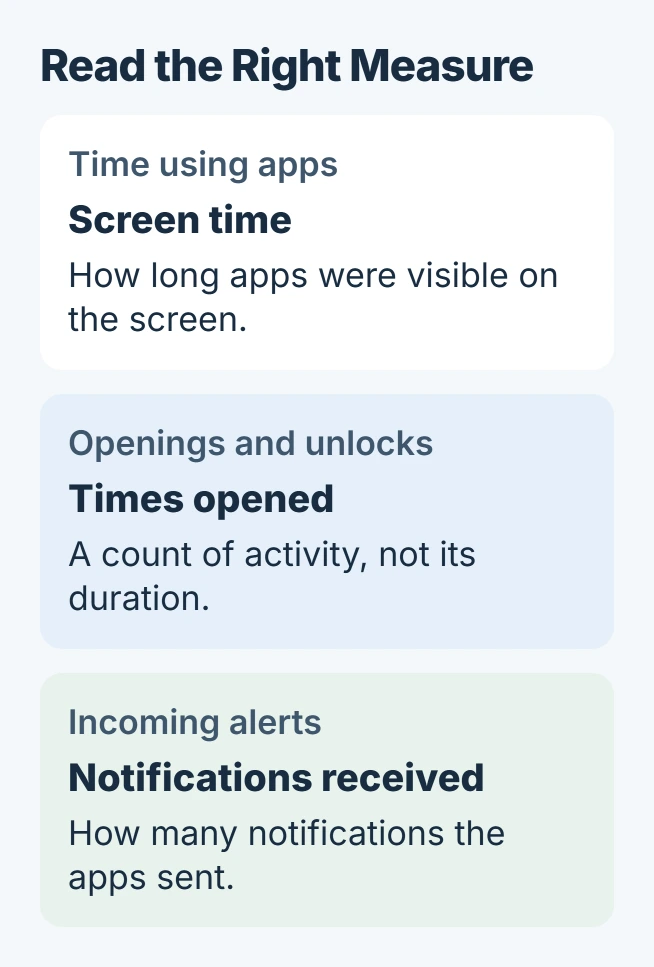
Google says Screen time describes how long apps were on screen. Times opened concerns unlocks and app openings, while Notifications received counts alerts. A large alert count cannot tell you how long the app stayed visible.
To reduce alerts from a busy sender, disable the app or selected notification types after identifying it in the report.
For battery loss, use the Android battery-usage checks. A screen-time report by itself cannot establish which background activity consumed the charge.
Check the daily and weekly views on a Galaxy
On Samsung models using the longer menu name, open Digital Wellbeing and parental controls and tap the Dashboard. Samsung documents that route for the Galaxy A16, A26, A36 and A56.
Other Galaxy layouts open the usage overview directly under Digital Wellbeing. Read the date and the apps listed before treating a total as today's result.
For a weekly comparison, tap the Weekly report icon at the upper right. Samsung describes it as four vertical lines in its Digital Wellbeing guide.
That report includes average daily screen time and frequently used apps. Samsung says a screen-time goal is unnecessary to view it, so checking usage does not require setting a limit first.
Our comparison method is to use the same period and measure each time. A partial day's total and a full week's daily average answer different questions; neither should be read as the other's value.
Add a shortcut if this is a regular check
On a supported Android phone, press and hold a blank spot on its Home screen. Choose Widgets and find the screen-time widget. Hold the widget and place it on the intended Home screen page.
Google states that this widget shows the three apps used most that day. Open Digital Wellbeing when the full breakdown is needed instead of assuming the widget contains every app.
If Pixel widgets disappear from both the Home screen and the widget picker after restarting, use the Pixel widget-recovery guide. That is a separate problem from an empty usage chart.
The menu is missing or the account is supervised
Google limits its general instructions to supported phones; manufacturers arrange these controls differently. Search Settings first, then check the phone maker's instructions using the exact model and Android version.
For an empty first-use report, review Digital Wellbeing > More > Manage your data and finish the offered setup. Do not interpret an empty chart as proof the phone has never been used.
On a supervised account running Android 15 or later, Google documents Parental controls > App activity > Go to Digital Wellbeing. Its supervised-account guide keeps parental limits in Parental controls.
If a supported phone still shows no activity after setup and normal use, contact its manufacturer. Give the model, Android version and the measure that stays empty, without sending a complete private app history unless needed.
The Short Version
Read Screen time in Digital Wellbeing for app-use duration. Match the date and measure before comparing results, and use Samsung's weekly report for a longer view. Battery use and notification counts describe different activity.

Isaac Smith is the founder and editor of PC Glance, a website that covers computers, laptops, and technology. He is a tech enthusiast and a computer geek who loves to share his insights and help his readers make smart choices when buying tech gadgets or laptops. He is always curious and updated about the latest tech trends.