Parental controls on Android use separate settings for app blocks, screen time and websites. Use Family Link to manage a child's supervised account from your phone.
Supported Android 17 devices also offer local parental controls protected with a PIN.
In this guide
Choose account supervision or controls on one device
Family Link is the route for managing your child's Google Account and supported devices remotely. Install the parent's Family Link app on your own Android phone or iPhone, then follow the supervision setup to connect your child's account.
Local on-device controls are different. Google says the latest Android 17 or later is required for local parental controls. A phone without those local controls can still use supported Family Link supervision.
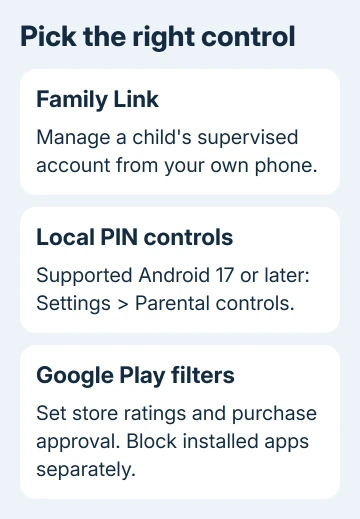
Google Play rating limits control what's available in the store, rather than everything on the phone or web. Choose a control based on your goal: blocking an installed app, filtering websites, preventing purchases or setting a time limit.
For a household that also has an iPhone, use its iPhone parental controls separately. Installing the parent's Family Link app on an iPhone doesn't turn that iPhone into a supervised Android device.
Set up Family Link with the child's account
Keep the child's phone nearby and online. For an existing account, open Settings > Google > All services, then Parental controls under Kids & Family. Tap Let's do this and select the account.
Complete the account and parent-verification screens. Adding supervision to an existing account needs the child's consent. For a child too young to manage their own account, use child-account setup and enter their real birth date.
Open Family Link on your phone and select the child. Check that the phone you want to manage is listed before changing its rules. A restriction applied to a different child's profile won't change the phone you're holding.
If setup fails, use the displayed error to check account requirements. Don't create replacement accounts to bypass it. Keep track of the child's email and the parent's managing account.
Block an installed app or give it a time limit
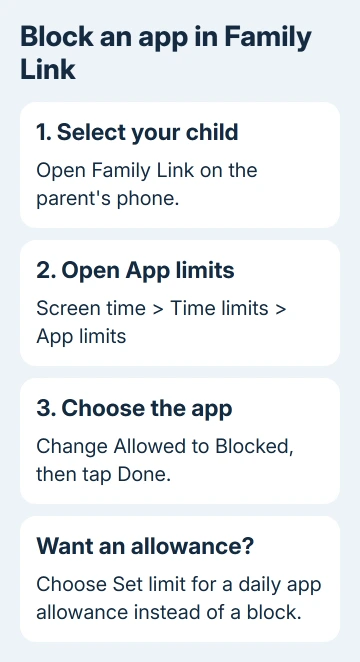
In the parent's Family Link app, select the child, then open Screen time > Time limits > App limits. Choose the app. Tap its Allowed control so the status changes to Blocked, then tap Done.
The block normally takes effect in about five minutes, or after the child's device reconnects to the internet. If the child is using the app, they get a one-minute warning. Some essential system or supervision apps can't be blocked.
For a daily allowance instead of a full block, select the app, choose Set limit, enter the hours and minutes, and tap Done. Check the result on your child's device. A time limit allows that much use; it doesn't block the app straight away.
Review Unlimited time if an app remains available after the daily allowance ends. That choice differs from an ordinary limit. Use Blocked to prevent access instead of repeatedly shortening the allowance.
The Android screen-time guide explains the usage view on the device. Seeing how long your child uses an app can help you choose a limit. The usage display alone doesn't set a limit protected by parental controls.
Restrict websites and new Google Play content
For supervised browsing, select the child in Family Link and open Controls > Google Chrome and Web. Choose Try to block explicit sites for filtering, or Only allow approved sites for access limited to the sites you approve.
Under Manage sites, open Blocked sites or Approved sites, then Add a website. Enter the address carefully. A rule for one specific website doesn't automatically cover differently named sites or every related address.
Automatic filtering can miss content. Check the browser and account actually used on the child's phone, then try a harmless blocked test site. Chrome's setting won't block content in every app.
For store restrictions, open Controls > Google Play. Choose ratings for apps, games and other available content. Review purchase approval too: ratings and payment approval serve different purposes.
An app already on the phone needs its own block to prevent access. An app you've approved before can also be treated differently if your child downloads it again. Check installed apps as well as the store's rating filters.
Use local PIN controls on Android 17 or later
On a supported device, open Settings > Parental controls > Set up Parental controls PIN. Create and confirm a PIN of at least four digits. Add and verify a recovery account so you can recover access if you forget the PIN.
Keep this PIN private from the child. The recovery-account setup doesn't sign that Google Account into the phone. You can't turn on local controls with some setups that use multiple profiles, including a work profile or private space.
To block an app locally, open Parental controls > App limits, select the app and turn off Allow app. Blocking hides it from All apps. For an allowance, use Set time limit on the app instead.
For the whole phone, choose Daily limit, turn on Use daily limit, select a day and set the hours and minutes. For a schedule, open Downtime, turn on Use downtime, then select the day and start and end times.
Under Web content filters, enable Block explicit sites and Filter explicit search results as needed.
These filters work in supported Google app and Chrome versions, and in Android System WebView, which displays web pages inside apps. Other providers must support the feature too; it won't filter every app.
Check that the chosen block works
Try opening the blocked app on the child's phone once it's online and the change has had time to arrive. Check the account, device and app name if it still opens. In Family Link, confirm the status actually says Blocked.
I'd start with one app and one website rule, check both, then add the rest. That makes it easier to spot an account mismatch before you build a long list of settings on the wrong profile.
If supervision still won't work, use the contact or community option in Family Link Help. For missing local controls, ask the phone maker. Provide the Android version, managing account, affected app and setting used.
The Short Version
Use Family Link for account supervision and remote rules. Block installed apps separately from store ratings; set website limits in Chrome controls. Supported Android 17 devices also have local PIN controls.
Checked November 10, 2026.