Pixel Buds pair from their open case with both earbuds inside. Hold the pairing button until the light pulses white, then select the buds on your device. A compatible Android phone can show a setup notification that handles the connection.
Opening the case reconnects buds that already know your device, but a new phone or laptop needs pairing mode. Start with the case and earbuds charged so a flat battery doesn't leave you waiting for a Bluetooth name that never appears.
In this guide
Put the earbuds into pairing mode
Put each earbud in its matching charging well. Leave the lid open and put the case beside the device you're connecting. Keep the earbuds in the case while your device searches for them.
Press and hold the pairing button on the rear of the charging case. Let go when the earbuds status light starts pulsing white. Around three seconds starts pairing on current models, but watch the light rather than counting alone.
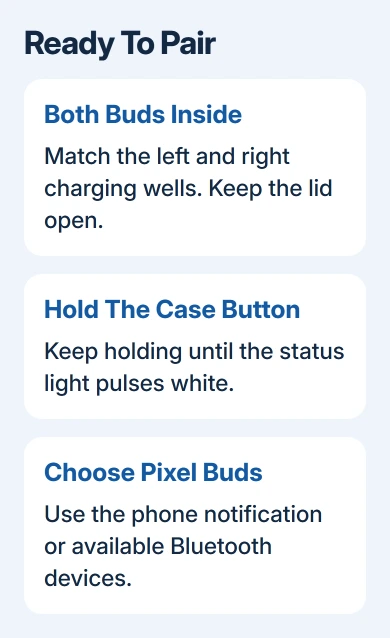
Google says to use the open case for Android setup and manual Bluetooth pairing. The same sequence lets you add another device to buds you've used before.
Charging lights vary between models. Steady white can mean fully charged; newer cases can breathe white slowly while charging. Watch for the change to the pairing pulse after you hold the button.
I'd get that pairing light working before opening more settings. A phone can't discover the buds as a new accessory while the case is only showing its battery status.
Connect to a Pixel or another Android phone
Unlock the phone and turn on Bluetooth and Location. With the open case nearby and its light pulsing white, look for the Pixel Buds setup notification. Tap it and follow the prompts to finish.
Android setup supports version 6.0 and later. Full features need a Google Account, internet access, and updated Google app and Google Play services. Basic Bluetooth audio doesn't include every optional feature.
If the notification doesn't appear, use manual pairing:
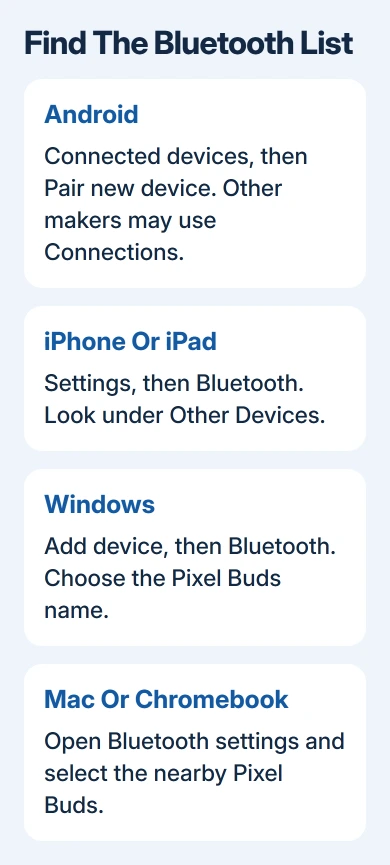
- Open the phone's Settings and its Bluetooth device list. On a Pixel, use Connected devices > Pair new device.
- Keep the case open with both buds inside and the pairing light pulsing.
- Tap the Pixel Buds name in the available-device list.
- Accept the pairing prompt, then finish any setup screens that appear.
Another Android maker may place this list under Connections > Bluetooth. Look for available devices rather than only the list of previously saved accessories. The saved list won't show new buds until the phone finds and pairs with them.
Once connected, take the buds out, put them in your ears, and play familiar audio at a comfortable volume. Check the phone's media output if music still comes from its speaker.
Connect an iPhone or iPad from its Bluetooth list
On the iPhone or iPad, leave Settings > Bluetooth open. Put the Pixel Buds case into pairing mode, then tap their name when it appears. Wait until the saved entry shows Connected.
This uses ordinary Bluetooth audio. The Android setup notification won't appear on an iPhone, and the connection doesn't add Android-only companion features to iOS.
For an iPad, use the same Bluetooth settings route. Don't look for an AirPods setup animation or choose a reset just because the Pixel Buds don't present one. Select the Pixel Buds entry to connect.
Play a short recording after connecting. If the buds show Connected but another speaker plays, choose the buds in the device's audio output control before repeating pairing.
Add a Windows PC, Mac, or Chromebook
Start pairing mode again when adding your computer. The phone remembering your buds doesn't automatically add them to a laptop's saved Bluetooth devices.
On Windows 11, open Settings > Bluetooth & devices > Add device > Bluetooth, then select the Pixel Buds. On Windows 10, use Settings > Devices > Bluetooth & other devices > Add Bluetooth or other device > Bluetooth.
On a Mac, open Apple menu > System Settings > Bluetooth, find the buds under nearby devices, and click Connect. Older macOS versions put Bluetooth inside System Preferences instead.
On a Chromebook, open Settings > Bluetooth > Pair new device. Select the buds under Available devices and allow pairing to complete.
If your PC has no Bluetooth control, check whether its Bluetooth hardware is available before troubleshooting the earbuds. Our Windows Bluetooth switch guide covers that separate problem.
After connecting, choose Pixel Buds as the sound output if needed. A computer can remember several headsets while still sending music to its speakers or a display.
Reconnect without pairing everything again
For a device you've already paired, open the case and remove the earbuds to start reconnection. If the buds were last connected elsewhere, select them in the Bluetooth menu of your intended playback device.
That matters when you switch between your phone and laptop. A saved entry means the device remembers the pairing; it doesn't mean the buds are playing that device's sound right now.
Support for simultaneous connections depends on the Pixel Buds model. To switch, open your chosen device's Bluetooth list and select the buds rather than assuming every model will play from two sources at once.
Fix a pairing attempt that never completes
If pairing mode won't start, charge the case and seat both buds in their charging wells.
Pixel Buds Pro can alternate white and orange during pairing when a bud isn't seated correctly. That color pattern means different things on other models.
If an old saved pairing won't connect, forget the Pixel Buds in that device's Bluetooth settings, restart the device, and pair again. These are the connection troubleshooting steps.
For a Pixel phone that won't restart normally, use the model-specific Pixel restart buttons before returning to Bluetooth setup.
Still unable to pair? Open the pairing troubleshooter in Pixel Buds Help. Give support the model, light pattern, and whether another phone can find them, so they can help check whether the buds are charging and your device can find them.
The Short Version
Leave the buds in the open case, hold the button until white pulses, then select them on your device. Use Android's notification or the Bluetooth list. For a device that already remembers the buds, try reconnecting first.
Checked November 11, 2026.