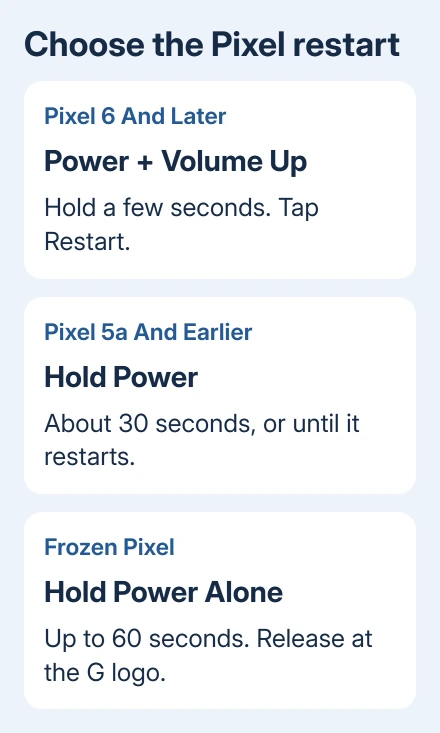
Pixel 6 and newer models, including Fold, use Power + Volume up for a few seconds, then Restart. For a frozen screen, hold Power alone for up to 60 seconds and release when the Google logo appears.
Pixel 5a and earlier use a different restart instruction: keep Power held for roughly 30 seconds, releasing it when the restart begins. A quick press only locks or wakes the screen, so it doesn't reboot the phone.
In this guide
Choose the restart that fits the screen
A working touchscreen gives you a normal Restart button. A frozen screen needs the longer Power-button hold, while a black screen can also mean the battery needs charging or the display isn't working.
A restart shuts Android down and starts it again, keeping your photos, accounts and apps. Factory resetting removes local data instead, so don't choose an erase option just to reboot.
I'd use the normal restart menu whenever it responds. The long hold is useful when the screen can't accept a tap, but it isn't the first step for a phone that's working normally.
Check your model in Settings > About phone to see which steps fit your Pixel. If the screen is unusable, check the model on your receipt, box or device information in your account.
Google says in its current power-button instructions to allow up to 60 seconds for a forced restart. Don't keep releasing Power after only a few seconds when the phone is frozen.
Restart a Pixel 6 or later from the power menu
This method covers Pixel 6 and newer phones, including the Fold family. Use Volume up, the end of the volume rocker that raises sound. Volume down is used in other button combinations and isn't the menu shortcut here.
- Press and hold Power and Volume up together for a few seconds.
- Let go when the power menu appears.
- Tap Restart.
- Wait for the screen to go dark and the Google startup logo to appear.
- Unlock with your PIN, pattern or password when Android finishes starting.
After a restart, the phone asks for its main unlock method before fingerprint or face unlocking becomes available again. Have your PIN, pattern or password ready, especially if you normally unlock with your fingerprint or face.
Leave the phone to complete startup before testing the app or connection that prompted the restart. Repeated button presses during startup can leave you unsure whether the restart has finished.
If the menu opens but the Restart button won't respond, move to the frozen-phone method. If Power opens an assistant instead, check that both Power and Volume up were held, rather than Power alone.
Use Power on a Pixel 5a or earlier
For a Pixel 5a or an older model, keep the Power button held for roughly 30 seconds, or until restart begins. Release it when restart begins, then wait for the lock screen.
These older phones also have their own normal power-menu behavior. A brief hold of Power can bring up the menu; when Restart is available and the touchscreen works, that on-screen control is the gentler way to reboot.
Don't copy the newer two-button combination just because another Pixel owner uses it. Choose the steps for your model, then check whether the screen responds.
A single Power press only turns the screen on or off. If the display immediately returns to the same running app without a startup sequence, the phone was sleeping rather than restarting.
For an older phone that keeps rebooting on its own, note whether it reaches the lock screen at all. That means the phone has a recurring startup problem, rather than trouble opening the restart menu.
Stop Power from opening an assistant
On Pixel 6 and later, a Power-button hold can be assigned to the digital assistant. That explains why holding only Power might open an assistant while the phone otherwise works normally.
Open Settings > System > Gestures, then select Press and hold the power button. Choose Power menu. After that change, holding Power for a few seconds opens the power controls instead of the assistant.
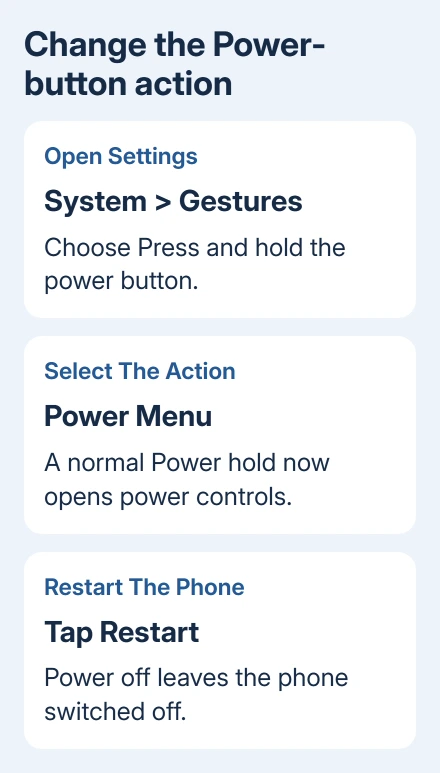
Choose Restart from that menu when you want to reboot. Choosing Power off shuts the phone down and leaves it switched off until the next manual power-on.
For a one-time restart, changing this setting is optional. Power plus Volume up still opens the menu directly on Pixel 6 and later.
If the physical button is damaged, changing its gesture won't repair it. Use the available on-screen power control if the screen still responds, then arrange a button repair rather than repeatedly squeezing the damaged part.
Force a restart when the screen is frozen
Keep the Power button pressed by itself for up to 60 seconds. Release it once the phone starts rebooting and shows the G logo. The long hold is the key difference from a normal screen-lock press.
A phone can show an assistant or power controls early in that hold. If it remains frozen, keep holding until the restart begins or the stated time has passed, rather than tapping repeatedly.
Don't choose Wipe data/factory reset from a recovery screen. That erases data and isn't required for a restart. If an unexpected boot menu appears, stop and check which buttons are being pressed.
If nothing appears after the full hold, use the charging and power checks. Try a known-working charger, cable and outlet before repeating a restart on a phone with no charge.
A ringing or vibrating phone with a black display can have a screen problem even though Android is running. Tell repair support about those signs, because a blank display doesn't always mean the phone failed to power on.
When restarting doesn't fix the original problem
Once the Pixel is usable, test the app or connection that prompted the reboot. A restart that restores control but doesn't fix one app calls for app troubleshooting, rather than another series of forced restarts.
After rebooting for an earbud connection problem, put Pixel Buds back into pairing mode before searching for them again.
Open Settings > System > Software update to check Android updates. For app updates, open Play Store > profile picture > Manage apps & device and check available updates. A recurring freeze also calls for checking free storage.
If home-screen items disappear after reboot, the Pixel widgets restart problem covers that separate symptom. To record an error for support, use the Pixel screenshot controls.
For repeated freezes, use the phone's help options or the Pixel Phone Help contact route. Give the model, whether it reaches the G logo, and its response after charging. Ask about repair for failed buttons or a dead display.
The Short Version
Newer Pixels use the Power and Volume up menu, then Restart. Pixel 5a and earlier can reboot with a roughly 30-second Power hold. A frozen Pixel needs Power alone for up to 60 seconds, releasing at the G logo.
Checked November 10, 2026.