

A Google Pixel can transfer files to a Windows PC over USB without a separate transfer app. Unlock the phone, connect a data-capable cable, then change its USB connection from charging to File Transfer.
Charging alone doesn't open the phone's folders. Once File Transfer is selected, use Windows File Explorer to copy the local files you need. Photos that exist only in Google Photos need downloading separately.
In this guide
Connect the Pixel and choose File Transfer
Start with the Pixel unlocked and the PC awake. Plug the Pixel into the PC itself. Choose a data-capable cable; a power-only cable can charge the battery without opening storage.
Swipe down on the phone to open notifications. Tap Charging this device via USB, then find Use USB for and select File Transfer. Some versions combine file transfer with an Android Auto label.
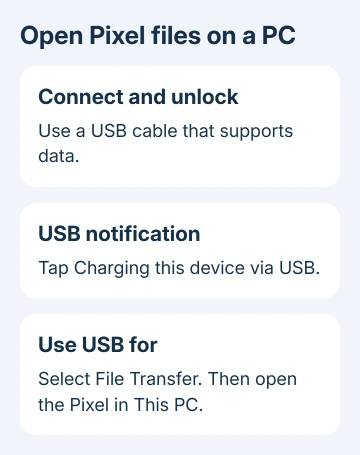
Use the USB notification to change how the phone connects. A battery charging symbol confirms power reaches the phone, but it doesn't tell Windows that the phone's storage is available for copying.
Google's Pixel USB-transfer procedure lists this sequence and notes that some steps apply to Android 14 and later. Older Pixels can have different labels, so use the connection notification.
Wait for Windows to recognize the phone. A transfer window may open automatically. If it doesn't, open File Explorer > This PC, then look for the Pixel among connected devices.
Leave the phone within reach while Windows sets up the connection. If a permission prompt appears on it, approve access only for the computer you intended to connect. Then return to File Explorer.
Copy the folders that hold your files
Open the Pixel in File Explorer, then its internal shared storage. These are the files Android lets you browse and copy. They aren't a complete copy of Android, and you won't see every app's private messages or saved account information.
For camera pictures, look in DCIM > Camera. Downloads usually appear in Download. Apps can save media in other folders, so match the location to the app that created or saved the file.
On the phone, use Files to check a missing item's name and location. A file that opens inside an app isn't always saved as an ordinary document in shared storage. Use that app's export or save option when needed.
Make a clearly named destination folder on the PC. Select a small group of files on the Pixel, choose Copy, open the destination, and choose Paste. Copying first leaves the phone's originals in place.
Open a copied photo, document, and video from the PC's destination folder. Check that they open there, rather than through a shortcut to the phone. A filename can appear before copying finishes, so wait until the transfer completes.
I'd copy one small batch before selecting a whole photo collection. That confirms the cable and destination work and helps you repeat a failed transfer without guessing which files arrived.
Move files from the PC back to the Pixel
The same USB connection works in the other direction. Copy the PC file, open the Pixel's shared storage in File Explorer, then paste it into a suitable folder such as Download.
Open Files on the Pixel and locate the copied item. For a document, tap it and choose an app that supports its format. Copying a file doesn't install the app needed to open it.
Music and video apps may need to scan their local folders or have permission to access the new media. First confirm the file exists in Files. If it does, troubleshoot the receiving app rather than repeating the USB copy.
Avoid placing personal files inside folders whose purpose you don't recognize. A normal shared folder is easier to find later. Storage reserved for an app's private files isn't a substitute for a document folder.
For a wireless alternative involving Windows Bluetooth, follow the Bluetooth file-transfer sequence. Its receive step is separate from pairing, so connecting the devices isn't the entire procedure.
Find photos that aren't stored on the phone
Google Photos can show backed-up pictures that no longer have local copies on your Pixel. Those pictures won't appear in the USB camera folder just because the app displays their thumbnails.
On the PC, sign in at photos.google.com with the account that holds the collection. Select the photo or video, open More, then choose Download to create a local copy on the computer.
Use the browser when you've already removed backed-up originals from your phone to free up space. Check the account picture before searching for a missing item, particularly when work and personal accounts are both signed in.
Downloaded videos can also need a compatible playback app or codec, the software that reads their video format. If copying finishes but only playback fails, treat that as a file-opening problem rather than a USB connection failure.
A Pixel screenshot is another kind of local picture. Look in its screenshot location rather than expecting every image to appear in DCIM > Camera.
Restore the connection when Windows shows no files
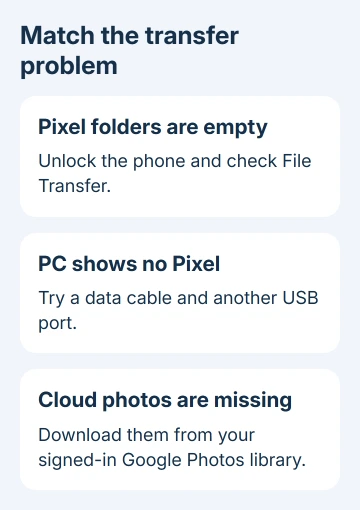
If the Pixel charges but never appears in This PC, try another data-capable cable first. Then try a different USB port directly on the PC. Swap the cable and port separately to see which change restores access.
If the phone appears but its storage is empty, unlock it again and check its USB mode. Reconnecting can return you to a charging connection, so reselect File Transfer when the notification requires it.
Restart both devices if the mode and cable are correct but Windows still won't connect. Use the PC's normal Restart control. On Pixel 6 and later, hold Power + Volume up, then choose Restart.
Pixel 5a and earlier can restart with a roughly 30-second Power hold.
Check Settings > System > Software update on the Pixel for an offered Android update. For a Windows-side failure, check Windows Update too. Don't install a driver pack from an unfamiliar site simply because the phone isn't listed.
Test the Pixel on another computer, or test a different phone on the same PC and cable. If the Pixel works on another computer, focus on the original PC. Repeated failures on several computers point back toward the phone or cable.
Finish the copy before disconnecting
Wait until File Explorer finishes copying. Eject the phone from Windows when the option is available, then unplug the cable. Open a few destination files afterward before removing anything from the phone.
If the Pixel won't connect on multiple computers with cables you know work, contact Pixel support about USB data transfer. Report whether charging works, whether the USB notification appears, and whether File Transfer can be selected.
The Short Version
Choose File Transfer after unlocking the Pixel and attaching a USB data cable. Copy local files in File Explorer and check them on the PC. Download cloud-only Google Photos items through the signed-in website instead.
Checked November 16, 2026.
 If you have any business, I can build it online






