Pixel 6 call audio has its own volume and can play through Bluetooth instead of the phone. Raise the volume during an answered call and disconnect Bluetooth. A working speakerphone with a silent earpiece needs a top-speaker check.
Once a call connects, the caller's voice might be silent, very quiet or broken up. The checks here cover all three, whether you can barely hear them or can't hear them at all.
In this guide
1. Adjust call volume while the call is connected
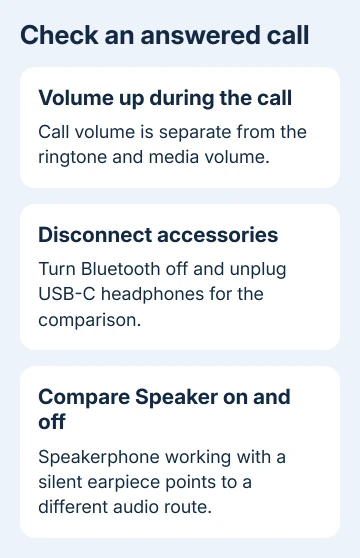
Call someone who can stay on the line while you check the phone. Press Volume up during the connected call. Listen for a change in the other person's voice rather than judging the ringtone or a video played afterward.
Google says call volume has a separate control from media, ring, notification and alarm volume. Turning up a ringtone before dialing doesn't necessarily change the volume needed here.
If the voice becomes clear, leave the volume at a comfortable setting and finish the call. If the volume indicator moves but you still hear nothing, check where the call is being played.
Ask the caller whether your voice reaches them. Their answer matters: a working microphone with no incoming voice is different from a call where neither side gets audio. Note that result for the later network check.
Don't use an emergency number for testing. A normal call to someone expecting it gives you time to compare the controls without interrupting an urgent service.
2. Bring the sound back from Bluetooth
Open Quick Settings and turn Bluetooth off temporarily. Disconnect any USB-C audio accessory too, then return to the call. That lets you check the phone's sound without headphones, a car system or another accessory taking the call.
If the voice returns through the phone, the call had been using an accessory connection. Reconnect the intended accessory afterward and check its call volume and connection before relying on it for the next call.
For a car, make the comparison while parked. Audio through a vehicle can have its own volume control, and changing the phone's media volume between calls won't tell you whether the caller can be heard through the car speakers.
Next, tap Speaker on the call screen, listen, then tap it again to return to the earpiece. This is one of the call-audio checks in the Pixel sound troubleshooting steps.
If speakerphone works and the earpiece stays silent, continue to the top speaker check. If both remain silent, move through the connection and restart checks before putting the problem down to a blocked earpiece.
3. Check the earpiece and anything covering it
Remove the case and check whether the screen protector covers the earpiece opening at the display's upper edge. Hold the phone normally against your ear during another short call, then compare speakerphone again.
The Pixel 6 earpiece is at the display's upper edge. A case or protector that covers that area can make the caller difficult to hear even though the bottom speaker plays music loudly.
Gently wipe accessible dirt with a soft, lint-free cloth. Keep pins and other objects out of that opening. Wipe away surface dirt without opening or scraping the speaker.
If removing the covering restores the voice, replace or reposition the accessory before the next call. If the top speaker remains silent with the opening clear, keep that result for support.
A recording or song can help check general sound, but only a call checks incoming voice through the earpiece. Compare the earpiece with speakerphone during a call to check whether the caller's voice reaches it.
4. Compare the connection and another caller
Make a call from a location with stronger mobile reception. If calls break up only while traveling or in one building, compare a stationary call in a place where reception is better.
Try a different caller too. When only one person is silent, ask them to check their microphone and try calling back. Repeating changes to your Pixel won't repair a muted microphone at the other end.
If Wi-Fi is on, turn it off and make another call. If it's off, try turning it on and repeat the call. This comparison is useful when the sound changes with the available connection.
Wi-Fi calling depends on your carrier and account settings. Simply joining Wi-Fi doesn't mean every ordinary call will use it. Report the actual result of the call comparison rather than assuming which network carried it.
For calls that fail to arrive at all, the Pixel missed calls guide covers incoming-call delivery. Here, you're checking what happens to the sound after the call connects.
If voice fails on ordinary mobile calls but works in a calling app, tell the carrier that app calls work but mobile calls don't. If one app alone is affected, start with that app's support and audio controls.
5. Restart the Pixel 6 and check other audio
Hold Power and Volume up together for a few seconds, then tap Restart. This is the power-menu combination for Pixel 6, Pixel 6 Pro and Pixel 6a. Holding Power alone can open the assistant depending on its setting.
For a phone that doesn't respond normally, the Pixel restart guide explains the frozen-phone procedure. Use a normal restart when the screen still responds.
After restarting, play two or three different songs or videos from different apps. Include a recording stored on the phone if available. Then make another ordinary call and compare the earpiece with speakerphone.
If just one recording sounds broken, try another copy of that recording. If every sound is distorted, tell support that other audio is distorted too, rather than asking the carrier only about call coverage.
Check for a system update in Settings > System > Software updates, or System update on older software. Install an available update after backing up, then repeat the short call comparison.
6. Give the right support team the useful results
For call audio that changes with the network or location, contact your carrier and ask it to check voice service, local outages and your SIM or eSIM setup. Provide a recent call time, location and whether both sides lost audio.
For an earpiece that stays silent while speakerphone works, contact Pixel Support through the Pixel Help site's Contact us option. Ask about speaker diagnosis and repair, and give your Pixel model and software version.
I'd tell support that only the earpiece is silent before erasing the phone. A factory reset is a later support decision, and it needs a backup; it isn't the first response to one consistently silent speaker.
The Short Version
Adjust call volume, disconnect accessories and compare speakerphone with the earpiece. Check coverings, callers and connections, then restart. Ask Pixel Support about a silent speaker or your carrier about network-related failures.
Checked November 12, 2026.