
A Google Pixel stuck on the Google screen hasn't finished starting Android. Hold Power for about 60 seconds to force a restart, then try safe mode if it hangs again.
A stationary logo, repeated restarts and a crash after entering the PIN need different next steps. Note which one happens on your phone before continuing.
Start with the checks that keep your files. A factory reset comes last because a phone that can't finish starting also can't make a fresh backup.
In this guide
1. Remove anything pressing the buttons, then restart
Take off the case and disconnect USB accessories or an external battery. Check that Power and both volume buttons move freely. An accessory pressing a button can stop the phone from starting normally, so leave it off for the next startup.
Hold Power alone for about 60 seconds. Google says to use this longer hold in its frozen Pixel instructions. Don't stop after the usual short press that wakes the screen.
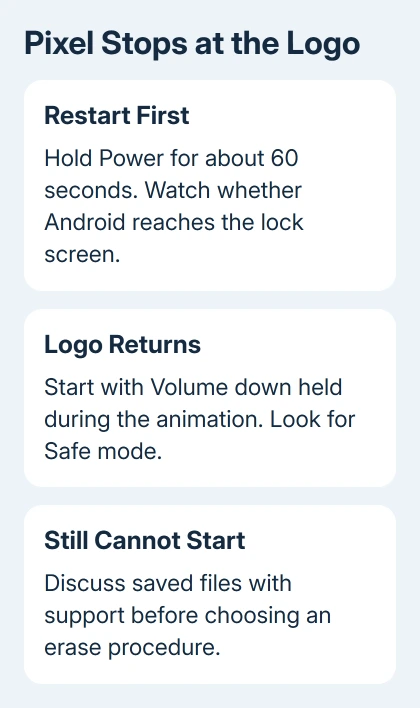
Release Power as the restart begins. When Android starts properly, you'll reach the lock screen and can keep using the phone after unlocking it. If another reboot follows the logo, the problem hasn't cleared.
The Power and Volume up shortcut on newer Pixels opens the normal power menu. That's useful on a responsive phone, but it isn't the same procedure as the long Power hold for a frozen screen.
If the phone now works, back up important files before chasing the cause. If it freezes again, choose the next check based on where it stops. Keep a note of whether it happens before the PIN screen or immediately after unlocking.
2. Check whether charging changes the behavior
A phone that briefly shows the logo and goes dark also needs a power check. Connect a working charger and cable to a wall outlet. Try that charger and cable with another device if your Pixel shows no sign of receiving power.
Leave the case off during the power check. Tell the repair technician if the phone runs on the charger but shuts down when unplugged. Repeated startup failures aren't always caused by an Android update.
For a Pixel that never reaches the logo at all, the Android phone power checks cover the charging and black-screen branch. A screen that lights up but stops during startup belongs in the next step.
3. Try safe mode during the startup animation
Safe mode loads Android without running your downloaded apps. It's useful when an app prevents normal startup or the phone becomes unusable just after unlocking. It won't repair a damaged operating system or a faulty battery.
With the phone off, press Power to start it. When the startup animation begins, press and hold Volume down. Keep holding it until startup finishes. Check for the Safe mode label along the screen's bottom edge.
If a working power menu is available instead, Pixel 6 and later, including Fold, use Power and Volume up to open it. Touch and hold Power off or Restart, then tap OK for safe mode.
On Pixel 5a and earlier, hold Power to reach the power menu. Holding Volume down during the animation doesn't need a working power menu, so use that route when the phone is stuck.
If safe mode stays stable, uninstall one recent app, then try a normal restart. Continue with other recently changed apps only if needed. Try the phone after each removal so you can tell which app caused the trouble.
Airplane mode turns on automatically in safe mode. Turn it off if you need network access for a backup or support. Some widgets can disappear during this process; the Pixel widgets after restart guide covers restoring them.
If safe mode also stops on the logo, move to recovery options. Retrying the same startup won't help identify a downloaded app if Android can't get far enough to start with those apps disabled.
4. Use a successful startup to protect files and update
If the phone works temporarily, save your data. Check that important photos and files have finished backing up, then open Settings > Storage. Low storage can cause trouble; Google flags less than 10 percent free.
Move large files to a computer, or delete material you've finished with. Avoid deleting app data at random. You're making room while keeping the information you need, especially if the phone might stop starting again.
Check Settings > System > Software update for an Android update. Check Play Store > profile picture > Manage apps & device for app updates. You'll need Android running to reach either of these controls.
After updating, restart and unlock once. If the logo loop or PIN crash returns, record the behavior and software version for support. Make sure Android finishes starting; downloading an update doesn't mean the startup problem is fixed.
5. Decide about recovery before erasing the phone
I'd speak to Pixel support before wiping a phone with important files that aren't backed up. Ask specifically about a startup or bootloop problem, give the model and update timing, and explain whether safe mode can open.
The supported button reset erases local data. Only continue if you're ready to lose those files and know the Google Account sign-in details used on the phone. Files already backed up can be restored during setup.

Turn the phone off. On Pixel 6 and later, hold Volume down and Power for up to 30 seconds until Fastboot mode appears. For earlier devices, the reset instructions give Volume up and Power.
Release the buttons when the menu appears. Holding them too long can restart the phone instead. Use the volume buttons to display Recovery Mode, and confirm the choice with Power.
At No command, hold Power, press Volume up, and quickly release both. In Android Recovery, select Wipe data/factory reset, then Factory data reset, using the volume buttons to move and Power to select.
Wait for Data wipe complete, then choose Reboot system now. A successful reset reaches the setup screen. If the logo loop survives a completed reset, ask Pixel support to arrange a hardware assessment rather than repeating the wipe.
The Short Version
Remove anything pressing a button and try the long Power hold. A returning freeze calls for safe mode. Protect files during a successful boot, then discuss unbacked-up data with support before choosing a recovery reset.
Checked November 12, 2026.





