

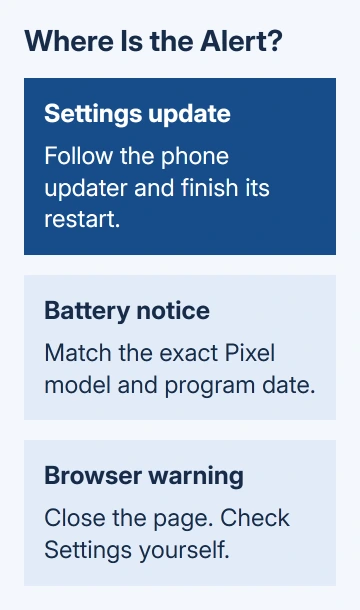
Check an urgent Pixel update in the phone's Settings, rather than installing from a browser warning. Open Settings > System > Software updates to see what your phone actually needs. A battery-program notice needs a model check too.
A normal security update, a Pixel battery notice, and a website claiming the phone is infected aren't the same thing. The place the message appears and the model it names tell you which action to take.
In this guide
1. Check the update from Settings yourself
Close the page or message that raised the alarm, then open the phone's Settings app. Choose System > Software updates. Older menu wording can show System update. Follow the status and prompts shown there.
This takes you to the phone's own updater without using a link in an email, text, or ad. A genuine notice can lead to the same software, so you can check this way even when the original message is real.
Read the update description before proceeding. It may be a security patch, an Android-version update, or another system component. The word urgent in a message doesn't identify a build number that every Pixel should have.
Open Settings > About phone > Android version to check what's installed. Note the Android version and build, plus the security patch date. These entries help support tell an installed patch from a download still waiting to run.
When Settings reports no pending update, don't download an APK file from the warning to force it. An APK is an Android app installation file. Installing an app isn't the normal way to replace Pixel system software.
2. Install an offered system update and finish its restart
Connect the Pixel to Wi-Fi and charge it to at least 75%. Google says to prepare this way in its Android update instructions. The download also needs available storage.
Follow the buttons in the update screen. Wait through downloading and installation, and accept the final restart when requested. If your phone still asks to restart, the update isn't finished yet.
After it starts again, check the update page once more. Use the installed security date or build number to confirm which release you have. The main Android version number can stay the same after a security patch.
For insufficient storage, open Settings > Storage before retrying. Save important files elsewhere before removing local copies. Review what's taking space before considering a whole-phone erase.
A later retry can resume an unfinished download. Keep the internet connection working. For repeated failures, record the message and the stage that fails: downloading, verification, installation, or restarting.
For a frozen screen, follow the Pixel restart steps for that model. Once the phone responds again, return to its update screen and check the result instead of assuming the forced restart installed the update.
3. Match a battery-program notice to the exact Pixel
Open Settings > About phone and read the model information. Pixel 4a, Pixel 4a (5G), Pixel 6a, and Pixel 6 are different products. Similar names don't mean they share a particular battery program.
Google's Pixel 4a program introduced an automatic Android 13 update starting January 8, 2025. On affected Pixel 4a phones, it reduced available battery capacity and affected charging performance. It didn't apply to Pixel 4a (5G).
The Pixel 4a program's free battery replacement and other support options ended on January 8, 2026. For a new request, ask customer support about current options. An old article about the program doesn't mean its offers are still available.
The Pixel 6a program was separate. Its mandatory Android 16 update began July 8, 2025. Changes to how the battery works applied only to affected devices after 400 charge cycles. Not every Pixel 6a received those battery changes.
That program's support options ended on July 8, 2026. The Pixel 6a battery-program guide covers its protection behavior and the current support route without treating the expired offer as available.
Battery protection can make your phone run for less time between charges after a program notice. Removing apps repeatedly won't reverse that change. When asking about service, give the model and notice wording, plus when the update arrived.
For either program, ask Pixel support about safety concerns and current repair options. Updated software doesn't promise restored battery capacity. Regular service may still be available after the program's offers end.
4. Treat a browser update warning as a separate problem
A website that suddenly claims the Pixel is infected and demands an update hasn't checked the phone's system-update status. Close that tab and use Settings for the check. Don't install its download or enter payment information.
The unwanted pop-up instructions advise avoiding suspicious update or download prompts. A countdown on a page doesn't change the route for updating Android.
If alerts keep returning as website notifications, open Chrome > More > Settings > Site settings > Notifications. Find the alerting website among allowed sites and block its notifications. The site then loses notification permission.
A notification can arrive after the browser tab is closed, so an alert outside an open page can still come from a website. Check the app and site named on the notification to see whether it came from the phone's updater.
For an unfamiliar app installed through that warning, use Play Store > profile picture > Play Protect > Scan. Follow its result and review the unfamiliar app. A website's notification permission is separate from an installed app.
5. Give support the update details that change the advice
For repeated update failures, open Settings > Device health & support > Tips & support, or Tips & support on older software. Use its help choice and provide the model, Android version, build, security date, and error.
Mention whether the notice came from Settings, a named battery program, Chrome, or another app. Support can then help with the right problem: installing an update, arranging battery service, or stopping an unwanted notification.
I'd save a returning alert before clearing it again. Remove personal account details from anything you share publicly. The useful parts are the sender, wording, model, and time it appeared.
The Short Version
Check urgent-update claims in Pixel Settings. Finish any available update, including its restart, match battery notices to the exact model, and close suspicious browser prompts. The Pixel 4a and 6a program offers have expired.
Checked November 16, 2026.
 If you have any business, I can build it online






