

Android push notifications need permission for the app and its alert category. Open Settings > Notifications > App notifications, enable the app's main switch, then check the category for the messages you want.
An alert that arrives silently is already being delivered. Give it an alerting style if you want sound, and check lock-screen controls separately if messages appear only after you unlock the phone.
In this guide
Allow the app to send notifications
Open Settings > Notifications > App notifications. Choose the app whose alerts you need. If the list shows only recent senders, change it to All apps so a blocked or newly installed app isn't overlooked.
Turn on the app's notification switch. Depending on the phone, it can be labeled Allow notifications or All notifications. Check that the page names the intended app before changing it.
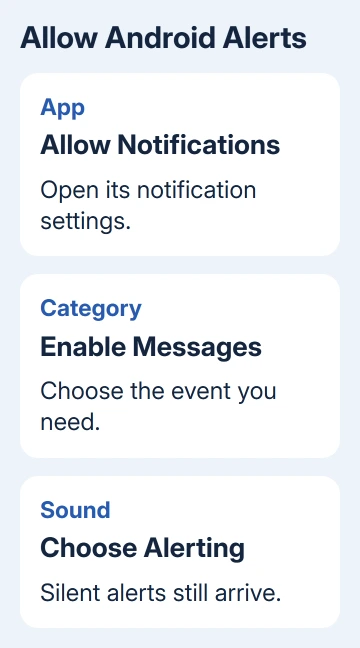
Another route is to hold the app icon, open App info, and choose Notifications. Use this if your phone's Settings layout differs from the main route. Older Android versions can group these controls under Apps & notifications.
Google describes app permission and category choices in its Android notification instructions. The exact labels depend on the phone maker and Android version.
After granting permission, open the app and check that you're in the account expecting the alert. Ask for a fresh message or trigger the event from another device. Old notifications won't necessarily reappear.
Accept the notification request on Android 13 or later
Android 13 introduced a notification permission request for ordinary app notifications. When a newly installed app asks to send notifications, choose Allow if you want its alerts. Choosing Don't allow blocks the permission.
If you dismissed the prompt without choosing, check whether the app has permission now. Open the app's notification settings and read the switch rather than waiting for the prompt to return.
An app can wait until a later part of setup to ask for permission, rather than asking at launch. Finish the relevant sign-in or alert setup and use the system settings route if you previously declined it.
Apps built for Android 12L or earlier ask at different times. Choosing Don't allow can stop further requests until an update or reinstall changes when they can ask. Restore permission in Settings without reinstalling.
I'd use that switch first. Reinstalling an app can create extra account and sign-in work when the missing permission is the only thing that needs changing.
On a work-managed phone, an administrator may control the available settings. If the switch is locked, ask the organization's support team whether the app's notifications are allowed for that profile.
Enable the category that carries the useful alerts
Keep the app's main switch on, then look for categories such as incoming messages, calls, reminders or account activity. An app can have permission overall while one category remains disabled.
Enable the category that matches the event you're missing. For example, a shopping app's delivery updates and promotions can have separate controls. There is no reason to enable every promotional category to receive parcel alerts.
On a Galaxy, open Settings > Notifications > Advanced settings. Enable the switch starting Manage notification categories if present. Return to App notifications, select the app, then open Notification categories.
That extra Galaxy switch reveals category management; it doesn't itself turn on every category. Open the relevant category afterward and enable its own notifications. Some apps don't provide separate categories at all.
If the category isn't available, check the app's own notification preferences. That menu may let you select which events send alerts. The Android switch permits delivery, but the service still needs to be set to send the event you want.
For an app copy created with Samsung Dual Messenger, open the settings for the copy carrying the intended account. The other app's permission won't answer whether that copy can notify you.
Make delivered notifications audible
Pull down the notification shade and look for that app's alert. If it's present but silent, touch and hold it, then open its notification settings. Choose Alerting rather than Silent where that choice appears.
On a Galaxy category page, confirm Allow notifications is on and Alert is selected. Check Sound and choose a tone if the category provides that option. A category with no sound selected won't produce the tone you expect.
Turn up notification volume and end an active Do Not Disturb or similar mode for the test. On phones with Modes, inspect the active mode's app filters if you want to keep that mode on.
If the first alert sounds but a rapid series becomes quieter, inspect Settings > Notifications > Notification cooldown when available. That feature reduces interruptions from bursts of alerts rather than blocking delivery.
For a useful alert that needs a recognizable tone, the Android notification sound guide explains how app categories and sound selection fit together.
Show the notification on the locked screen
Open Settings > Notifications > Notifications on lock screen, or your phone's equivalent. Select the option that shows the notifications you want. Some phones let you show silent items separately from alerting ones.
Check sensitive-content controls too. Hiding message text can leave an app icon or notification visible while concealing the conversation. Choose that arrangement if you want an alert without putting private messages on the locked screen.
Lock the phone and trigger a fresh event. Compare the lock screen with what you see when you swipe down after unlocking. If the alert appears only after unlocking, it's arriving but your lock-screen settings are hiding it.
A notification dot on an app icon is another display choice. Turning it on doesn't grant the app permission or make a blocked category send alerts. Set it after the main notification is arriving.
When permission is on but nothing arrives
Check the app's own settings for muted conversations, disabled event types or another signed-in account. Test with a message or event meant for that account, rather than an unrelated account on another phone.
Tell the app's support team if new content waits until you open it. Include your phone model, Android and app versions, and whether it happens on Wi-Fi, cellular data or both. That helps them check background delivery.
If every app fails, give the phone maker the results from notification settings and active modes. If only one fails with its permission and category enabled, start with that app's support rather than resetting the whole phone.
The Short Version
Enable the sender and its relevant category; select Alerting for sound. Restore a declined Android 13 permission through Settings. Check lock-screen privacy and modes separately, then test with a fresh event.
Checked November 12, 2026.
 If you have any business, I can build it online






