
Pop-up ads over the home screen, a lock screen you never set up, Chrome tabs that jump to spam: on an Android phone each of these comes from one app or one website permission. Removing that one thing is the fix.
So the order matters. Rule out a website's notification permission, run a Google Play Protect scan, then restart in safe mode and remove the app that brought the ads. A factory reset comes last, and only after a backup.
Work out what is producing the ads
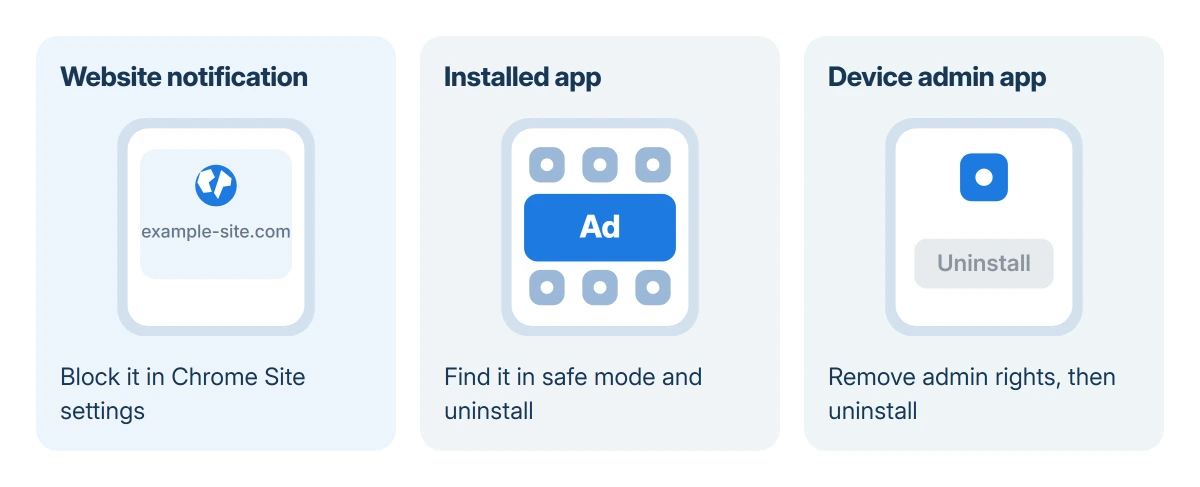
Look at where the unwanted thing appears. An alert that sits in the notification shade with a website address under it is a site you once allowed to send notifications. It is a Chrome permission, not an app, and switching it off is quick.
Ads that cover other apps, a full-screen ad when you unlock the phone, or a lock screen with ads you never chose come from an installed app. So do new icons you did not add and apps that reinstall themselves.
Status: Google's Play Protect, safe mode and reset pages and Samsung's uninstall steps checked 18 October 2026. We could not try them on a phone for this page; Pixel and Samsung menus are named.
Fake virus warnings belong to the first group too. Google lists alerts about a virus or an infected device among the signs of unwanted software, and its advice is to leave download buttons on such pages alone.
Turn off notifications from a spam website
Swipe down to the notification. On some phones it carries an Unsubscribe button, which Google's Chrome notification help describes, and that stops the site at once.
Without the button, open Chrome and go to More (three dots) > Settings > Site settings > Notifications. Each site allowed to notify you is listed there; tap the one you do not recognize and block it.
Chrome now blocks some abusive notifications on its own, but a site you allowed yourself usually keeps its permission. While you are in Site settings, check that Pop-ups and redirects is off.
Run a Play Protect scan
Open the Play Store, tap your profile icon at the top right, then Play Protect. The page shows when the phone was last scanned and has a Scan button that checks every installed app, wherever it came from.
Google says Play Protect "checks your device for potentially harmful apps from other sources" as well as Play Store apps. It may disable or remove a harmful app, or send a notification with an Uninstall button.
Check that Scan apps with Play Protect is on under the gear icon on that page. Google's Play Protect help lists it as on by default; adware sometimes asks you to turn it off.
A clean scan does not prove the phone is clean. One owner on Android Enthusiasts ran two security apps; neither flagged anything while ads came at every unlock. Owners report that pattern more than once there, and the next step catches it.
Restart in safe mode and remove recent apps
Safe mode starts Android with only the apps it shipped with, so a downloaded app cannot run there. If the ads stop in safe mode, an app you installed is the cause; if they keep coming, Google says an app is not the problem.
Pixel 6 and newer models: press and hold Power and Volume Up, then touch and hold Power off and tap OK. Pixel 5a and older: hold Power, then touch and hold Power off. The words "Safe mode" show in the lower corner when it worked.
Samsung Galaxy phones use the same idea: open the power menu, touch and hold Power off until the Safe mode button appears, then tap it.
On a Pixel, safe mode also turns on airplane mode and removes some home screen widgets, so take a screenshot of the home screen first to put them back later.
Now go to Settings > Apps > See all apps and pick out what arrived in the days before the ads started. Uninstall the newest unfamiliar app, restart normally, and see whether the ads are gone. Then the next app, and so on.
Look for names that do nothing when opened: flashlights, cleaners, battery boosters, QR scanners and wallpaper apps are common carriers. An app called System update or Settings with no maker's name deserves a hard look.
Remove device admin rights from an app that will not uninstall
An app that refuses to uninstall, or whose Uninstall button is grayed out, has usually been given device admin rights. Android will not remove such an app until it is taken off the admin list first.
Open Settings and type device admin into the search bar. On a Pixel the list sits in the advanced security settings as Device admin apps; Samsung keeps it under Security and privacy.
Turn the unwanted app's switch off and confirm Deactivate, then uninstall it the normal way.
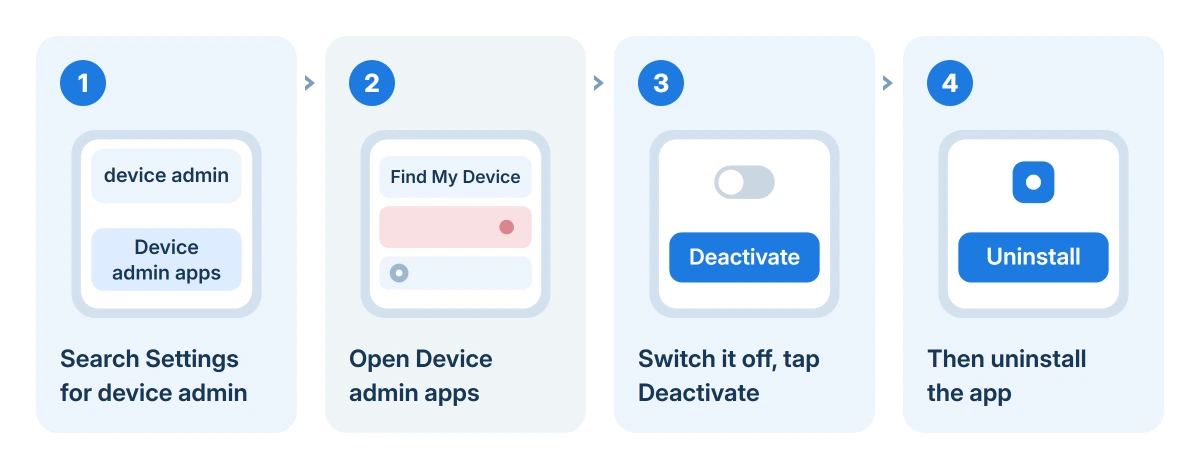
Leave Find My Device and any work or school management app alone. Malwarebytes described an adware app that hid in that list as a blank line at the bottom, and in the app list as an entry with no name.
A blank row in either list is the thing to tap. In that write-up, the blank row was "the offending piece of adware" all along.
If Deactivate does nothing or shuts the phone down, try it again in safe mode, where the app cannot fight back. An app that survives that too leaves the reset at the end as the practical fix.
Clean up Chrome after removing the app
Some adware leaves a changed homepage or search engine behind. In Chrome, open Settings > Search engine and set the one you want, then check Homepage if your phone's Chrome shows it.
Back in Site settings, look through Notifications one more time. A site that pushed you into installing the app often also asked to send notifications, and that permission survives the uninstall.
On a Samsung phone that also uses Samsung Internet, give it the same check, since its permissions are separate from Chrome's.
An app that drained the battery in the background is another strong sign of adware, and the battery usage screen names it.
Reset the phone only when nothing else removed it
A factory reset removes every downloaded app, the adware included, but it also erases your photos, messages and app data on the phone. Google recommends trying other fixes first, and the earlier steps remove nearly all adware without it.
Before you reset, make sure your photos, contacts and messages are in your Google Account; the Android backup guide lists what a backup keeps. Know the Google Account password too, because the phone asks for it afterward.
Google's factory reset page adds three practical points: a reset can take up to an hour, the phone should be charged to at least 70 percent, and after a Google Account password change you should wait 24 hours before resetting.
After the reset, do not restore every app at once. Reinstall the ones you need from the Play Store and skip the one you suspect, or the ads come straight back with it.
When the ads come back after a reset
Ads that return on a freshly reset phone, before you install anything, point at software built into the phone. One user-reported case on Android Enthusiasts was an unbranded phone whose System update app kept reinstalling itself.
A user cannot remove software that ships inside the phone's own system.
In that case the fix belongs to the seller or the phone maker: they can supply clean firmware or replace the phone. Pixel owners can go to Google's Pixel support, Samsung owners a Samsung service center.
Until then, keep banking apps off that phone.
The Short Version
Block notifications from spam sites in Chrome first. Run a Play Protect scan, then restart in safe mode and uninstall the newest unfamiliar apps. Take device admin rights from an app that will not uninstall. Reset only after a backup.
Where to Next
If the ads point to one app you cannot identify, the name under the ad or in Settings > Apps is the thing to post in the comments. I can usually say from that name whether it is adware or a system app that should stay.

Isaac Smith is the founder and editor of PC Glance, a website that covers computers, laptops, and technology. He is a tech enthusiast and a computer geek who loves to share his insights and help his readers make smart choices when buying tech gadgets or laptops. He is always curious and updated about the latest tech trends.