
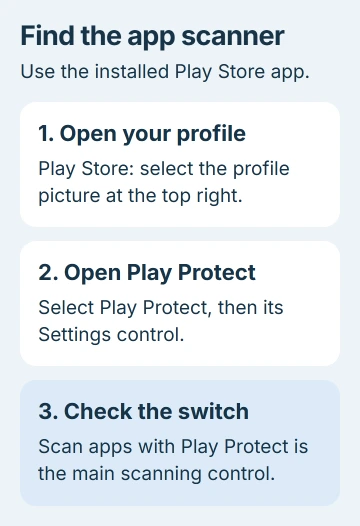
Play Protect can be switched off in the Play Store on Chromebooks that offer Android app scanning. Open the store's profile menu, choose Play Protect, open its settings, then turn off Scan apps with Play Protect.
That switch controls Android app scanning. Website warnings, a missing Play Store and school restrictions need different checks, so check which message you're seeing before changing anything.
Check that the warning comes from an Android app
Look at the app or message you're trying to deal with. Play Protect checks Android apps installed through Google Play and other sources. It isn't the setting for every security warning you see on a Chromebook.
Google says Play Protect is on by default and recommends keeping it on. I'd leave it enabled unless you have a clear reason to change this particular control.
A warning inside Chrome about a dangerous website comes from the browser. An app-compatibility message is about whether the app can run on your Chromebook. Turning off scanning won't make unsupported software work.
If an app is behaving suspiciously, start with the Android unwanted-app checks. Those explain how to deal with the app instead of removing the protection that noticed it.
Open the Play Store under the right Chromebook account
Open the Launcher and look for Play Store. If it's available, open it and check the profile picture at the top right. Use the installed Play Store app, rather than a Play Store webpage in Chrome.
Android apps on a Chromebook belong to the account that signed in first. A second account added later doesn't get its own Android apps just because you open its browser profile.
If Play Store is missing, open ChromeOS Settings > Apps > Manage Google Play preferences. The Chromebook Android-app instructions describe this route on supported machines.
If that option isn't there, check whether your model supports Android apps and whether an administrator controls it. Without Android app support, you won't have a Play Protect app-scanning switch to change this way.
Don't turn off the entire Play Store as a substitute. Removing Play Store support erases the Chromebook's Android app data and settings. The scanning switch leaves those installed apps in place.
Change the scanning option, then check its state
In the Play Store app, select your profile picture > Play Protect. Open Settings within Play Protect, usually through its settings icon. Look for Scan apps with Play Protect.
Switch that control off and read any confirmation before accepting it. Return to the Play Protect screen to check that scanning is off. Check the switch even if an old notification is still there.
If your version doesn't show this option, stop there. A Chromebook's Android settings can differ from a phone's. Don't reset ChromeOS just because a phone tutorial shows an extra menu.
The separate Improve harmful app detection control changes whether unknown apps are sent to Google. Changing it alone doesn't turn off Scan apps with Play Protect.
Check the switch name when following instructions. A step about sending unknown apps for checking may only change what gets sent to Google, leaving the main scanner on.
Leave device certification and browser warnings separate
For Device is not certified, open the Play Store profile menu, choose Settings > About, and read the Play Protect certification entry. This tells you whether the device is certified; it isn't the scanning switch.
The certification help page explains that turning off Play Protect won't fix this error. If Fix device issue appears, use its explanation to choose the next step.
If the message says your Chromebook has no network connection, fix the connection. If it says Google Play services is outdated, update it. Turning off the app scanner won't fix either problem.
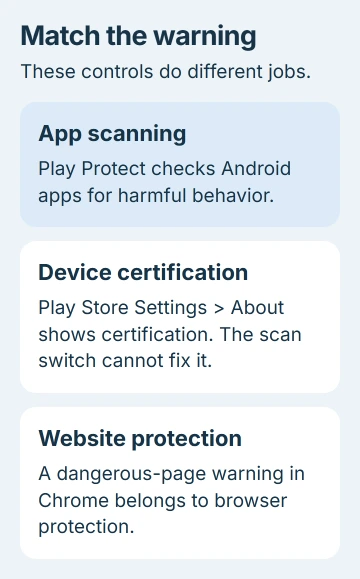
For a dangerous-page warning in Chrome, keep the website address and exact message when asking for help. Seeing Play Protect's name in the store doesn't mean it controls Chrome's warnings.
Handle a missing or locked setting without erasing apps
Open the time area at the bottom right of ChromeOS. A managed-device indicator means an organization controls the Chromebook. The management-status instructions show what to look for.
If your Chromebook belongs to an organization, ask its administrator whether your account can change that Android setting. They can check the policy and your app request together without making you work around a locked control.
If the Play Store itself won't open, restart the Chromebook and check its internet connection. Then open Settings > About ChromeOS > Check for updates and finish any available ChromeOS update.
The ChromeOS update procedure lets you check the operating system separately from app updates. Reopen the Play Store afterward and see whether its menu now loads normally.
If your Chromebook freezes before the store opens, use the Chromebook freezing checks. Get the app window working before checking whether a settings switch is missing.
Restore scanning when you're finished
Return to Play Store > profile picture > Play Protect > Settings and enable Scan apps with Play Protect again. Recheck the Play Protect screen so you know the scanner is active.
For a blocked app, send its developer the warning and app version. They can review the problem and appeal if the app was wrongly marked as harmful. Include the administrator if the Chromebook belongs to an organization.
The Short Version
Use the Play Store app's Play Protect settings on a compatible Chromebook. Change Scan apps with Play Protect, rather than removing the Play Store. Certification errors, browser warnings and administrator restrictions need their own fixes.
Checked November 5, 2026.

Isaac Smith is the founder and editor of PC Glance, a website that covers computers, laptops, and technology. He is a tech enthusiast and a computer geek who loves to share his insights and help his readers make smart choices when buying tech gadgets or laptops. He is always curious and updated about the latest tech trends.