
Turning off safe mode on Android usually requires a normal restart. Open the phone's power controls and choose Restart, then check that the Safe mode label is gone. The exact button combination depends on the phone model.
Downloaded apps returning after that restart is expected. Their absence in safe mode is part of the diagnostic process.
Restart with the controls for the phone
For Pixel 6 and later, including Fold, hold Power + Volume Up for a few seconds, then tap Restart. For Pixel 5a and earlier, Google's exit instructions say to hold Power until the phone restarts, for about 30 seconds if needed.
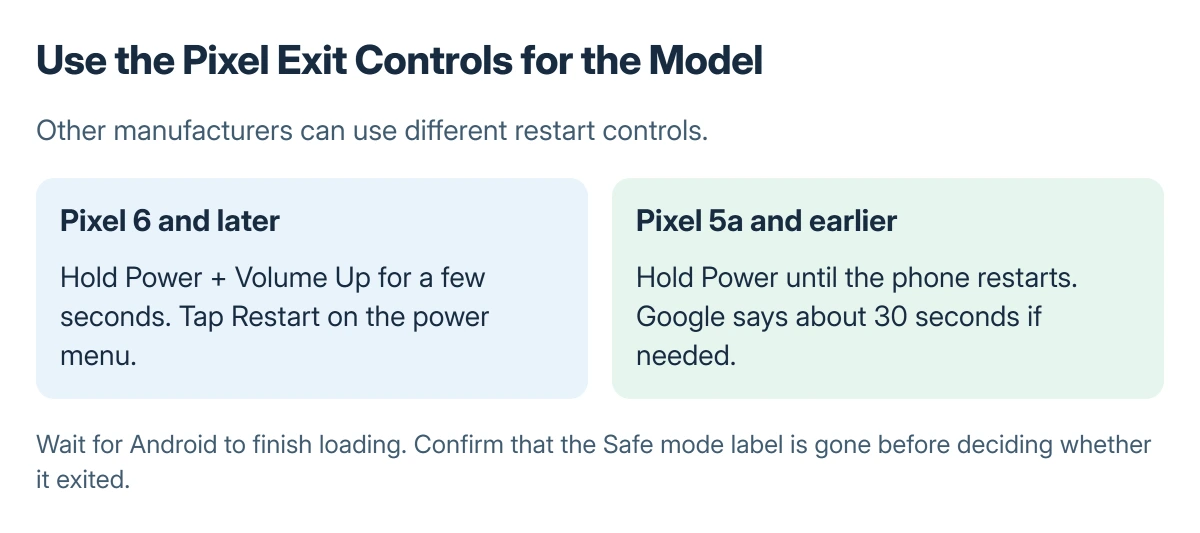
Status: Google's Android and Pixel safe-mode instructions checked 23 October 2026. Pixel button combinations are model-specific. No phone was restarted or tested for this article.
Google says a normal restart usually exits safe mode in its Android safe-mode guide. For Samsung and other manufacturers, follow that maker's restart controls instead of assuming the Pixel combination applies.
Save anything that can still be saved before restarting. Once Android finishes loading, inspect the screen for the Safe mode label and check that a downloaded app is available again.
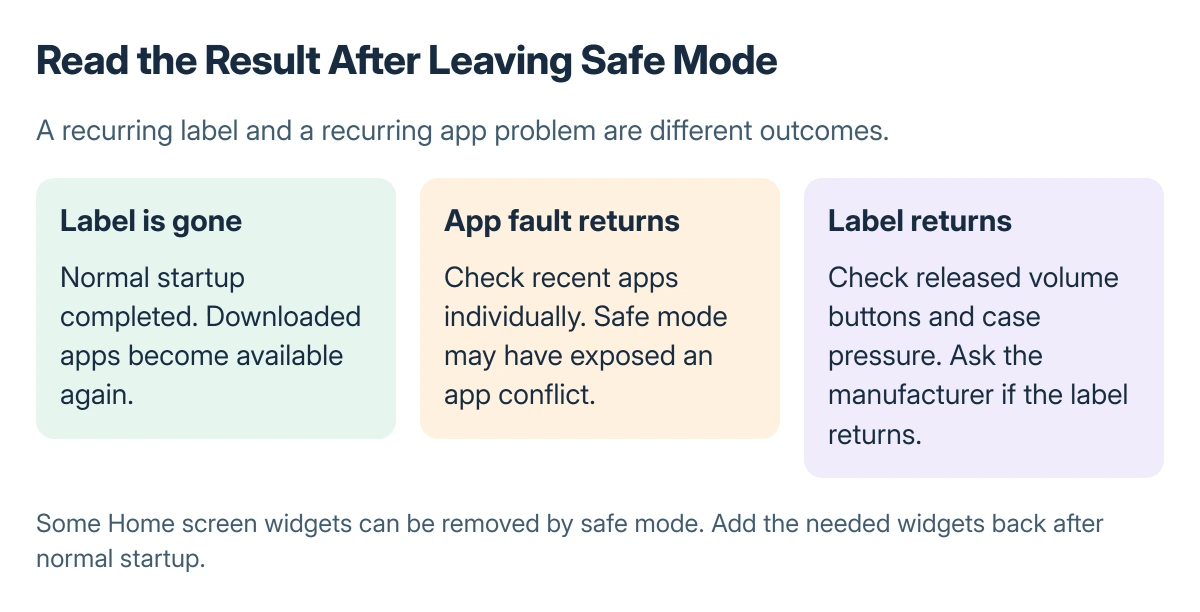
If the Safe mode label returns
Make sure the case is not pressing a volume key during startup and that the buttons release normally. Google documents holding Volume Down during the Pixel startup animation as an entry method for safe mode.
That makes an unintentionally held button a useful physical check. Remove a tight case before another normal restart, without opening the phone or forcing a damaged button.
For a label that keeps returning with released buttons, ask the manufacturer about the exact model. Repeated factory resets are not a substitute for checking a stuck key or model-specific startup behavior.
If the original app problem returns instead
Google states that a problem disappearing in safe mode can point to a downloaded app. If the label is gone but crashes or ads return, safe mode has exited; the underlying app problem still needs attention.
Use the Android app-crash checks for an app that closes. For suspicious ads or unknown software, the Android unwanted-app removal guide explains the relevant security checks.
Google's removal procedure is to uninstall recent apps individually, restart normally after each, and check the original problem. Keep a record of removed apps so unrelated ones can be restored later.
Restore widgets after the comparison
Some Home screen widgets can be removed by safe mode. Their absence afterward does not mean the whole app or account was erased. Add the needed widgets back after the phone is running normally.
This behavior is documented by Google. If a specific Pixel widget still disappears on later ordinary restarts, the Pixel widget restart issue is a separate fault to check.
When the original problem persists even in safe mode, tell the manufacturer that comparison result. It is more useful than repeatedly leaving and re-entering the same diagnostic mode.
The Short Version
Restart with the controls for the model and check the Safe mode label. If the label returns, check buttons and ask the manufacturer. If only the app fault returns, check downloaded apps. Restore missing widgets afterward.

Isaac Smith is the founder and editor of PC Glance, a website that covers computers, laptops, and technology. He is a tech enthusiast and a computer geek who loves to share his insights and help his readers make smart choices when buying tech gadgets or laptops. He is always curious and updated about the latest tech trends.