
For severe Galaxy battery drain after a software update, check your apps and battery condition before resetting the phone. Update the apps first, then compare Safe mode and check the battery in Samsung Members if the drain continues.
Some extra activity can settle as the phone adjusts after an update. If it gets dangerously hot, swells or won't stay charged, get help sooner instead of waiting just because the update was recent.
1. Finish updates and check what changed
Open Settings > Software update > Download and install and complete any offered update. Then update installed apps through Google Play > profile picture > Manage apps & devices. Check Galaxy Store for its separate app updates too.
Note the phone model and software version under Settings > About phone > Software information, plus the date the drain started. With those details, support can check whether a later release addresses the problem on your model.
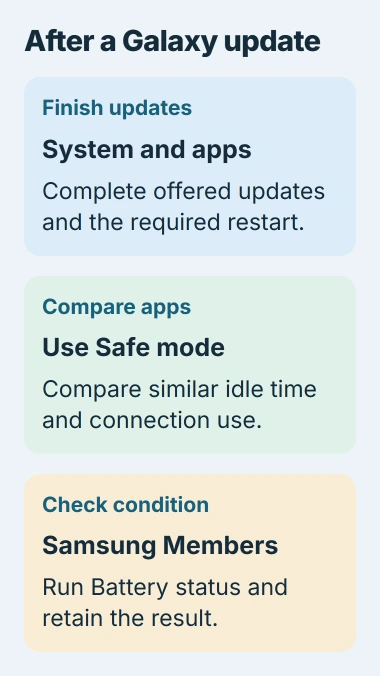
Samsung's post-update guidance explains that background work and changes in app activity can temporarily affect battery use. Severe drain won't always disappear on its own.
After the required restart, use the phone normally and compare a similar period. Note whether it drains mainly with the screen off, in one app or with a poor signal. Each pattern calls for a different check.
For an app update you can't locate, use the Android app-update controls. Updating only the operating system leaves the installed apps on their earlier releases.
2. Read Battery before switching everything off
Open Settings > Battery. Some older Galaxy layouts put it inside Battery and device care or Device care. Look at the usage graph and app list for the period when the drain happened.
A video app near the top isn't automatically faulty if you used it a lot. Compare its battery use with how long you watched. Pay more attention to heavy activity from an app you barely opened during that period.
The Android battery-usage explanation helps you read those results. Check the displayed time range: a full day and a short period since charging cover different amounts of use.
If one app stands out, install its available update and check its battery settings. If you don't need the app, compare use after removing it. Keep the changes separate so it's clear which one helped.
Check what a background limit will do before applying it to an app you rely on for urgent messages. Sleeping an app reduces its activity by limiting what it can do when you're not looking at it.
3. Compare drain with downloaded apps disabled
Safe mode temporarily disables most downloaded apps. Try it when drain starts after an update but the Battery list doesn't show which app to check. The phone's basic interface stays available for the comparison.
Open the power menu using your model's normal controls. On many recent Galaxy phones, hold Side + Volume Down, or use the Quick panel's power control. Touch and hold Power off, then tap Safe mode.
Look for the Safe mode label near the screen's lower edge. The Galaxy Safe mode procedure also gives a startup-button method when the normal menu isn't usable.
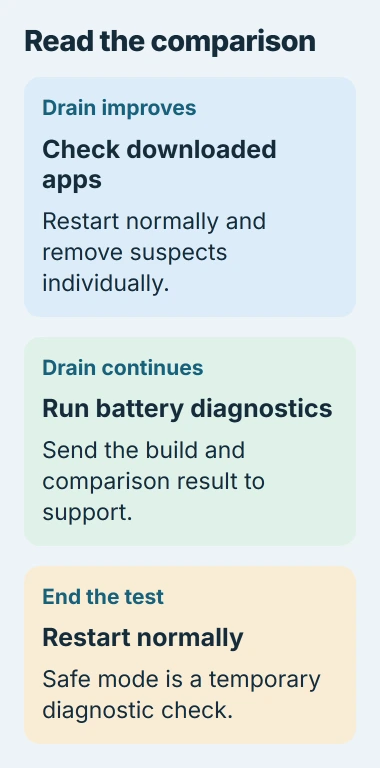
Compare a similar idle period with the same connection and screen use. Don't compare gaming in normal mode with a phone left untouched in Safe mode. The change in workload would explain much of that difference.
If the drain falls sharply, restart to leave Safe mode. Remove suspect apps that were recently installed or updated, checking after each removal. Once the drain settles, you can add back unrelated apps.
If drain stays severe with downloaded apps disabled, check the battery next. Safe mode helps you choose the next check; it isn't a permanent fix.
4. Run Battery status in Samsung Members
Open Samsung Members > Support and find Phone diagnostics or View tests, depending on the app layout. Select Battery status when offered, or run Test all and follow the prompts.
You'll need a verified Samsung account to follow the Members diagnostic instructions. Read the result and any service recommendation. The charge percentage alone doesn't tell you the battery's condition.
A battery can reach 100% and still be worn. That number tells you how charged it is right now, while the condition check helps you see whether it needs attention.
Keep the result for support. If it reports a battery problem, have the phone checked. If it says the condition is normal but the drain continues, send support your software version and Safe mode results too.
5. Use a temporary saving setting that fits the symptom
Turn on Power saving in the Quick panel when you need more time away from a charger. Review the limits shown on your model. It reduces demand while you arrange a repair or wait for a relevant software fix.
Under Settings > Display, reduce an unnecessarily bright screen and shorten Screen timeout if the display stays lit while unused. These changes help screen-related use; they don't explain major loss while the phone sits idle.
The battery-saving guidance also recommends checking apps with high consumption and avoiding heat. Choose changes that match your usage pattern instead of disabling every connection.
Battery protection limits charging for long-term battery care; it doesn't fix an app draining power. Starting with less charge also means less time between charges, even if the drain rate hasn't changed.
6. Send the result to support before erasing the phone
Open Error reports using Samsung Members' feedback or additional-options control. Choose the relevant category and describe the drain. Include logs if offered, your software version and the diagnostic result.
If the phone is too hot to hold comfortably, stop using it and let it cool. A swelling battery or a lifting back panel needs service; stop charging it and contact an authorized repair center.
If drain continues, ask support whether your exact software build has a known issue or the battery needs checking. Back up important local data before a reset or repair. Repeated resets won't help identify the original cause.
The Short Version
Finish system and app updates, inspect Battery usage, then compare Safe mode. Run Battery status in Samsung Members and send the results if drain continues. Power saving helps temporarily; severe heat or swelling needs service.
Checked November 5, 2026.

Isaac Smith is the founder and editor of PC Glance, a website that covers computers, laptops, and technology. He is a tech enthusiast and a computer geek who loves to share his insights and help his readers make smart choices when buying tech gadgets or laptops. He is always curious and updated about the latest tech trends.