
Pixel 2 XL screen issues can come from color settings or a failing display. If the picture is clear but its colors look wrong, check Night Light and the color mode. Lines, flicker or a faint image that won't go away can need screen repair.
A blue shift when you tilt the phone isn't the same as a green tint while looking straight at it. A black screen also needs a power check before assuming the display has failed. Check which symptom you have before resetting anything.
In this guide
1. Correct a warm tint or washed-out colors
Open Settings > Display > Night Light and turn Night Light off for a comparison. On a stock Pixel 2 XL, the menu is called Display; newer Pixel instructions may call it Display & touch.
Night Light reduces blue light, so whites can look yellow or orange while it's on. Check Schedule if the warm tint keeps returning each evening. Choose the schedule you want rather than repeatedly switching the feature off by hand.
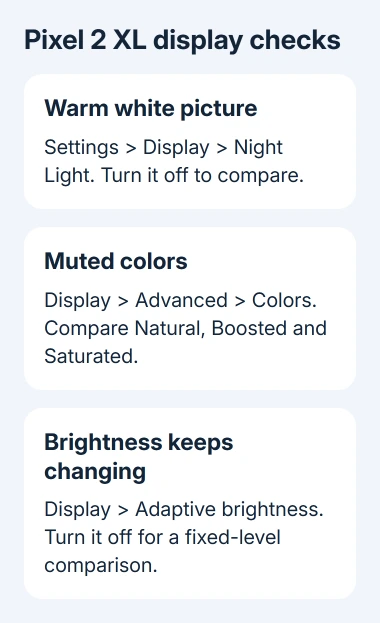
For colors that look too muted, open Settings > Display > Advanced > Colors. Choose among Natural, Boosted and Saturated. You may need to tap Advanced to see Colors on this older Android layout.
Natural aims for accurate colors, Boosted makes them more vivid, and Saturated gives the strongest colors. Compare one photo in each mode. Richer colors won't repair a damaged panel or remove lines.
Avoid looking for the Adaptive color option described for newer Pixels. That option applies to Pixel 3 and later. The Pixel 2 family's color choices differ, even though its brightness control can still adjust automatically.
For unexpected brightness changes, turn Adaptive brightness off in Display and adjust the slider. If the picture stays stable at that level, focus on the brightness changes. A screen that goes black needs different checks.
2. Tell viewing-angle color shift from a lasting defect
Hold the phone facing you, then gently tilt it while keeping the same image visible. Google explains that OLED screens change color at different viewing angles. That behavior differs from a stripe that stays in one position.
OLED means the screen's pixels produce their own light. A slight color change with angle can be part of how that display looks. That doesn't make every green screen, bright flash or large dark patch normal.
Look straight at the screen again. If the tint disappears only when you change the viewing angle, describe that result when seeking help. If the tint stays when viewed straight on or comes with lines, check for lasting defects next.
I'd judge the phone at the angle you normally use it. Changing color modes can make a photo more pleasing, but it won't remove the display's angle-dependent behavior.
If the trouble is touch response rather than the image, clean and dry the screen and remove a suspect case or protector for a comparison. A protector pressing on the edge and a permanent green line on the panel need different fixes.
3. Restart for flicker, freezing or a screen that stops responding
For a frozen Pixel 2 XL, press Power and keep it held for roughly 30 seconds. Give it time to restart, then check whether the same fault appears before reopening the troublesome app.
If the problem returns only in one downloaded app, try safe mode next. Take a Home screen screenshot first if you need to remember your widgets; safe mode can remove some of them.
Turn the phone off. Press Power to start it, then hold Volume Down when the startup animation begins. Release Volume Down after startup completes. Look for the Safe mode label at the screen's lower edge.
Safe mode temporarily turns off downloaded apps. If the original problem disappears, return to normal startup and remove a recent app. Check again before removing another, starting with software changed around the time the fault began.
The Android safe-mode exit steps explain the return to normal startup. If the fault remains in safe mode, tell the repair shop that it happens in safe mode too, rather than removing unrelated apps.
4. Handle ghost images, lines and repeated green flashes
A faint keyboard, status icon or navigation shape over new content can be image retention or burn-in: an old image leaves a mark. Switch to different ordinary content. If the old shape stays, have the screen checked.
Lower brightness and set a shorter screen timeout to reduce further wear. Use Settings > Display > Advanced > Screen timeout and choose two minutes or less. These changes protect the screen but won't necessarily remove existing damage.
Don't install apps that promise to repair burn-in by flashing colors. The screen-protection guidance advises against burn-in apps. Repeatedly running the screen at high brightness isn't a dependable repair.
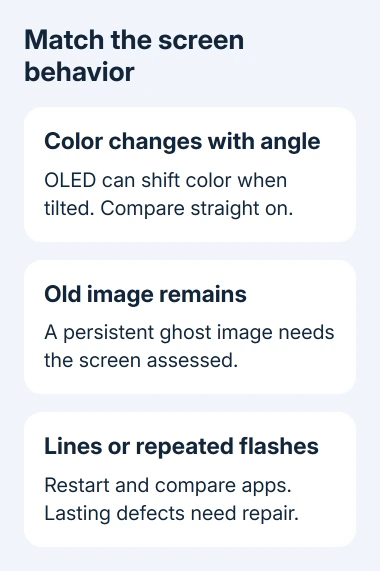
For flicker, a green tint or lines, the usual support procedure includes checking system updates. On this model, use Settings > System > Advanced > System update. Install an offered official update if the phone is behind.
Android upgrades and security patches have ended for Pixel 2 and Pixel 2 XL. A fully updated phone won't get a new patch just because the screen is failing. Avoid waiting for a current Pixel update that doesn't apply to this model.
If the lines or flashes remain after restart and the app comparison, ask a repair shop to check the display assembly and its connection. While the phone still unlocks, back up your photos and other important data.
5. Check a black screen before arranging a replacement
Charge the phone using a working wall outlet, adapter and cable. A deeply discharged battery can look like a failed screen. Check that the charging port is clear without pushing metal into it.
Try the Power-button restart after charging. If the phone rings when called but shows no picture, tell the repair shop it is running with a black display. That is more useful than describing it only as a phone that won't turn on.
For a phone showing no power, use the charger and cable checks in the Android power-on guide, keeping the Pixel restart described here. A battery or port fault can also leave the screen dark.
Get a quote for a Pixel 2 XL display repair and confirm parts availability before agreeing. Ask how the shop will protect your data. For permanent screen damage, decide whether to repair it; changing color modes won't fix it.
The Short Version
Check Night Light and Colors for unwanted tints. Compare tilted viewing with lasting marks, restart a frozen phone, and check apps in safe mode. Persistent lines, burn-in or a powered phone's black display need repair assessment.
Checked November 12, 2026.





