
On Android, turn off Do Not Disturb in Quick Settings. On current Pixel phones, open Modes first, then switch off Do Not Disturb.
If your phone goes quiet again later, check its bedtime, driving or scheduled mode. Turning it off now doesn't remove the rule that turns it on later.
Turn off the active mode from Quick Settings
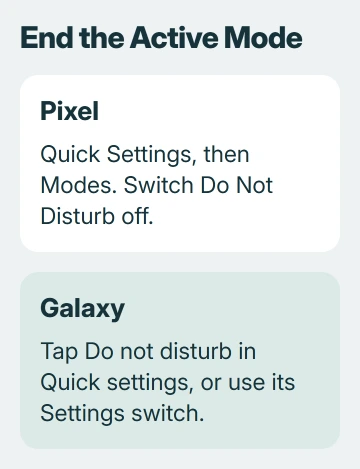
Pull down the notification panel and expand Quick Settings if needed. Look for Do Not Disturb, then tap its tile if it's on.
On current Pixels, tap Modes, then open Do Not Disturb. Switch it off there and tap Done when shown. Google's Pixel interruption controls show this panel.
Before leaving the panel, confirm the mode is off. A tile's label can open its settings, while another part may switch it on or off. Go by the state shown on screen, not how many times you've tapped.
Check for other active modes in the same panel. Bedtime, Driving and custom modes can filter notifications even when the ordinary Do Not Disturb mode is off.
If your phone doesn't show Modes, search its Settings app for Do Not Disturb. Android manufacturers arrange these controls differently, so your phone's menus may differ from the Pixel steps.
Use the Galaxy switch when its tile is hard to find
On a Samsung Galaxy, swipe down with two fingers to expand Quick settings. Find Do not disturb and tap it to switch it off.
Or open Settings, search for Do not disturb, and select the matching setting. Turn off the main switch beside its name. You can reach the control this way without rearranging your Quick settings tiles.
The Galaxy mode instructions also cover schedules on that screen. Each schedule's switch decides whether it starts automatically. The main Do not disturb switch controls whether the mode is on now.
Return to Quick settings and see whether the mode stayed off. If it returns at a predictable time, check the schedules next instead of repeatedly changing each app's notification permissions.
Stop the schedule that keeps turning it back on
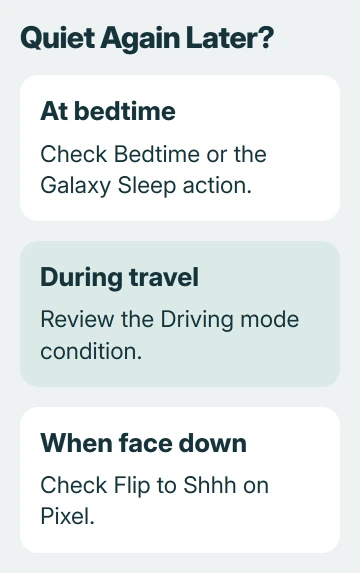
On Pixel, open Settings > Modes and select the mode that keeps turning on. Check When to turn on automatically. For Bedtime, look at Bedtime routine and its time or charging conditions.
For Driving, check the automatic driving condition. Change that rule only while safely parked. Turning the mode off for today's trip doesn't stop it from turning on again when you drive.
On Galaxy, touch and hold the Do not disturb tile. In the settings it opens, find the unwanted schedule and turn its switch off. Some versions label this area Turn on as scheduled.
On older Android versions, look under Sound & vibration > Do Not Disturb > Turn on automatically. The Android mode guide covers that layout and its automatic rules.
Keep any schedules you still want. Stopping a lunchtime rule doesn't require removing your nighttime routine. Change the rule that matches when your phone goes quiet or what you're doing when it happens.
Check Sleep mode and face-down activation
A Galaxy sleep schedule can turn on Do not disturb. Open the Clock app's Alarm tab, then its three-dot menu and Set Sleep mode schedule to check that setup.
The Galaxy sleep-schedule instructions cover Turn on automatically and the Stay focused actions. If your ordinary DND schedule is already off, check the Do not disturb action in Sleep mode.
On a Pixel that goes quiet when you put it face down, check Flip to Shhh. That gesture turns on Do Not Disturb when the phone rests face down on a flat surface.
Search Settings for Flip to Shhh and decide whether you want to keep it on. The Pixel gesture reference explains when it turns on.
The timing can seem random when a mode starts while charging, during driving or after you put the phone face down. Those triggers don't need a clock-based schedule.
Restore sound without confusing it with notification permission
Once the mode is off, check your phone's sound mode and ringtone or notification volume. Press a volume button and expand the controls. Look at the ring and notification levels, not just media volume.
On Pixel, the missed-call sound checks include Ring, Vibrate and Mute as separate choices. Turning Do Not Disturb off doesn't automatically select a louder ringtone.
If your chosen tone still doesn't play, the Android notification-sound checks cover default tones and individual app categories. Check a new alert from the app you need to hear.
If that app's notifications were disabled, use the Android app-notification controls. Ending Do Not Disturb removes the interruption filter, but the app still needs permission to send alerts.
Keep useful quiet periods without missing the alerts you need
If you want to hear from a particular person during quiet hours, review the mode's Notification filters instead of removing every schedule. You can allow people, apps and alarms separately.
For a wake-up alert, check the Android alarm's schedule and sound as well as its permission during quiet modes.
For future manual sessions on Pixel, check Modes > Do Not Disturb > Duration for Quick Settings. A time limit or Ask every time can be easier to manage than leaving the mode on until you remember it.
If the mode still turns on after you've disabled its matching triggers, contact the phone maker. Include your model, Android version and the mode's name. Say whether it returns at a certain time, location or after a device action.
The Short Version
Turn off Do Not Disturb in Quick Settings, opening Modes first on current Pixels. If your phone goes quiet again, check schedules, Sleep actions, driving and Flip to Shhh. Then check ringtone volume and app permissions.
Checked November 5, 2026.

Isaac Smith is the founder and editor of PC Glance, a website that covers computers, laptops, and technology. He is a tech enthusiast and a computer geek who loves to share his insights and help his readers make smart choices when buying tech gadgets or laptops. He is always curious and updated about the latest tech trends.