
Open Clock > Alarm, tap the plus button, and choose the time to set an alarm on Android. Confirm AM or PM if your phone uses a 12-hour clock, then check that the saved alarm's switch is on.
Google Clock and Samsung Clock put the extra options in different places. Choose repeat days and a sound you can hear, then test the alarm while you're awake before relying on it.
Add the time in Google Clock
Open the Clock app and select Alarm, rather than Timer or World clock. Tap Add, shown as a plus button. A timer counts down a set length of time; an alarm rings at a particular clock time.
Google's alarm setup instructions describe both clock faces: move the hands to choose hours and minutes on an analog face, or enter the numbers on a digital one. Select OK when the time is right.
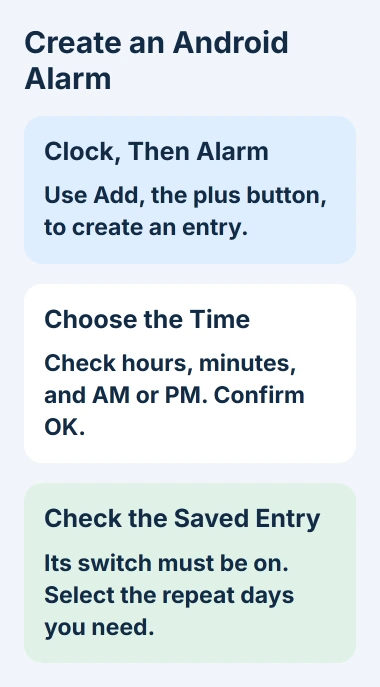
On a 12-hour clock, check AM or PM separately from the numbers. An alarm that says 7:00 PM won't wake you at 7:00 AM. With a 24-hour clock, check the complete hour, such as 19:00 for the evening.
After saving, return to the alarm list and check that the new alarm's switch is on. Read its time and any next-alarm information shown to confirm it saved the way you wanted.
If you're creating several alarms, leave at least five minutes between them. The setup instructions warn that two alarms placed too close together can cause the first one to be canceled.
Choose the days and a label that explains the alarm
Tap the alarm block to open its options, then choose the repeat weekdays. For a workweek alarm, select the days you work. A one-time alarm won't keep waking you every morning.
Check the selected weekdays before leaving the page. The switch turns the saved schedule on; it doesn't add days you haven't selected. For example, check that Saturday isn't selected if you only need a Friday wake-up.
Tap Alarm name and add a useful label, such as Morning shift or Take medicine. That makes alarms with similar times easier to tell apart when you're editing one or turning it off for a while.
Choose Vibrate if you want the alarm to vibrate. Sound and vibration have separate controls, so check both if you want vibration without sound.
For a temporary break, use pause dates if your alarm offers them, or turn off its switch. When the break ends, check the next active date so you don't leave a saved alarm disabled.
Set Google Clock's sound and alarm volume
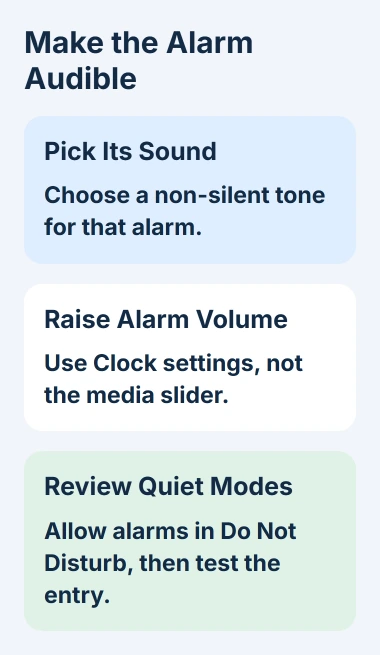
Expand the alarm and tap its sound entry. Choose a sound you can hear from the phone's list. If the alarm tone is set to silent, raising media or ringtone volume won't make it ring.
To use your own audio file, tap Add new in the sound chooser and select the saved file. For music from a service, check which account you need; some song choices require a paid subscription.
I'd use a built-in sound for the first test. That lets you check the clock, tone, and volume before adding another app or music account.
Open the Clock app's three-dot More menu, select Settings, and find Alarms. Move Alarm volume to a level you can hear. The Clock settings guide also lists Gradually increase volume.
The Volume buttons setting controls what the physical keys do while an alarm rings. Check whether they're set to adjust volume, snooze, or dismiss, so a key press in the morning does what you expect.
For unexpected silence outside Clock too, use the Android Do Not Disturb controls. Check whether that mode allows alarms; quiet modes don't all handle them the same way.
Follow the Samsung Clock controls on a Galaxy
On a Galaxy, open Clock > Alarm and tap Add alarm, the plus button. Choose the time, select the repeat days, and add an Alarm name if useful. Tap Save to finish.
Open Alarm sound within that alarm to choose its tone and adjust its volume slider. Samsung's Galaxy alarm instructions put those sound options in the alarm's own settings.
Choose your vibration and snooze options before saving. Samsung Clock can let you set the time between snoozes and how many times they repeat. Read those settings rather than assuming they match Google Clock.
Check Clock > Alarm > three-dot menu > Settings for Silence alarms when system sound is off. Switch that setting off to let alarms ring while the phone's system sound is off.
A Galaxy can have a Sleep mode schedule as well as ordinary alarms. Edit the one you use: changing a newly added alarm doesn't necessarily change the wake-up time saved in your sleep schedule.
Test, edit, or stop the right entry
Set a test alarm a few minutes ahead and let your phone lock while you wait. Check the sound and volume with the phone where you'll keep it, then try the stop or snooze control shown on screen.
Remove the test after it rings so it doesn't become an extra daily wake-up by mistake.
To change a Google Clock alarm's hour and minutes, tap its time. Expand its block for the other options. The switch pauses the saved alarm; Delete removes it.
In Samsung Clock, tap an alarm to edit it. To remove one, touch and hold its entry and choose Delete. If you're deleting several, check the selected alarms before confirming.
Use the Android app-update steps if Clock has an update available. If an alarm still fails, look for a Clock warning about notifications, Do Not Disturb, sound, volume, or Battery Saver and change the setting it names.
If a correctly saved alarm keeps failing to ring on time, contact the phone maker or Clock support. Give them the app version, repeat schedule, and warning text. Use another working alarm until it's fixed.
The Short Version
Add an alarm in Clock, check its time and enabled switch, then choose repeat days and sound. Adjust the alarm's own volume and test it while awake. Samsung Clock has separate sound and silence settings to review.
Checked November 6, 2026.

Isaac Smith is the founder and editor of PC Glance, a website that covers computers, laptops, and technology. He is a tech enthusiast and a computer geek who loves to share his insights and help his readers make smart choices when buying tech gadgets or laptops. He is always curious and updated about the latest tech trends.