

Android can hide notification icons without hiding the clock, battery and signal indicators beside them. On a Galaxy phone, check Show notification icons in notification settings.
On other Android phones, making an app's alerts silent and hiding silent status-bar notifications can remove those icons while keeping the alerts in the pull-down panel.
Hiding the entire top bar is a different request. Full-screen apps can do that while you're using them, but the notification controls described here don't turn the whole phone into a permanent full-screen display.
In this guide
Decide which part of the top bar needs to disappear
The strip containing the time and connection symbols is the status bar. App notification icons share that strip. The notification panel, also called the shade, is the larger area revealed by a swipe down from the upper edge.
Removing app icons from the strip can leave the notification panel usable. Turning off an app's notifications also stops its alerts from appearing in the panel. Choose between those results before turning switches off.
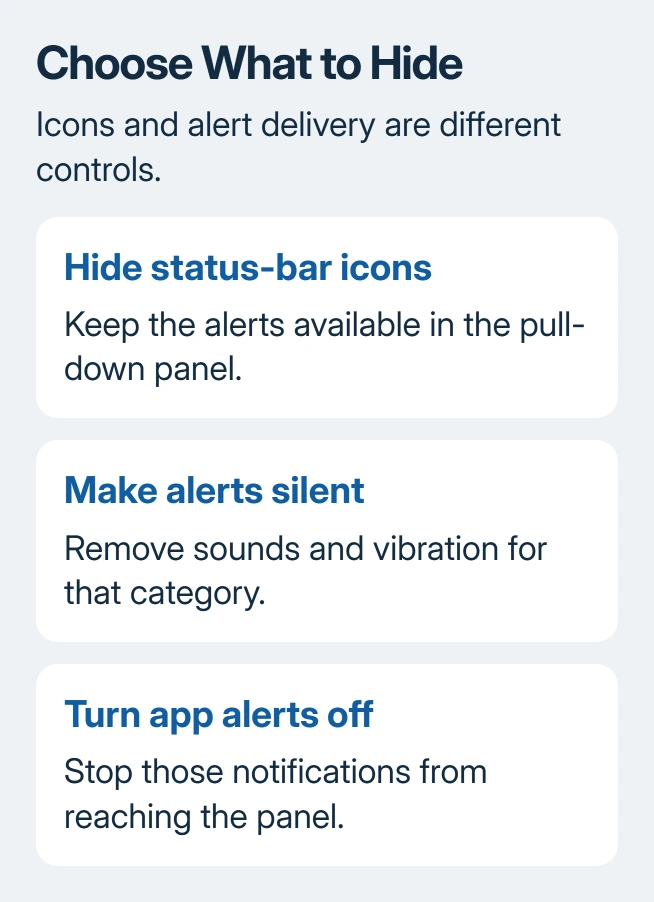
A banner appearing over the app you're using is another setting. Its name may be Pop on screen, a pop-up style or a similar label. Turning off a banner doesn't necessarily remove the small status-bar icon.
Likewise, an app-icon badge is a dot or number on the app's Home Screen icon. Badge controls don't hide the clock strip. If the symbol you dislike is beside the time, stay with the status-bar settings.
Hide notification icons on a Samsung Galaxy
Open Settings > Notifications > Advanced settings. Tap Show notification icons, then choose the option that hides the icons if your Galaxy offers it. Samsung's notification controls place this choice in Advanced settings.
The options and names vary between One UI versions and devices. Some builds offer a count or a limited set of recent icons as alternatives. Select the amount of detail you prefer. Close Settings and check the top strip.
Swipe down afterward and check the panel. Hiding the status-bar icons can clear the strip while keeping your messages in the panel.
If you turned off notifications for the app itself instead, return to that app's notification controls to restore them.
If Show notification icons isn't present, search Settings for that exact phrase. Don't reset the phone because another Galaxy version has a different menu.
Use the available per-app choices when the device doesn't offer the same global control.
It's normal for the clock and battery to stay visible. This setting is for app notification indicators, not every symbol the system puts on the top strip. A VPN, active call or other system indicator may have its own behavior.
Hide silent notification icons on other Android phones
Open Settings > Notifications and look for Hide silent notifications in status bar. Turn it on where available. Some phones place it under a General or Advanced section, and older Android layouts use Apps & notifications > Notifications.
Next, choose which app notifications should be silent. Touch and hold one of that app's notifications, open its settings, and select Silent for the relevant notification type.
Keep other categories alerting if they're still important to you.
Google says silent alerts work differently from disabled ones. Silent notifications can remain in the pull-down panel while no longer making a sound or vibration.
With the silent-icon hiding option enabled, check the next notification from the category you changed. Its icon should disappear from the status bar, while you can still read the alert in the pull-down panel.
Check a new alert so you're not comparing it with one that arrived before you changed the setting.
I'd try this with one low-priority app first. It's easier to check that you still receive what you need than to change every app at once and discover later that an important alert has gone quiet.
Some phones don't provide that global hiding switch. Making alerts silent won't hide their icons on every Android phone.
Use the available controls for that device instead of installing a tool that claims every Android screen works the same way.
Remove one app's alerts completely
For alerts you don't want in the panel either, open Settings > Notifications > App notifications, select the app, and switch off its notifications.
Older phones may put that list inside Apps & notifications or the app's own information screen.
That stops the alerts, rather than just hiding their icons. Keep essential account, security or communication alerts on unless you mean to stop seeing them.
For a less drastic change, switch off a promotional category while keeping message or account categories on.
The Android notification-disabling steps cover the per-app route. Use that when the goal is fewer alerts, rather than a cleaner strip with all the same alerts still waiting.
On Galaxy devices that hide notification categories, open Settings > Notifications > Advanced settings and enable Manage notification categories for each app if it's offered.
Return to the app's notification page to choose the relevant category.
Handle lock-screen notices and full-screen apps separately
For privacy while the phone is locked, open notification settings and look for Notifications on lock screen. Choose to hide sensitive content or stop showing notifications there, depending on the options your phone offers.
Those lock-screen options don't hide an unlocked phone's entire status bar. They control what someone can read without unlocking the device. Check the result with the phone locked, rather than judging it only on the Home Screen.
A video player or game may hide the whole strip when it enters full screen. Use that app's full-screen control, then swipe inward from an edge to reach system controls when needed.
If it shows the bar permanently, check the app's own display options.
Notification sounds are separate again. The Android notification-sound settings let you change an alert you want to hear without using icon visibility as a volume control.
When the expected option is missing
Open Settings > About phone and note both the Android release and the maker's software version.
Ask the manufacturer's support team whether that build supports hiding notification icons or silent status-bar indicators, using those exact terms.
For a work-managed phone, ask the administrator about any locked notification controls.
Changing your launcher won't give it control over every system indicator. I wouldn't factory-reset the phone just to look for a menu its software doesn't offer.
The Short Version
Use Galaxy's notification-icon choice when present. On other Android phones, combine silent app categories with Hide silent notifications in status bar where available.
Turn notifications off only when you want the alerts gone from the panel as well.
Checked November 16, 2026.
 If you have any business, I can build it online






