Android pop-up notifications use the app's notification category. Enable Pop on screen, or Samsung's Show as pop-up, to restore a missing banner. Turn that option off to keep the notification without its banner.
Banners differ from floating app windows, lock-screen alerts, and browser ads. Check whether the alert reaches the pull-down shade. If it's there but never appears over an open app, focus on the banner controls.
In this guide
1. Open the category that sent the notification
Find an alert from the affected app in the notification shade. Touch and hold it, then open its notification settings. This opens the controls for the app and the kind of alert it sent.
A category is one kind of notification inside an app, such as messages or reminders. The app decides which categories it offers, so the names won't be identical on every phone or in every messaging app.
Keep the app's main notification permission on if you still want its alerts. Switching off all notifications prevents the banner, but you'll also lose those alerts from the notification shade.
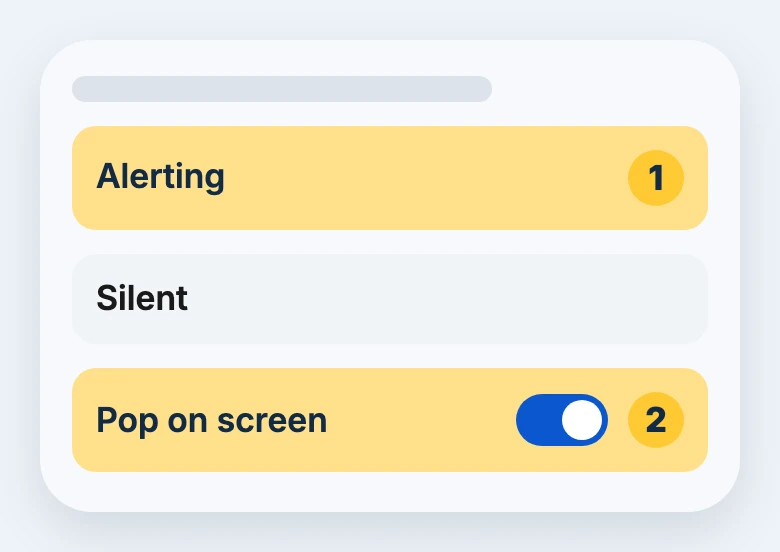
Google explains the difference between alerting and silent notifications. Silent alerts can remain in the shade without making a sound or vibrating. For a banner to appear, its alerting and pop-up settings need to allow it.
If the shade contains no notification either, check the app's permission before its banner style. Open Settings > Notifications > App notifications on phones with that menu, select the app, and allow notifications.
Older Android layouts can use Settings > Apps & notifications > Notifications. The notification's own settings shortcut is often easier when the phone's menu names differ from instructions for another brand.
2. Change the Android banner switch
Within the app's notification controls, open the category for the alerts you want to change. Choose Alerting or the equivalent default alert behavior, then enable Pop on screen when that option is available.
Have someone send a fresh message, or trigger another fresh alert, while the phone is unlocked and a different app is open. The pop-up setting applies while you're using the phone. Reopening an old notification doesn't test a new banner.
If the banner appears, the category was the missing setting. Other categories in the same app can still behave differently. Change only the ones whose alerts need to interrupt you.
To stop banners but keep an alert available, turn Pop on screen off for that category. Leave its main notification permission enabled. Check the next notification in the shade to confirm you kept the part you wanted.
Choose Silent instead to stop sound and vibration as well. That's a broader change than hiding the banner, so leave Silent unselected if the alert should remain audible without a pop-up.
To turn off an app's entire set of alerts, use the complete notification-disable controls. Stick with the category's banner setting when the only problem is an alert interrupting what's on screen.
3. Enable category controls on a Galaxy
On recent Galaxy software, open Settings > Notifications > Advanced settings. Turn on Manage notification categories for each app. Without that switch, the category controls can be hidden even though the app is allowed to notify you.
Then return to Settings > Notifications > App notifications and choose the app. Open Notification categories, tap the relevant category's name, and check Allow notifications, Alert, and Show as pop-up.
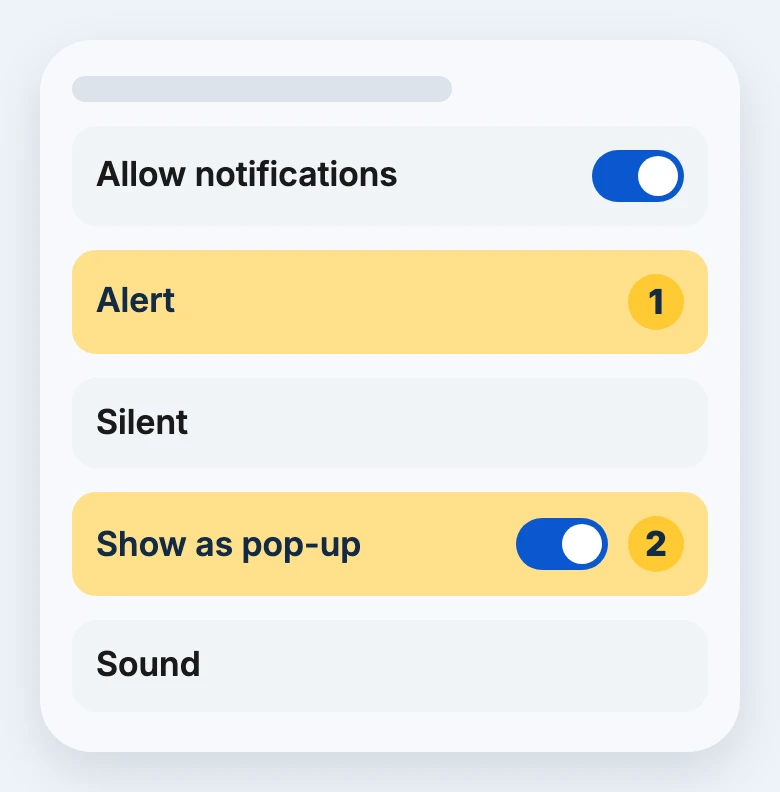
Tap the category name to open its detailed screen. Tapping only the switch beside a category can simply turn that whole category on or off. That won't open the separate banner setting you need.
For missing banners, enable Show as pop-up. To stop banners but keep notifications, disable that setting and leave Allow notifications enabled. Have someone send a fresh alert after changing it.
Also check the app's broader notification screen. Some Galaxy versions show display options such as Notifications pop-up there. Both the category setting and the app's permission need to allow pop-ups for banners to return.
The layout varies with One UI and the model. An older Galaxy may show categories directly without the advanced-settings switch. Follow the phone's labels rather than searching for a switch its version doesn't have.
4. Check interruption modes when several apps lose banners
If every app stopped popping up at the same time, check Do Not Disturb and any active sleep, driving, or other scheduled mode. A mode can suppress interruptions even when each app's notification permission remains enabled.
On a Galaxy, open Settings > Notifications > Do not disturb and check whether it's active. Turn it off briefly to check whether banners return without it. Then send a fresh alert to the unlocked phone.
On recent Pixels, check Modes in Settings or the active mode in Quick Settings. Older versions can put Do Not Disturb under Notifications. Review the mode's notification restrictions and allowed apps.
If banners return with that mode off, adjust the mode's exceptions or schedule to match what you need. For a single app that remains silent, revisit its categories. Turn the mode back on after the check if you still need it.
I'd test one app and one category at a time. You can then tell whether the change restored the banner, changed its sound, or blocked the entire alert.
5. Separate banners from other kinds of pop-up
A notification that expands into a movable app window uses a floating-window feature. Galaxy Smart pop-up view and conversation bubbles are different controls from Show as pop-up. A banner switch won't necessarily open a full chat window.
For the older Galaxy S9 window behavior, use the supported-app pop-up view steps. That feature depends on the app supporting the window action, not just on receiving a normal notification.
Lock-screen alerts have their own settings too. A banner test while unlocked won't tell you whether private content is allowed on the lock screen. Change the lock-screen notification settings only when that's the display you want to fix.
An advertisement that opens a browser tab or covers the screen without a corresponding app notification isn't this banner control. Identify the app or browser sending it before changing notification categories across the whole phone.
If new alerts still reach the shade without a banner, contact the phone maker. Give the model, Android or One UI version, app and category names. Include whether other apps show banners and whether a mode was active.
The Short Version
Keep alerts allowed, then change Pop on screen or Show as pop-up for the category. Samsung may first need category management enabled. Check modes if several apps fail together; floating windows use separate controls.
Checked November 29, 2026.
 If you have any business, I can build it online