Android GPS can stop working when buildings block satellites, the battery is low, or the app lacks precise location access. Move into open space and check power and permissions before resetting the phone.
A neighborhood shown on a map doesn't confirm satellite reception. Android can estimate a position from Wi-Fi or cellular signals while navigation reports GPS Signal Lost. Check whether satellites can locate the phone outdoors.
In this guide
1. Check reception outside before changing the phone
Stop somewhere safe and take the phone outdoors, away from buildings and roofs. GPS signals aren't available indoors or underground, so losing guidance in a tunnel or garage can be expected. Retest after leaving the obstruction.
Give the phone a chance to work out its position, then check whether navigation starts working again. Don't make these changes while driving. A passenger can check the screen, or you can park before handling the phone.
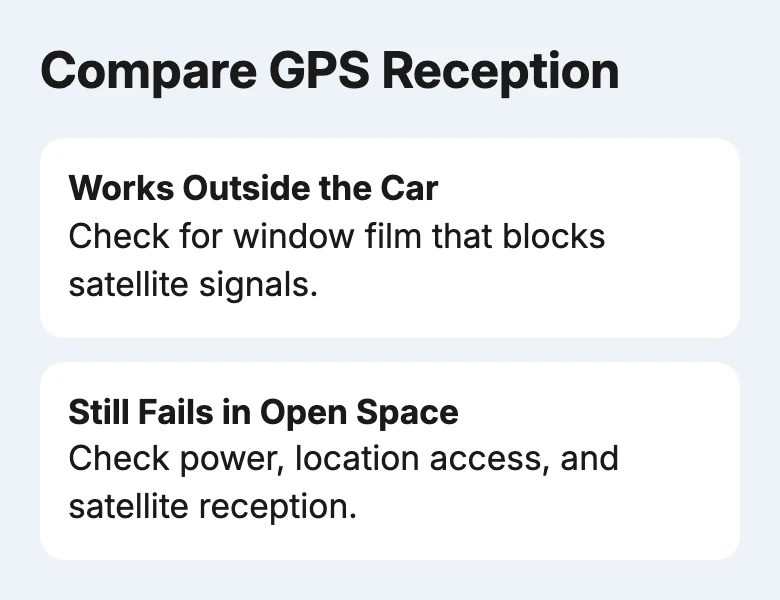
If GPS fails only in one car, compare reception outside it. Some glare-reducing window tint contains metal that blocks satellite signals. Working outside points to something in the car blocking reception, rather than a failed receiver.
Google says metallic window tint can block GPS, alongside obstructions such as buildings. If the signal keeps dropping in open space, check the battery and permissions next.
A wide pale circle means Maps is uncertain where you are within it. A gray or missing dot means it can't show a current position. Neither display tells you whether the phone is receiving satellite signals.
2. Check location access for the phone and app
Open Settings > Location and turn on Use location. This is the phone's main location control. If it's off, allowing one app to use location won't supply that app with a position.
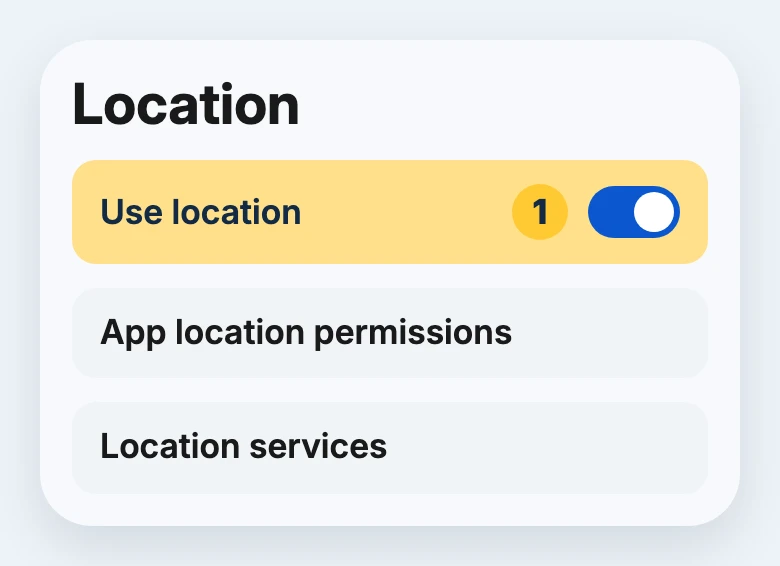
For the affected app, press and hold its icon and open App info. Choose Permissions > Location, then select Allow only while using the app to check location while the app is open. Keep it on screen as you check whether location works.
On Android 12 or later, turn on Use precise location if shown. Approximate access lets the app see a broad area, but not the more exact position it needs. Precise permission is separate from the main Use location switch.
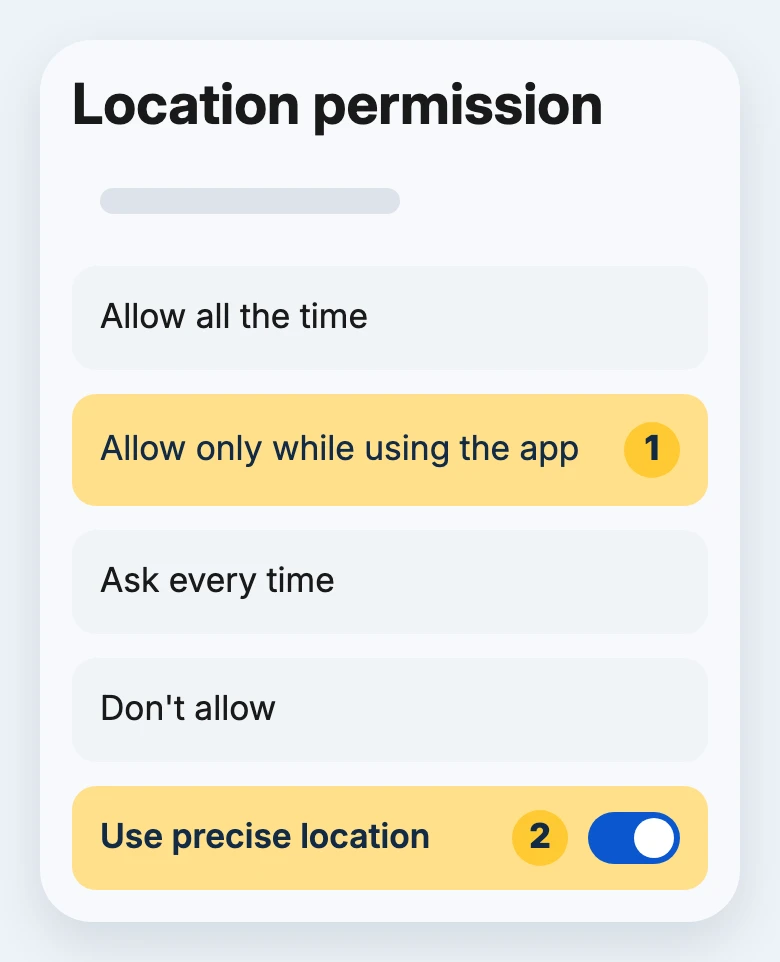
Android 11 and earlier lack that per-app precise-location switch. Check the available location permission instead. If the menu differs on your phone, search Settings for Location to find its controls.
Note whether GPS fails only when the screen locks or you switch apps. Permission and battery limits can stop navigation when the app isn't on screen. Ask the app's developer which permissions it needs to work in the background.
For a failure confined to Pokemon GO, the game's GPS checks also cover its own location restrictions. A problem in one game isn't enough to diagnose the phone's receiver.
3. Compare with a charged battery and Battery Saver off
Charge the phone before repeating the outdoor check. Some phones disable GPS at low battery. Others do so only in certain conditions, such as low battery while the screen is off or Maps is in the background.
Turn off Battery Saver for the comparison. On a Pixel, open Settings > Battery > Battery Saver. Other Android makers may label the feature Power saving; use the phone's settings search to find its control.
Retest while the app remains visible. If positioning works then but fails again with battery saving enabled, review that mode's restrictions. Erasing the phone won't help you check whether power saving causes the problem each time.
I'd check the power-saving behavior before adding another navigation app. A second map can still show a network-based location, so it can appear to work while telling you very little about satellite reception.
4. Improve a weak location estimate
On Android 12 and later, open Settings > Location > Location services > Location Accuracy. Turn on Improve Location Accuracy. On Android 11 and earlier, use Location > Advanced > Location Accuracy where that route is available.
Location Accuracy combines satellite, Wi-Fi, cellular, and sensor information on supported devices. It helps estimate positions around obstructions. It's separate from an app's precise-location permission; check both controls.
Keep cellular data or Wi-Fi available, and switch off Airplane mode if it was enabled. If Maps shows a low-accuracy message, tap that message and follow its suggested check. The recommendation depends on the accuracy problem it detects.
If the dot shows your position correctly but its beam points the wrong way, the compass may need calibration. Use Calibrate when offered and follow its instructions. A pointing error doesn't necessarily mean GPS reception is lost.
If only the Maps app fails to load or calculate routes, use the Android Maps app fixes. Downloading a map or clearing its cache won't restore satellite reception on the phone.
5. Check satellite reception when navigation keeps failing
If navigation keeps failing, use a reputable GPS status app to check reception. This kind of app checks satellite reception. Another navigation app can also use location information that doesn't come from satellites.
Run that check with the battery charged and the phone outdoors under a clear sky. Note whether the status app gets a position from satellites. Simply seeing nearby streets or your city on its screen isn't a confirmed satellite position.
If the app can't get a satellite position under those conditions, the phone may need repair. Request a GPS receiver check from the phone maker. Provide the model, Android version, outdoor result, and any difference inside the car.
If a GPS status app works but Maps still loses reception, report it through Maps > profile picture > Help & feedback. Include the exact warning and whether it happens on screen or only after locking the phone.
Keep those results together when seeking help. They separate a navigation-app problem from reception that fails across the phone, giving the support team a concrete reason to examine the app or the hardware.
The Short Version
Check outdoors, enable location and precise app access, and compare with a charged battery and Battery Saver off. Location Accuracy helps estimates. For persistent loss, check satellite status before choosing app support or repair.
Checked November 29, 2026.
 If you have any business, I can build it online