Missing Android contacts can be hidden in another account or absent because sync is off. Check All contacts and the selected Google Account before restoring anything. Recently deleted Google contacts can be recovered through Trash.
The right fix depends on where the numbers were saved: your Google Account, the phone itself, a SIM card, or another app. An empty list on a phone can mean the numbers were deleted or simply hidden from view.
In this guide
1. Show the account that holds the contacts
Open the Google Contacts app and tap Contacts at the bottom. At the top left, tap the account selector and choose All contacts. This shows contacts from all accounts, so a list hidden by the account filter can reappear.
At the upper right, tap your profile picture to see the available Google Accounts. Select the account you used before the numbers vanished. A new phone might be signed into an account that doesn't hold your contacts.
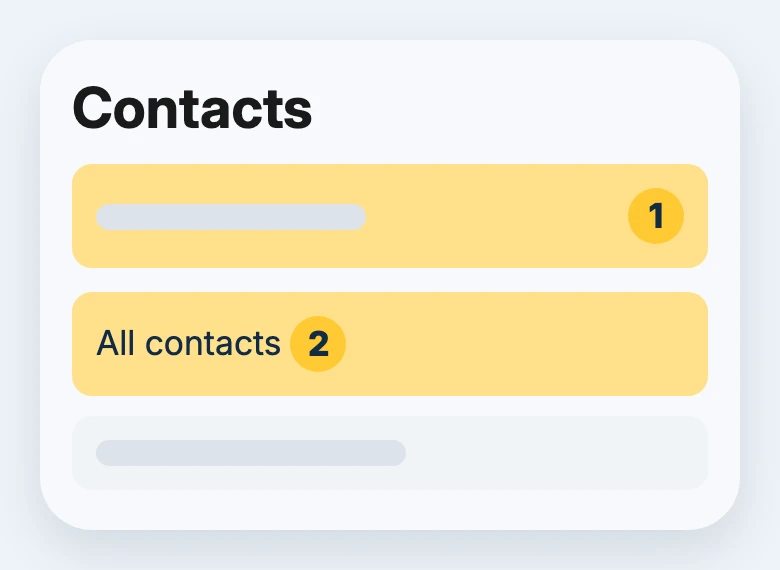
Look for a person whose number you know should be present. If the contact appears after switching accounts, it wasn't deleted. Keep that account available in Contacts rather than importing another copy of the same list.
A label can narrow the display too. Return to the main Contacts list if you're looking at a group such as family or work. Google says Contacts can show one account or all accounts.
These menu names are for Google Contacts. Samsung Contacts and other makers' apps organize account and contact management differently. Follow these steps in Google Contacts so the menu names match what you see.
2. Restore contact sync for the right account
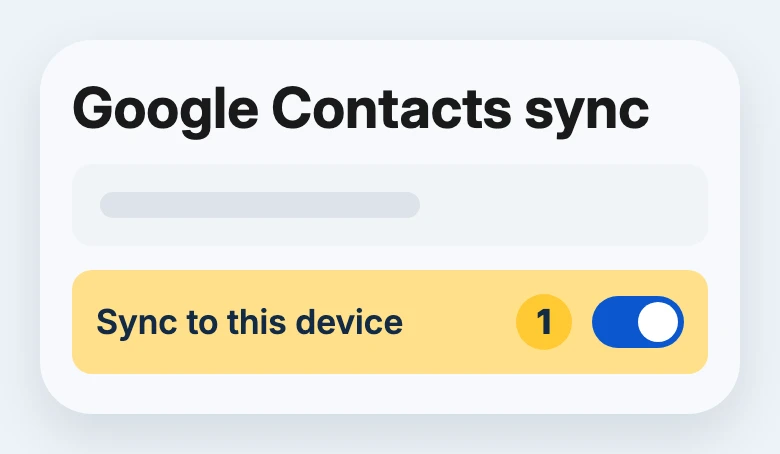
If the right account still shows an empty list, open the phone's Settings and enter its Google settings. Open All services, then look under Backup and restore for Google Contacts sync.
Select the affected account, open View settings, and turn on Sync to this device. Return to Contacts and give the list time to update while the phone is online. Pull down on the contact list to request a manual sync.
Turning off Google Contacts sync removes the account's contacts from this phone. Turning it back on can bring the account's contacts back without restoring a phone backup. Check sync before removing the account or resetting the phone.
If your phone shows Accounts and backup > Manage accounts, choose the Google Account, open Account sync, and check Contacts there. Menus vary by phone maker; check the account name, with its Contacts switch turned on.
Don't switch sync off as an experiment while recent edits are waiting to upload. Unsynced changes can be lost. Keep the account connected and try the manual refresh first.
When the old phone is available, check its contact list too. The Android contact-transfer guide helps when the numbers never reached the account during a move to a new phone.
3. Recover recently deleted Google contacts
When just a few people vanished after deletion or a cleanup, check Trash. In Google Contacts, select the Google Account that held the missing numbers, then tap Organize > Trash.
Tap a missing contact and choose Recover. For several contacts, touch and hold one, select the others, then use More > Recover. Return to the normal contact list and search for a recovered name.
Deleted Google contacts stay recoverable in Trash for 30 days. The phone must be online, and automatic contact sync needs to be on for Trash to open. An offline Trash screen isn't a reason to assume every deleted contact is gone.
Trash can recover contacts saved in that Google Account. A number saved only on the phone won't appear there. If the account's Trash is empty, try the next recovery option that matches what happened.
4. Undo a recent bulk change
For a large accidental deletion or an unwanted change across many contacts, use Undo changes. This rolls the account's contacts back to an earlier point during the past 30 days instead of recovering each record separately.
Open Contacts, tap your profile picture > Contacts settings, then find Undo changes under Edit contacts. Choose the affected account if asked, select a time before the problem, and tap Confirm.
Before confirming, export any contacts added since that earlier time if you need to keep them. Returning to that earlier list removes contacts added since then.
Look for Export to file under Organize; older layouts call that tab Fix & manage. Select the accounts, then choose Export to .VCF file.
I'd use individual recovery when only one or two numbers are missing. Restoring the whole list changes more than the missing numbers, so save it for a mistake that affected the whole list.
Contacts permanently deleted from Trash can't be recovered by this method. The contact recovery instructions explain both Trash recovery and Undo changes.
5. Restore numbers saved on a phone or SIM
If the numbers were saved on the phone or SIM rather than in Google Contacts, check for a contact backup. Open Settings > Google > All services > Backup and restore > Restore contacts.
Choose From account to select the Google Account holding the backup. Select the phone you want to copy from, then choose whether to include SIM card or Device storage contacts. Tap Restore.
Wait for Contacts restored, then return to the contact list. To avoid duplicates, your phone restores only contacts it doesn't already have. Those contacts then sync to the current Google Account.
A newer Android backup can't restore onto an older Android version. Check the versions if restoration isn't available. Another app's address book, such as Outlook, needs that app's own account and setup.
If you're checking what a phone backup contains, the Android backup guide separates Google-synced contacts from other phone data. Recovering the address book doesn't usually require a full-device restore.
When none of the saved copies contains the numbers
Keep the old phone and any exported contact files while you check recovery. A factory reset won't recreate a contact that was never synced or backed up. For a work address book, ask its administrator whether the account still has access.
For a Google contact problem across devices, use the Contacts Help Center's Community option. Explain when the list changed and what Trash and Restore contacts show. Don't post people's phone numbers in a public request.
The Short Version
Check All contacts and the original account, then restore sync. Use Trash for recent deletions, Undo changes for a bulk mistake, or Restore contacts for a saved phone or SIM backup. Recovery depends on where the numbers were saved.
Checked November 29, 2026.
 If you have any business, I can build it online