
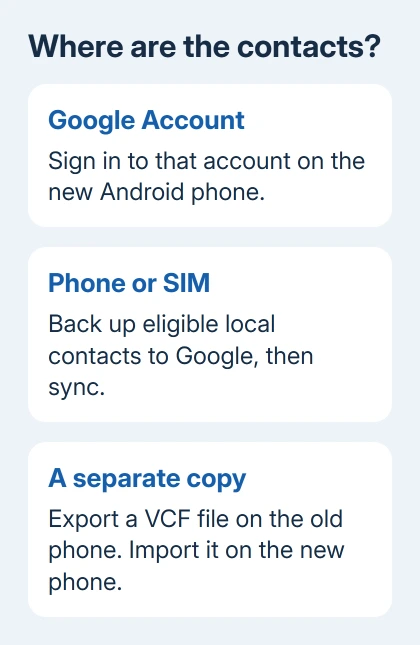
To transfer contacts from Android to Android, sign in to the new phone with the Google Account that holds them. Contacts saved only on the old phone or SIM need to join that account first, or move in a contact file.
Changing the SIM alone won't move contacts stored in Google or the old phone's memory. Check where your names are saved before choosing a transfer method, especially when only some appear on the new phone.
In this guide
Check which account owns the address book
Open Google Contacts on the old phone and tap the account picture. Note the email address and open several important contacts. Check whether their saved location is your Google Account, Phone, Device, or Local.
The steps here use Google's Contacts app. Samsung Contacts and other manufacturers' address books can have different menus. A missing Google menu inside another Contacts app doesn't mean your phone can't transfer contacts.
Google says contacts saved in your account sync when you sign in. That route also keeps later changes together, so it suits someone replacing their own phone.
I'd check a few contacts you added recently, not just the first names in the list. New entries might have been saved to a different place even when older contacts already sync correctly.
If the new phone belongs to someone else, send a file with the contacts you want to share instead of signing your whole Google Account into their phone. That avoids connecting your other account services just to share phone numbers.
Bring Google contacts onto the new Android phone
During initial phone setup, use the Google Account you identified earlier. For a new phone that's already set up, add that Google Account through Settings without starting over.
The Settings category varies by manufacturer. Search Settings for Add account if you can't find it, select Google, then complete sign-in. Adding a second account isn't the same as replacing the phone's existing one.
Open Google Contacts on the new phone and select the correct account from its account picture. Contacts from multiple signed-in Google Accounts can sync to the phone, so the visible list depends on which account you're viewing.
Allow the phone to finish syncing, then search for a known name. Open the entry and check the actual number, email address, and any second phone number. Seeing a familiar name alone doesn't confirm that all its details arrived.
If the list stays empty, check Google Contacts sync in Settings. Make sure syncing is enabled for the intended account. Signing in with a different email address brings up that account's contacts, even if both accounts belong to you.
A broader phone move also includes photos, messages, and apps. The Android backup guide explains those separately; contacts that already sync don't need another file import just because you're moving other data.
Copy phone-only and SIM contacts into Google
On the old Android phone, open Settings > Google > All services. Under Backup and restore, open Google Contacts sync, choose the account, then select View settings.
Under Sync options, turn on Back up device-only and SIM contacts automatically. On software with an account picture in Settings' top area, your profile > All services can lead to the same controls.
This saves the device and SIM contacts it can back up as Google contacts. Once that happens, the new phone can receive them through the account sync you already set up. Availability depends on your phone model and manufacturer.
Only one Google Account can receive this automatic device-and-SIM backup. Child accounts and Google Workspace accounts can't use it. Use a manual transfer if the account allows it, or ask the account administrator.
Contacts belonging to another cloud service, such as Exchange or Yahoo, aren't automatically converted by this switch. Add that service's account on the new phone, or use its supported export method when you're moving away from it.
For a SIM you can place in the new phone, Google Contacts also offers Organize > Manage SIM. Select the entries and destination Google Account, then tap Import. This only imports contacts actually stored on that SIM.
Transfer a VCF file for a separate copy
A VCF is a contact file that can hold names and phone numbers together. It's useful when the new phone will use another account, or when automatic backup isn't available for the contacts you need.
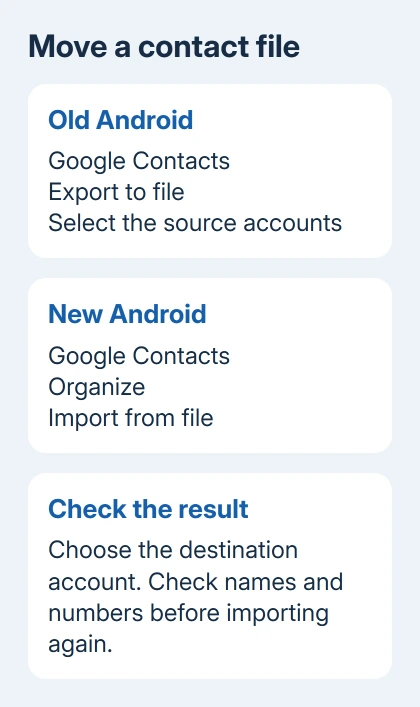
On the old phone, open Google Contacts. If your app has the layout shown in its help page, tap Fix & manage > Export to file. Select the source accounts, then tap Export to .VCF file and save the file.
Newer Contacts layouts use Organize for management tools. Look for the export control there if your app doesn't have Fix & manage. Check the selected accounts before exporting so the file contains the list you intended.
Move that file to the new phone through a trusted transfer method, such as a direct device share or your own storage. A contact file contains other people's personal details, so don't upload it to a public sharing page.
On the new phone, open Google Contacts and choose Organize > Import from file. Pick the destination account if asked, then find and select the VCF file. Open several imported entries to check their details.
This makes a copy; it doesn't keep the two phones' separate contact lists linked. Import the file once, then check the result before repeating. Repeated imports can make an already confusing address book harder to sort.
Check missing entries before wiping the old phone
If only some names are missing, compare the account view on both devices. A list showing one Google Account won't include device-only contacts that haven't been copied, or entries still held in a different service.
If you have a device-contact backup your phone can restore, look in Settings for Google > Set up & restore > Restore contacts. Choose From account, select the old phone, choose the storage sources, and tap Restore.
Wait for Contacts restored before checking the result. A device backup can restore to a phone running an Android version equal to or newer than the old phone's. Ordinary Google contact sync works differently from that restore.
Keep the source phone available while checking the transferred entries. If you're changing platforms instead, the Android-to-iPhone contact steps use different destination settings.
If your phone maker's Contacts app won't export contacts saved on the phone, ask its support team how to export them on your model. For a Google sync error, give Contacts Help the account type, saved location, and exact error.
The Short Version
Entries already synced belong to their original Google Account. Save local and SIM entries to that account, or use a VCF file for a separate copy. Check the transferred names and numbers before you erase your old phone.
Checked November 12, 2026.





