

Open the PDF through File > Open in Word for Windows, then accept the conversion prompt to make an editable copy. This works best for documents that contain mostly text; a scanned page or a complicated layout needs more checking.
Keep the PDF until you've compared the finished document with it. Changing a sentence is usually straightforward, but tables, footnotes, and page breaks can move during conversion.
In this guide
Open a copy through Word's File menu
Start Word first instead of double-clicking the PDF in File Explorer. Double-clicking normally opens the app assigned to PDFs, which might be a browser or a reader rather than Word.
Microsoft's PDF editing instructions say to use desktop Word. They cover Microsoft 365, Word 2024, Word 2021, Word 2019, and Word 2016. Start the conversion inside Word.
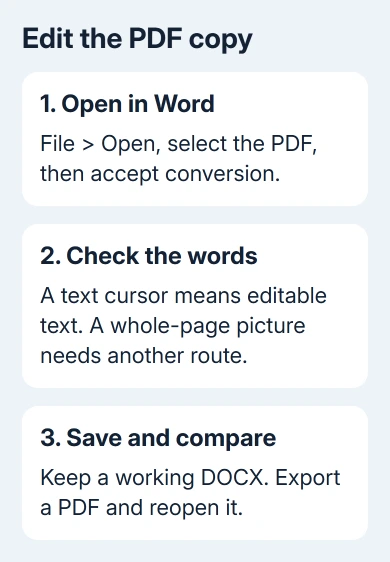
- Open File > Open in Word.
- Browse to the folder containing your PDF and select it.
- Read the message explaining that Word will convert the PDF into a document it can display.
- Choose OK and wait for the converted document to open.
Word creates a converted copy without changing the original PDF. Keep it open for comparison as you work, even when the new document's pages don't match the original page for page.
Read its first heading and a sentence near the end to confirm you selected the intended document. Similar filenames are easy to confuse when Downloads contains several versions of the same attachment.
A browser tab, attachment preview, or PDF embedded inside another document isn't the Windows editing view described here. Switch back to Word's File menu when the controls don't match.
Check whether the words became editable text
Click between two words in an ordinary paragraph. If the text cursor appears between letters, you can edit that passage as text. Try selecting one word rather than clicking the edge of the page.
A page that selects as one large picture needs a different approach. Word can display a PDF page as an image when the original contains mostly graphics. Seeing the words clearly doesn't mean they've become editable letters.
For a scanned document, scan-to-Word guidance describes opening the saved PDF in desktop Word and accepting conversion. What you can edit still depends on what the PDF contains.
If the scan remains a picture, request the source DOCX or a copy with recognized text from its sender. Text recognition, often called OCR, makes photographed letters searchable. Check names and numbers after conversion.
For a short passage that won't select, the PDF text-copy checks help distinguish image-only pages from copying restrictions. Don't spend time fixing Word's keyboard settings for a page that contains no editable text.
I'd check this before reformatting anything. A page that is only a picture won't become easier to edit after changing its margins or font.
Make the edits and compare the layout
Edit the converted document using Word's usual text controls. Select the words that need changing, type the replacement, and read the surrounding sentence again to catch missing spaces or punctuation.
Work through a long document in sections. Check the same page in the original PDF after changing a table, list, or heading instead of waiting until every page has been edited.
A PDF stores where items sit on a page. It doesn't always store the paragraph and table structure that Word needs. During conversion, Word has to work out which pieces belong together, which can change wrapping and spacing.
The PDF conversion limits include tables with cell spacing, page borders, footnotes across pages, and other complex elements. Treat a good-looking first page as the start of your review.
Compare the document's headings, numbered lists, tables, and final paragraph. Look for a table row pushed onto another page, a heading separated from its text, or a line that now runs into a picture.
Check that figures and their captions have stayed together. A chart that stayed in place can still have its explanation moved elsewhere, making the edited file harder to understand even though nothing appears missing.
For a document whose exact appearance matters, such as a signed form or an official layout, request the editable source. Rebuilding its structure from a PDF can take longer than correcting the original document.
Save the working document and the PDF separately
Save an editable Word copy when you expect further changes. Use a filename that distinguishes the revision from the original PDF, then choose an easily remembered destination folder.
After the text and layout are correct, save another copy in PDF format using Word's Save controls. Select the PDF document type rather than changing the letters at the end of the filename.
Follow the Word-to-PDF saving steps when you're ready to export. Converting into Word and exporting from Word are separate steps, so check each saved file.
Open the exported PDF in a PDF viewer. Review the pages containing your changes, then check the first and last pages. Confirm that the new wording is present and that the expected pages are included.
Search for a distinctive word you changed if the document is long. Seeing it in the exported PDF helps confirm that you opened the revision rather than an older file with a similar name.
When attaching the result to an email, choose the checked PDF from its saved folder. Sending the working DOCX by mistake gives the recipient a different file from the one you just reviewed.
When Word can't produce a usable copy
Try another simple, text-based PDF through the same File menu. If that converts correctly, check the first document's structure or restrictions before reinstalling Word.
Ask its sender for the source DOCX, an unlocked editing copy where permitted, or a clearer scan. Describe whether the page became a picture, text disappeared, or the layout changed.
If several ordinary PDFs fail to open, contact Microsoft Support with your Word version, the conversion message, and whether normal DOCX files open. Keep a harmless sample available rather than sharing a private document unnecessarily.
For Word 2013 saying it cannot start the PDF converter, check the reported permission and Office-component conflicts.
The Short Version
Open the PDF inside desktop Word, accept conversion, and check that its words are editable. Compare complex pages with the original, save a working DOCX, then export and reopen the finished PDF before sending it.
Checked November 16, 2026.
 If you have any business, I can build it online






