The Word cannot start the converter PDF files error in Word 2013 can involve permissions or conflicting Office components. For a trusted local PDF, start Word once with Run as administrator, then use its File > Open menu.
Several owners got conversion working that way. If it fails, compare another PDF and check whether Office 2016 or Skype for Business was installed before the fault began. Those cases need different checks from one damaged file.
In this guide
1. Open one trusted PDF from an elevated Word session
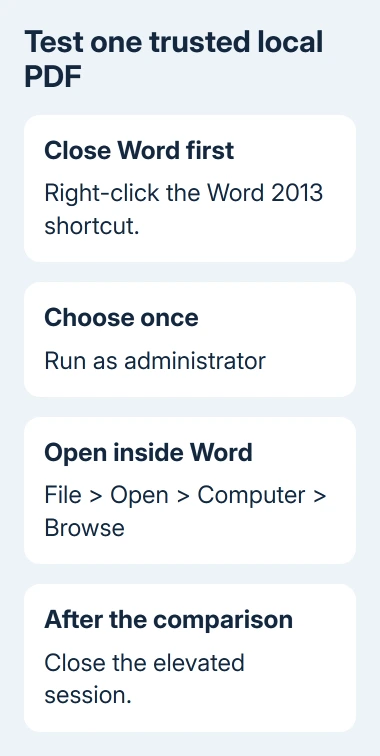
Close Word, then find the Word 2013 shortcut in Start or on the desktop. Choose Run as administrator from that shortcut's right-click menu. Approve the Windows prompt only when it identifies your installed Word application.
In that Word window, choose File > Open > Computer > Browse and select a trusted PDF saved on the computer. Don't double-click the PDF in Explorer for this comparison, since that can open your normal PDF reader instead.
Word should show a notice that it will convert the PDF to an editable document. Continue if prompted, then inspect the converted text. If that notice leads to editable content, the converter has started.
The Microsoft thread includes an owner who restored PDF conversion this way after two unsuccessful Office reinstalls. Later replies confirmed the same workaround, but another owner still couldn't convert after trying it.
Use this as a limited comparison, not a setting that makes Word run as administrator every day. Word has more access to your computer when run as administrator, so don't use that session to open unexpected attachments or unknown PDFs.
If it succeeds, save a separately named Word copy, then close the app. Tell IT that conversion works only with administrator access and ask for a repair of the permissions or installation.
If the same converter error remains, return to normal Word and check whether another PDF behaves differently. Starting Word as administrator again won't tell you whether a component is missing.
2. Compare a simple PDF that contains actual text
Try a second PDF you trust, preferably one made by saving a short text document as PDF. Keep the original problem file untouched. A second failure points toward the conversion feature; success points back to the original PDF.
Opening the PDF successfully in a reader confirms it can be displayed. It doesn't check Word's converter. A scanned page that opens as an image hasn't hit the same fault as a converter that won't start.
Word converts PDF content into an editable Word copy and tries to reconstruct its layout. For normal conversion and its limitations, use the PDF editing procedure in Word.
If only the scanned document lacks editable text, it may need OCR, software that recognizes words in an image. If several text-based PDFs produce the exact same converter error before opening, continue with the Office checks.
Don't change a PDF's extension to .docx or download a separate converter DLL. A new extension leaves the file data unchanged. Replacing individual Office program files also leaves conflicting component settings unchanged.
For the different message naming mswrd632.wpc, use the older Word converter-error checks. That is a separate converter and repair path from Word 2013's PDF import feature.
3. Repair Office before changing shared components
Save work in Word and every other Office application, then close them. In Control Panel, open Programs, then Programs and Features. Choose your Office 2013 product, then select Change.
For an MSI installation, which uses Windows Installer, select Repair and continue. For Click-to-Run, try Quick Repair, then Online Repair if offered and conversion still fails. You'll need internet access for Online Repair.
The Office repair instructions distinguish these installation types. A suite repair can affect multiple applications, so finish the operation before testing Word again.
On Windows 10, Office's Modify control is in Settings > Apps > Apps & features. On Windows 11, use Settings > Apps > Installed apps, open Office's three-dot menu and select Modify.
Restart if the repair asks, then open the same simple PDF from normal Word. Check for both the conversion notice and the resulting document. A successful repair should let the ordinary session perform that task.
The old discussion's accepted reply recommended an Office reinstall. Several later replies describe the error surviving that step, so repeating the same reinstall may leave the component conflict in place.
Before uninstalling anything, ask IT to confirm your licensed installer and activation route. This matters particularly for Office 2013 Professional Plus supplied by an employer rather than a personal Microsoft account.
4. Check the history of Office 2016 and Skype components
Look in Programs and Features for other Office products and Skype for Business. Tell IT if Office 2016 was removed shortly before PDF conversion stopped, even if Word 2013 is the only Word version now listed.
Later replies connected this message with Office 2016's shared type-library registration, the settings that let other components find Office's software objects. A leftover entry can point older software toward another version.
One owner restored conversion after removing the 2.8 registration labeled Microsoft Office 16.0 Object Library, while leaving 2.7 alone. Others confirmed the same result after Office 2016 removal or a Skype enterprise installation.
Another owner renamed 2.8 and still had the error. This isn't a general instruction to delete that key: an installed Office 2016 application may still need its registration.
Ask IT to inspect the possible leftover entry under HKEY_LOCAL_MACHINE\SOFTWARE\Classes\TypeLib, using the label and Office bit version. Have them confirm the product history and back up the entry before changing it.
Some owners restored conversion by removing Skype for Business 2016, while another still couldn't convert after removing Skype and reinstalling Office. On a work computer, let IT decide which shared components can be repaired or removed.
5. Keep a usable document while the converter is repaired
If the job is only to read or print the PDF, use your normal PDF reader. Word's import failure doesn't prevent those tasks when the file already opens correctly there.
For editing work, request the source Word file from its sender when available. That avoids reconstructing a complex PDF's tables and page layout while the Office installation is being fixed.
When conversion starts working, compare names, numbers, tables and page breaks with the PDF before sending the Word copy. A converter that starts successfully can still arrange the page differently from the original.
April 11, 2023 was the last day of Office 2013 support. If the conflict can't be repaired, ask your administrator for a supported Office environment and test the same trusted PDF there.
Send support the complete error, Word's File > Account > About Word version and bitness, whether every PDF fails, and whether running Word as administrator helped. Include the Office and Skype installation history when relevant.
The Short Version
Try one trusted PDF from Word started as administrator, then close that session. Compare another text-based PDF and repair Office. Ask IT to check stale Office 2016 or Skype registrations if the error survives.
Checked November 17, 2026.
 If you have any business, I can build it online