The mswrd632.wpc warning often means Word is trying an old converter on a file with the wrong extension. Check the file's real format first; unregister the converter only for the documented Windows fault.
A damaged document can produce the same message. Clearing the warning can still leave unreadable text, so work on a duplicate as you follow the matching repair.
In this guide
1. Check the document before changing the computer
Copy the problem file to a separate folder. Open another Word document that you know works, then compare the result. If other files open normally, start with what's in the problem file and where it came from.
Check that you're opening the actual document rather than a small temporary file whose name starts with ~$. Find the full document in the same folder or ask its sender to send the saved document again.
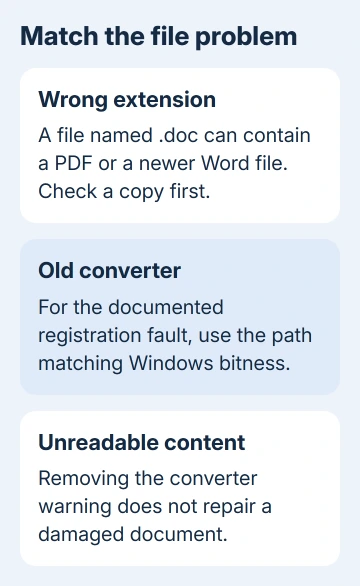
An attachment carrying a Word name isn't necessarily a Word document. An export process or a renamed file can leave a .doc extension on something else. Ask the sender which program created it and which format they selected.
If the document itself is missing, the Word document search steps help locate a real saved copy. The temporary file that marks a document as in use can't replace your missing work.
I'd check the sender's copy before touching the registry. A fresh export in the right format avoids changing Windows for a fault contained in one attachment.
2. Open a mislabeled file in its actual format
Open a copy in Notepad without saving changes. Much of a real Word file can look unreadable there. Look for a recognizable marker that identifies the format; you don't need to read the whole document as plain text.
For example, an opening %PDF- marker points to a PDF. In that case, close Notepad and rename the copy's extension to .pdf, then open it in a PDF reader. Owners in the original thread recovered mislabeled PDFs this way.
If an actual PDF triggers Word 2013's PDF converter error, use its import-specific checks instead of unregistering mswrd632.
On Windows 11, enable View > Show > File name extensions in File Explorer before renaming. On Windows 10, use View > File name extensions. Older Windows versions expose the setting through Folder Options instead.
Another owner identified [Content_Types].xml inside a file named .doc and opened it after changing the copy to .docx. Only change this extension when the contents or sender confirm the newer format. Don't cycle through extensions at random.
Renaming a file doesn't convert its contents. If the sender can open it in the original program, ask them to use Save As to create a fresh Word document in the intended file type. Then check that new file in Word.
If the document opens and its text, tables and page count look right, save a separate working copy. Keep the untouched file while checking that everything you need is there, especially sections missing from a partial recovery.
3. Try the Word 2003 conversion prompt when it applies
An owner using Word 2003 reported a repeatable workaround through Tools > Options > General > Confirm conversion at open. Enable that option, confirm the dialog, then reopen your working copy.
When Word asks about conversion, choose the format you identified. Read the result before saving it under a new name. Restore the setting afterward if you don't want conversion prompts for other files.
This works only if Word 2003 has a converter installed that can read the file. Current Word versions don't use this menu path. If the conversion preview is full of unreadable characters, go to the damaged-file checks in step 5.
Don't install a converter from an unfamiliar download site just because it uses the same filename. For business archives, ask IT to open a copy in an appropriate supported environment and export a readable document.
4. Unregister the old converter for the documented fault
Microsoft's MS09-073 repair instructions give different registry paths for 32-bit and 64-bit Windows. This repair applies to an old Windows converter fault; it isn't a routine change for every Word installation.
Close Word and Outlook. Press Windows + R, enter regedit, then confirm administrator access when you're authorized to change the registry. Ask IT to do it on a managed computer.
Before deleting anything, select the exact converter key and use File > Export to save its backup. A registry change affects the computer, so stop if the selected path doesn't match.
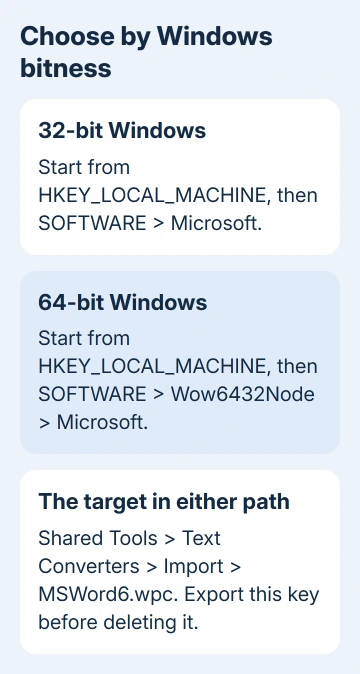
For 32-bit Windows, locate this key:
HKEY_LOCAL_MACHINE\SOFTWARE\Microsoft\Shared Tools\Text Converters\Import\MSWord6.wpc
For 64-bit Windows, locate this key:
HKEY_LOCAL_MACHINE\SOFTWARE\Wow6432Node\Microsoft\Shared Tools\Text Converters\Import\MSWord6.wpc
Select MSWord6.wpc, choose Edit > Delete, confirm, then close Registry Editor. The repair requires deleting that key, rather than renaming it. Leave the parent folder and converter files on disk alone.
Deleting the key stops Office and other apps from using that old converter. Office can then use its own converters. Reopen Word and try the copied document. If the key isn't there, don't create it or delete a neighboring key.
5. Recover readable content when the warning is gone
If Word now shows File Conversion or says the document is corrupt, the file still needs attention. The repair instructions cover two possible causes at this point: Word doesn't recognize the format, or the document is damaged.
Several owners reported that the warning disappeared while their text stayed unreadable. Don't keep changing registry entries for that result. Return to the original sender, a saved earlier version or another intact copy.
For a damaged Word document, the Word document recovery steps explain how to work on a copy and recover usable content. Changing the text encoding won't bring back missing data.
If this is your only copy of important work, give IT or a recovery specialist the untouched file, exact error and name of the program that last saved it. Say whether other Word files open and how the warning changed after the repair.
The Short Version
For mswrd632, verify the attachment and its true format first. Use the documented registry repair only for the old converter fault and the matching Windows path. Unreadable text still needs an intact copy or recovery.
Checked November 16, 2026.
 If you have any business, I can build it online