

The end-tag error means Word can't read the document's internal structure. Try Open and Repair on a duplicate first. Word 2010 documents containing equations and graphics can need specialist repair when that fails.
The document's text may still be recoverable. Keep the original file, record the full error details, and avoid changing tags at random. An earlier intact version is often the quickest way back to an editable document.
In this guide
1. Preserve the file and record the error details
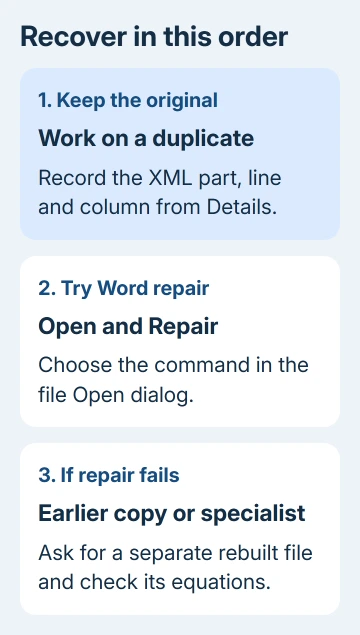
Make a duplicate in a local folder and give it a name such as Notes-recovery-copy.docx. Keep the original extension. Use this duplicate for recovery attempts rather than saving over the only copy.
Expand Details in Word's error message when that control is available. Record the named part, such as word/document.xml, and any line and column numbers. These details help a repair specialist find the damaged part of the file.
For a depth constraint naming webSettings.xml, follow the separate Word 2013 recovery route; that part differs from equation tags.
The line number refers to XML inside the file, the tags Word uses to describe the document's contents. It doesn't identify a page or a visible text line in your document.
Write down whether the document contains equations, floating pictures, or text boxes. The historical Word 2010 case involved equations and graphics, but this error message alone doesn't identify the exact broken item.
Check whether other documents open normally in Word. If they do, focus on recovering this file. Reinstalling Office won't put a misplaced closing tag back into the document.
For Word cannot start converter mswrd632.wpc, compare the attachment format and old Windows converter registration instead of editing XML tags.
If the file arrived as an attachment, ask its sender to open their original. A fresh copy from a working original can avoid a repair job, particularly if the attachment download was interrupted.
2. Use Open and Repair from Word's file dialog
Start Word without opening the damaged document. In Word 2010, choose File > Open, find the recovery copy, and select it once. Open the menu beside Open and choose Open and Repair.
In newer desktop Word for Windows, use File > Open > Browse to reach the file dialog. Don't select the document straight from Recent, because you need the dialog's repair command.
Microsoft's file corruption recovery steps describe this command. It may recover a document that ordinary opening can't read.
If Word opens the file, choose File > Save As and save it under another name. Close and reopen that saved result before spending time polishing its formatting.
Review the pages around equations and graphics, then check the rest of the document. Compare equation symbols, fractions, captions, page numbers, and text boxes with an earlier PDF or printed copy if you have one.
Check the equations even when the recovered document opens normally. In a math-heavy document, an altered sign or missing denominator matters more than a tidy-looking first page.
If the same tag error remains, stop repeating the repair command on unchanged copies. Continue with an earlier version or the specialist route instead.
3. Check for an earlier intact document
Look for a separate saved revision, an email attachment you sent earlier, or a backup that predates the damaged save. Open a copy of that version and confirm it doesn't show the same message.
For a document kept in OneDrive or SharePoint, check the service's version history where available. Use a version from before the damaged save, rather than assuming the latest synced copy is intact.
For a document left unsaved after a crash, use the missing Word document recovery steps. That is a search for another copy, not a way to rewrite the XML inside this one.
Check the date and contents before you start working again. The filename might look right even though several recent pages are missing, so check the last section you remember completing.
I'd use a good earlier revision for urgent work and keep the broken newer file for recovering the remaining changes. That gives you a usable document while preserving the material a specialist might recover.
A PDF of the document can help rebuild missing text and verify equations, even though it doesn't preserve all of Word's editing structure. Keep it as a reference rather than replacing the original .docx with it.
4. Get targeted repair for equation and drawing damage
In the original equation-document case, a specialist returned a repaired file and an owner thanked them. The repair explanation described equation closing tags mixed up with tags Word uses to keep graphics compatible with older versions.
A .docx contains several files packed together. A closing tag must match the opening tag it closes, with the contents nested in the right order. Moving a single tag without understanding that structure can remove or alter content.
Send a Word document-recovery specialist your untouched original, the complete error, and notes about its equations and drawings. Ask them to return a repaired copy under a separate name and list anything they removed.
If the document is confidential, use your organization's IT or approved recovery service. The historical discussion's public upload method isn't suitable for private coursework, financial records, or client documents.
Don't copy an XML fragment from an answer and paste it into your document. It describes one kind of damage; it isn't replacement code for your particular equation or picture.
The thread also mentions an experimental repair template. That old download isn't necessary for the recovery route here; have a specialist inspect the file rather than loading an unfamiliar macro template into Word.
When the recovered document opens, ask which equation or text box was affected. Compare that specific object with your reference copy before trusting the restored file for submission or publication.
5. Save the recovered work and move off Word 2010
Once you have a usable recovery copy, save it under a clear new name and reopen it. Keep the broken original and your earlier revision until you've checked the whole recovered document.
For important mathematical work, save a separate dated copy whenever you make substantial changes. Check that those revisions actually open; renaming the same damaged save produces no usable backup.
If pictures or layout differ after recovery, the Word PDF layout checks can help compare the visible result with an exported reference. Fix the recovery first, then judge the page layout.
Office 2010 no longer receives technical support or security fixes. Ask IT to open the recovered copy in a supported Word installation and verify its equations before continuing a long project there.
If neither repair nor an earlier version works, give a document-recovery specialist the untouched file and error details. Ask whether they can recover structured content or only plain text, and confirm the price before agreeing to the work.
The Short Version
Preserve the original, give Word a duplicate to repair, and look for an earlier intact revision. An equation-related tag mismatch can need a specialist who repairs the document's structure and returns a separate file for checking.
Checked November 16, 2026.






