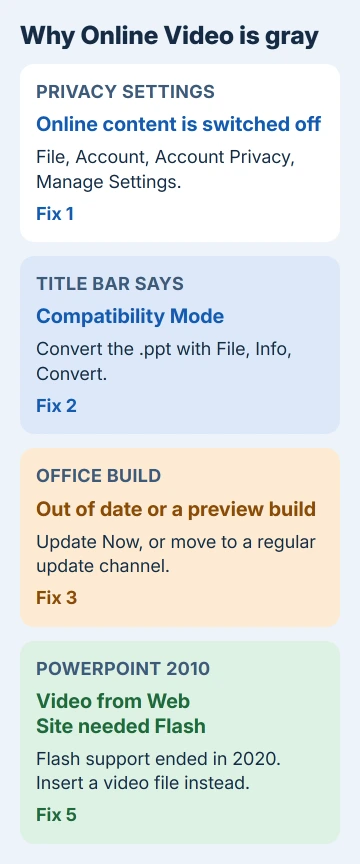
PowerPoint grays out Online Video when it isn't allowed to fetch content from the web, when the file is an old .ppt open in Compatibility Mode, or when your copy of PowerPoint is too old to play web video.
On Microsoft 365, check the privacy switch under File > Account > Account Privacy first. PowerPoint 2010 called the command Video from Web Site and needed Adobe Flash for it, so on 2010 a downloaded video file is the answer.
In this guide
Which PowerPoint are you using?
The fix depends on the version, so check it first. Current versions show it under File > Account. PowerPoint 2010 shows it under File > Help.
PowerPoint for Microsoft 365, 2024, 2021, 2019 and 2016 all use Insert > Video > Online Video. PowerPoint 2016 also takes an embed code or a YouTube search in that box, while newer versions take the video's web address.
PowerPoint 2010 put Video from Web Site under the same Video button. That version and PowerPoint 2013 get their own section in fix 5.
1. Turn connected experiences back on
Inserting an online video is one of Office's optional connected experiences, the features that reach out to online services. It's on Microsoft's list of those features, and switching them off makes them unavailable.
- In PowerPoint, click File > Account, and under Account Privacy click Manage Settings.
- Turn on the experiences that download online content, and turn on optional connected experiences if your copy shows that switch.
- Click OK, close PowerPoint completely and open it again.
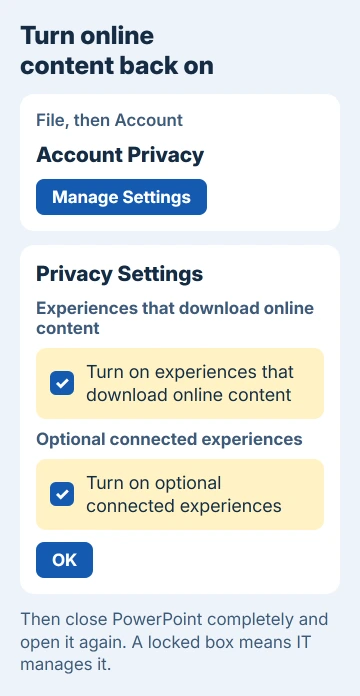
The same switch grays out PowerPoint's Icons button. If Icons and Online Video are both gray, start with this fix.
Office also has a master switch for all connected experiences. Turning it off takes Online Video with it, along with co-authoring and online file storage, so check that one as well.
Work and school PCs can have these switches locked. The box then says your organization's admin controls these settings, and only IT can turn them back on.
Volume-licensed Office 2019, the kind businesses buy in bulk, keeps the option elsewhere: File > Options > Trust Center > Trust Center Settings > Privacy Options, then Turn on optional connected experiences.
2. Convert an old .ppt file
Check the title bar first. If Compatibility Mode follows the file name, the deck is an old PowerPoint 97-2003 .ppt file, and PowerPoint holds back newer commands that a .ppt can't store.
Click File > Info, then Convert next to Compatibility Mode, and click Save in the box that opens. The deck becomes a .pptx. Open the Video menu again.
3. Update Office, or leave a preview build
On Microsoft 365, go to File > Account > Update Options > Update Now and restart PowerPoint when it finishes.
A preview build can break the command too. One owner on a school PC found Online Video gray in Word on a preview-channel build. The school rolled them back to the previous version, and they reported: "This has solved my problem."
If File > Account shows an Insider or preview build and Online Video is gray, ask whoever manages updates to move you to a regular channel.
4. Repair Office as the last step
If the command stays gray even in a brand-new blank presentation, repair the installation. Right-click Start, open Installed apps (Windows 10 names that page Apps and Features), choose Modify on your Office entry and run Online Repair.
5. PowerPoint 2010 and 2013: why it stays gray
Online video insertion in PowerPoint 2010 and 2013 was switched off for a while when YouTube dropped the old video format both versions used. April 2014 updates brought it back.
The updates were KB2837579 for Office 2010, and KB2837627 and KB2817636 for Office 2013. Without them, the command stays gray.
PowerPoint 2010 also had stricter requirements. A PowerPoint MVP listed them as Flash Player 10 or later, Windows Media Player 10 or later and the 32-bit edition of Office 2010.
Owners on 64-bit Office 2010 got the command working with a 64-bit Flash beta. Flash support ended on December 31, 2020, so on PowerPoint 2010 that route has closed.
If you're on 2010, download the clip where its owner allows it and insert it with Video from File, or move to a current PowerPoint. On 2013, install the updates first. Still gray after them? Use the downloaded file too.
6. Insert the video file instead
An online video plays from the website, so the slide needs an internet connection during the show. Embedding a downloaded MP4 sidesteps all of these switches, and embedding a video in PowerPoint shows the steps.
I'd embed the file for any talk that matters anyway, so the slide never depends on the venue's Wi-Fi.
If the command works but one particular clip won't insert, its owner may have blocked embedding. Not every video on YouTube or Vimeo allows it, and the video's own page shows whether it does.
When it's still gray
On a managed PC, ask IT whether a policy blocks online content in Office. That single policy can switch the command off across the whole organization.
On a home PC, PowerPoint for the web makes a decent stopgap: Insert > Online Video sits in its Media group. Beyond that, contact Microsoft Support through support.microsoft.com and give them your version and update channel.
The Short Version
Switch online content back on under File > Account > Account Privacy > Manage Settings. Convert a Compatibility Mode .ppt with File > Info > Convert, update Office or leave a preview build, then repair.
PowerPoint 2010 depended on Flash, which ended in 2020, so insert a downloaded video file there instead.
Checked November 20, 2026.
 If you have any business, I can build it online