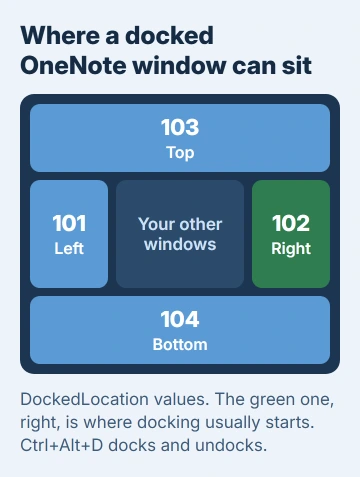
Docked OneNote windows remember their edge, so a window that ended up along the top of the display goes back there every time you dock it. That saved position is the whole problem, and restarting the PC doesn't clear it.
The quick fix is to drag the docked window to the edge you want. When it won't budge, a single registry value called DockedLocation sets the side directly, and owners confirmed that works on OneNote 2010 and 2013.
In this guide
What Dock to Desktop does
Dock to Desktop pins one OneNote window to an edge of the screen and shrinks the rest of the desktop to fit beside it, much like the taskbar. Only one window can be docked at a time.
Turn it on and off with View > Dock to Desktop, or press Ctrl+Alt+D, one of OneNote's keyboard shortcuts. Unless something changed the setting, the docked window lands on the right.
You can drag the inner edge of the docked strip to make it wider or narrower. The edge it sits on is a separate saved setting, and that's the one that gets stuck.
It's handy for keeping a notebook open beside a browser or a document, and organizing notes in OneNote covers setting up the notebook that sits in it.
1. Drag the docked window to the edge you want
Point at the docked window's title bar, hold the mouse button down and drag toward the middle of the edge you want. Let go only once the window has docked on that side, as one adviser stressed.
Releasing early leaves the window where it started. Try it slowly, once or twice. The original asker was dragging toward the left edge when the window landed across the top instead, so if yours refuses to move, go on to fix 2.
2. Turn docking off, then on again
Press Ctrl+Alt+D to undock, wait a second, then press it again. Watch where it lands. If the window docks straight back along the top, the saved position is the problem, and fix 3 changes it.
The person who asked saw a second sign of the same stuck setting: each new side note opened at the top, and clicking its dock button moved it to the right but left it undocked.
3. Set the dock position in the registry
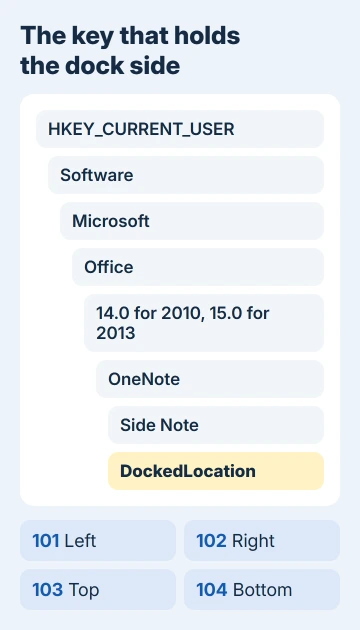
First, find your version's folder number. OneNote 2010 keeps its settings under 14.0 and OneNote 2013 under 15.0. File > Help shows the version on 2010, and File > Account shows it on newer copies.
The registry key (a folder of settings) you'll open is named Side Note because OneNote 2010 called its small capture windows side notes. Newer versions call them Quick Notes, opened with Ctrl+Shift+M or Alt+Windows key+N.
Because the value sits under your own account (HKEY_CURRENT_USER), it survives restarts, and another Windows user on the same PC keeps a separate one.
Before changing anything, use File > Export in Registry Editor to save a copy of the key. Double-clicking that file later puts the old value back.
- Undock OneNote with Ctrl+Alt+D, then press Windows key + R, type regedit and press Enter.
- For OneNote 2010, go to HKEY_CURRENT_USER\Software\Microsoft\Office\14.0\OneNote\Side Note. For OneNote 2013, use 15.0 in place of 14.0.
- Double-click DockedLocation. Enter 101 for left, 102 for right, 103 for top or 104 for bottom. If the box offers a Base choice, pick Decimal before typing.
- Click OK, switch back to OneNote and dock the window again.
The person who asked replied: "Bingo! Your solution is perfect and worked beautifully." Another owner reported the same fix working on OneNote 2013 in early 2013.
Once dragging has failed twice, I'd skip straight to this registry edit. It sets the edge by number, so nothing is left to fight with the mouse.
OneNote 2016, 2019, 2021 and the Microsoft 365 app keep their settings under 16.0. If you find a Side Note key holding DockedLocation in that folder, try the same four numbers.
If no such key exists under 16.0, leave the registry alone and stay with dragging and toggling on those versions.
4. Docked on a second monitor and windows overlap?
Docking on a second display has a long-running fault of its own. Maximized windows don't resize around the docked OneNote, so they overlap it or leave a gap beside it.
A Microsoft forum thread on it drew more than 90 people with the same problem and no fix. A new graphics driver didn't help the person who reported it.
That person noticed it never happened on the laptop's own screen, so dock on your main display for now.
Virtual desktops (the extra desktops in Task View) have a related quirk. The docked strip keeps its space on every desktop, not just the one you docked on, and a Microsoft moderator reproduced that without finding a workaround.
When it still won't move
Repair Office. In Windows Settings, open the installed apps list, choose your Office entry, then Modify and Online Repair. It's the same repair that brought back OneNote's vertical tabs layout for one owner.
On a shared PC, sign in as another user and dock OneNote there. If it docks normally, the stuck setting belongs to your account alone, which points back to fix 3.
If the window still sticks after a repair, contact Microsoft Support from support.microsoft.com, and mention the OneNote version shown under File > Account.
The Short Version
Drag the docked window by its title bar to the middle of the edge you want, or toggle docking with Ctrl+Alt+D. Still stuck at the top? Set DockedLocation under the Side Note key to 101, 102, 103 or 104 and dock again.
The folder is 14.0 for OneNote 2010 and 15.0 for 2013. On a second monitor, dock on the main display instead.
Checked November 20, 2026.
 If you have any business, I can build it online