A PowerPoint slide that selects as one solid block, with a four-way arrow where the text cursor should be, points to a file saved as a PowerPoint Picture Presentation. That save turns every slide into one flat picture.
It can't be undone, so the fix is an earlier copy. Most other locks take a minute to clear: a yellow or red bar under the ribbon, a Marked as Final banner, Unlicensed Product in the window title, a label request or one locked object.
In this guide
Tell the locks apart first
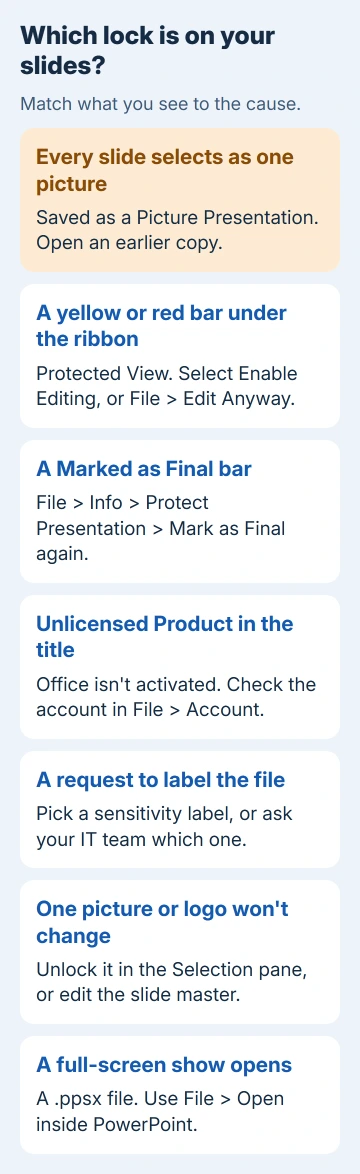
What you see when you click tells you which lock you're dealing with, so check it before you touch any setting. Each one shows up in a different place:
- Every slide selects as one picture: a Picture Presentation (step 1).
- A yellow or red bar under the ribbon: Protected View (step 2).
- A Marked as Final bar near the top: step 3.
- Unlicensed Product in the window title, most buttons dimmed: step 4.
- A request to label the file before editing: step 5.
- Only one picture, shape or logo refuses to change: steps 6 and 7.
- The file opens straight into a full-screen show: step 8.
1. Check whether the slides became pictures
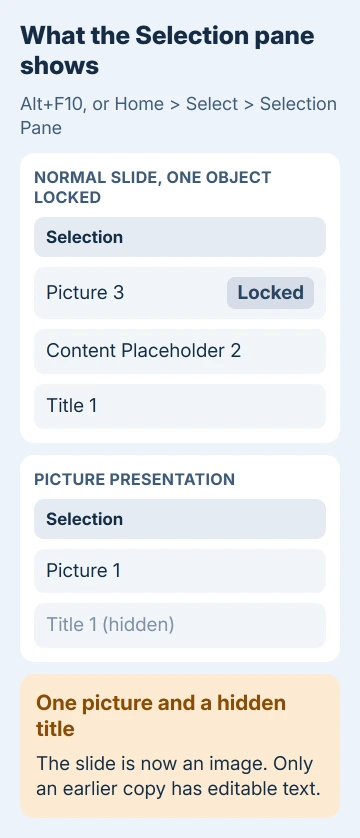
Open the Selection pane with Alt+F10, or Home > Select > Selection Pane. It's a list of everything on the slide, and on a normal slide it shows each title, text box and picture by its own name.
On a Picture Presentation slide, the pane lists one picture covering the slide and the old title marked as hidden, something like Picture 1 and Title (hidden). That means the slide is now an image, and no setting turns it back into text.
PowerPoint Picture Presentation sits right in the Save As list, and the file it saves still ends in .pptx, which is why it trips people up. Saving it again as .ppt, .pptx or anything else won't bring the text back.
Your original is often still on the disk, since Save As writes a new file. Search your folders for the presentation's name and open the copy with the older date before you do anything else.
Stored in OneDrive or SharePoint? Click the file name in PowerPoint's title bar, choose Version history and open a version from before the save.
If you can't find an older copy either way, the slides have to be rebuilt. The person who first asked about this on Microsoft's forum retyped the whole deck, and another owner whose original was overwritten redid everything.
I'd keep the picture copy open next to the new file while you rebuild, so you can read the wording and layout straight off it.
2. Leave Protected View
A yellow bar warning about a file from the internet, an unsafe folder or someone else's OneDrive means Protected View is on. The file stays read-only until you say you trust it, so select Enable Editing on that bar.
A red bar means the file failed a safety check. If you trust where it came from, go to File > Edit Anyway.
When PowerPoint won't open the presentation at all and says it can't read it, that's a different problem. Unblocking the file in its Properties usually clears that one.
3. Turn off Mark as Final
Mark as Final makes a presentation read-only: typing and editing commands are turned off, and the status bar gets a Mark as Final icon. Someone may have set it before sending you the file.
To switch it off, go to File > Info > Protect Presentation and select Mark as Final again. Microsoft's own page on it says the command "is not a security feature", so turning it off on a copy you were sent breaks nothing.
4. Look for Unlicensed Product at the top
When the window title reads Unlicensed Product, or Non-commercial use / Unlicensed Product, Office couldn't confirm your license. Until it does, most features stay switched off, and editing slides is one of them.
Go to File > Account and make sure the signed-in account is the one that pays for Microsoft 365 or owns your Office license. If that doesn't clear it, the Unlicensed Product guide goes through the account and activation checks.
5. Add the label your organization asks for
On a work or school copy of Office, a message saying "Your organization requires you to label this document before editing" keeps the file locked until you pick a sensitivity label, a tag that marks how confidential the file is.
It looks like a broken file, but it's a company rule. One owner picked a label from that message and got editing back on the second try. If none of the labels seems right for the file, ask your IT team which one to use.
6. Unlock a locked object
When one picture or shape won't move or change while the rest of the slide behaves, it may be locked. PowerPoint won't let anyone change a locked object until it's unlocked.
Open the Selection pane with Alt+F10 and look at the padlock beside each name. Select the padlock to unlock that object, or select its name in the list and press Ctrl+Shift+L.
7. Edit it on the slide master
A logo, footer or background picture that sits on every slide and can't be selected usually lives on the slide master. That's the template behind your slides, and Normal view keeps its contents out of reach on purpose.
Select View > Slide Master, then pick the layout your slide uses from the thumbnails under the large master slide. Make your change there and select Close Master View.
8. Open a slide show file from inside PowerPoint
A file ending in .ppsx is a PowerPoint Show. Double-clicking it starts the slide show straight away and quits at the end, so the arrow keys step through the slides but you can't select anything.
Start PowerPoint first, choose File > Open and pick the file. It opens ready to edit, and File > Save As with PowerPoint Presentation as the type saves an ordinary .pptx copy.
When none of these fit
Copy one stubborn slide and paste it into a brand-new, empty presentation. I'd try this before reinstalling Office; it takes a minute.
If you can edit the pasted slide there, the original file is damaged and the new presentation is your way forward. If it still won't edit, the slide itself is the problem, usually because it's a picture.
For a file that still fights you, use Help > Contact Support in PowerPoint and say which bar, message or Selection pane entry you see. That detail saves you a round of questions.
The Short Version
Slides that select as one block were saved as a Picture Presentation; only an earlier copy brings the text back. Otherwise the bar or title tells you which lock it is: Protected View, Mark as Final, Unlicensed Product, a label or a padlock.
Checked November 20, 2026.
 If you have any business, I can build it online