

Section Zoom only plays properly in PowerPoint versions that support it, which is why the same deck can work on your PC and fall apart on the next one.
So start by updating PowerPoint on the computer that misbehaves. That's what cured it for one owner whose show jumped back after a single slide.
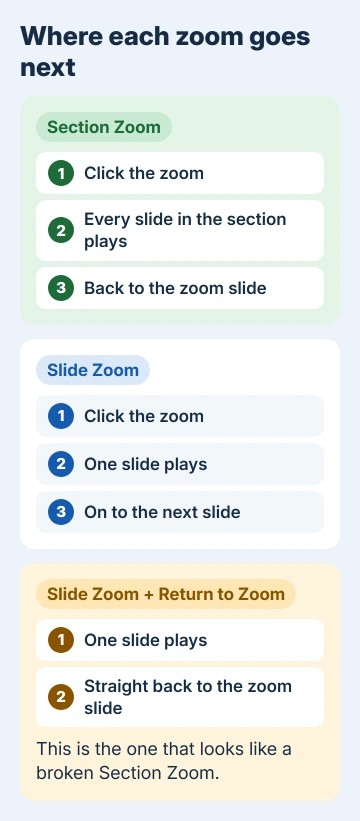
If the zoom fails on every PC, look at the zoom itself. A Slide Zoom with Return to Zoom ticked shows a single slide and comes straight back, which looks exactly like a broken Section Zoom.
In this guide
Which PowerPoint can play a Section Zoom
Zoom arrived in PowerPoint for Microsoft 365 in July 2016. A deck with zooms in it opens anywhere, but what happens when you click one depends on the copy of PowerPoint running the show:
- PowerPoint for Microsoft 365 version 1607 or newer, PowerPoint 2019, 2021 and 2024: create and play zooms.
- PowerPoint on a Mac: Microsoft 365 version 16.19 or newer, or the 2021 and 2024 editions: create and play zooms.
- PowerPoint 2016, the one-time purchase: plays zooms only as plain links, without the zoom movement.
- PowerPoint for the web and PowerPoint Live in Teams: neither creates nor plays them.
- PowerPoint on iPhone, iPad and Android: plays zooms but can't create them.
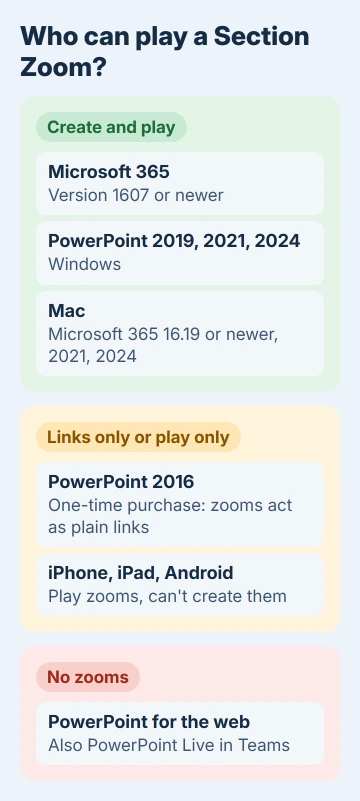
The version table on Microsoft's Zoom page lists these minimums. When a deck works on one PC and not on another, the reason is usually somewhere in that list.
1. Compare the version on both computers
On Windows, open File > Account and read the version and build under Product Information. On a Mac, choose PowerPoint > About PowerPoint. Do it on the PC where the zoom works and on the one where it doesn't.
Don't trust the name alone. The owner's whole team ran PowerPoint 2016 from a subscription, yet Section Zoom failed on a few machines. Their builds differed, because some PCs got updates months later than others.
A quick extra test: on the failing PC, make a short deck with two sections and insert a Section Zoom. If Zoom is missing from the Insert tab, or the new zoom misbehaves too, the problem is that copy of PowerPoint, not your file.
2. Update PowerPoint on the PC that fails
- Open PowerPoint and go to File > Account.
- Under Product Information, select Update Options > Update Now. Select Enable Updates first if that's all you see.
- Wait until PowerPoint reports that you're up to date, then restart it and run the show again.
The owner did this through an update link another member posted, and PowerPoint jumped to version 1706: "it automatically updated to Version 1706 which fixed the Section Zoom issue."
If you see only an About button and no Update Options, your copy is managed by an organization or uses a volume license, so updating it is IT's job.
Work PCs can sit on a slower update channel, which gets new builds later, and IT can move them to a faster one. For the owner's team, "Setting them to Current Channel worked!!"
On a Mac, open PowerPoint and choose Help > Check for Updates, which runs Microsoft AutoUpdate. Mac App Store copies get their updates on the App Store's Updates page instead.
3. Make sure it really is a Section Zoom
A Section Zoom plays every slide in a section, while a Slide Zoom goes to just one. With Return to Zoom ticked, a Slide Zoom shows that one slide and jumps back, and on screen that's hard to tell apart from a broken Section Zoom.
The easy cure is to delete the zoom and insert it again the right way:
- Go to Insert > Zoom and choose Section Zoom.
- Pick the section you want and select Insert.
PowerPoint for Windows has a quicker way: drag the section's name from the thumbnail pane onto the slide where the zoom should go.
4. Look at Return to Zoom
Select the zoom and open the Zoom tab. The Return to Zoom box decides what happens after the section ends: ticked, the show comes back to the zoom slide; cleared, it carries on to the next slide.
Section and summary zooms come back by default, while slide zooms move on. If your Section Zoom never comes back, someone cleared that box. If it comes back too soon, go back to fix 3.
5. Check what's actually in the section
A Section Zoom shows the slides in its section, nothing more. If slides were dragged out of the section, or the section was split in two, the zoom ends early simply because fewer slides are left in it.
In Normal view, the section names sit in the thumbnail pane with their slides underneath. Collapse and expand them to check that each section holds the slides you expect.
Presenting from someone else's computer
Conference rooms and classroom PCs are where Section Zoom catches people out. If the room only offers PowerPoint for the web, or you share the deck through PowerPoint Live in Teams, the zooms won't play at all.
I'd ask what version the room PC runs before the day, or bring your own laptop. A one-time-purchase PowerPoint 2016 will still follow the links, so you'll reach the right slides, just without the zoom effect.
While you're testing the room, check that Presenter View and your notes show up on the right screen as well.
When the newest build still gets it wrong
A volunteer moderator who answered the owner suggested writing down the exact build numbers on a working PC and a failing one.
If the newest build is what breaks Section Zoom, report it through Help > Feedback in PowerPoint, and keep the working machine on its current build until a fix arrives.
If you assembled the deck by copying slides between presentations, check the section list when you're done, because pasted slides land in whichever section you paste them into.
The Short Version
Section Zoom needs PowerPoint for Microsoft 365 version 1607 or newer, PowerPoint 2019 or later, or 16.19 or newer on a Mac. Update the PC that fails with File > Account > Update Options > Update Now.
If every PC shows one slide and jumps back, reinsert the zoom as a Section Zoom, check Return to Zoom on the Zoom tab, and make sure the section still holds all its slides.
Checked November 20, 2026.
 If you have any business, I can build it online






