

SmartArt bullets come from the graphic's layout, not from your text, which is why they won't simply delete. Owners have run into this since PowerPoint 2007.
Two fixes work: switch to a layout without bullets on that text, or use Convert to Shapes to turn the graphic into ordinary shapes, where the bullets come off like any others. Converting is one-way, so copy the slide first.
In this guide
Why the bullets won't delete
Each SmartArt layout comes from a small definition file that sets how every level of text looks. In most list layouts, first-level text becomes the colored shape and second-level text becomes bulleted lines inside or beside it.
The bullets are written into that file, so nothing you do to the text reaches them. An adviser who builds custom layouts put it plainly: the only way to keep a graphic as SmartArt without bullets is a layout made without them.
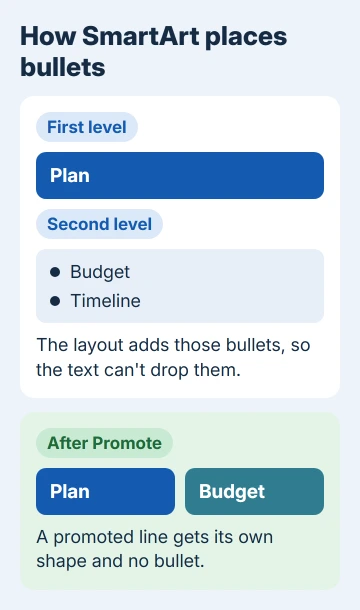
Some layouts don't use bullets at all, and in those the Add Bullet command is grayed out. That's useful here, because the right layout gets rid of the bullets without breaking anything.
1. Pick a layout that doesn't bullet your text
Click the graphic and open the SmartArt Design tab (Design under SmartArt Tools in older versions). Hover over the layouts in the Layouts gallery and the slide previews each one, so you can spot the ones that show your text without bullets.
If each bulleted line could stand on its own, promote it instead. Click into the line and click Promote on the same tab, and it becomes first-level text with a shape of its own and no bullet.
Both keep the graphic as SmartArt, so it stays easy to edit. Microsoft's page on SmartArt bullets says the layout controls whether a shape has bullets, so these are the only ways to lose them and keep SmartArt.
It's the same Layouts gallery you'd use to build a SmartArt timeline, and switching layouts keeps your text, so you can try several and keep the one that works.
2. Convert the graphic to shapes, then remove the bullets
Copy the slide first: right-click its thumbnail and choose Duplicate Slide. Once converted, the shapes can't go back to SmartArt, so that copy is your way back.
Click the graphic's outer frame. On the SmartArt Design tab (or SmartArt Tools > Design), in the Reset group, click Convert and then Convert to Shapes.
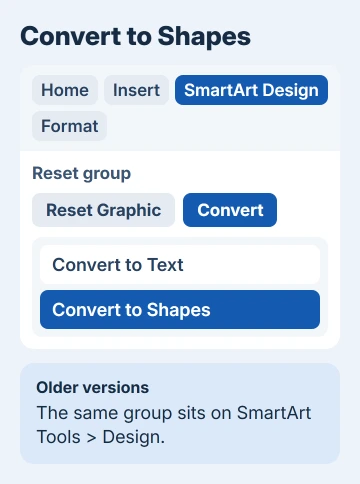
After the conversion, the SmartArt Design tab disappears and Shape Format takes its place, because PowerPoint now sees ordinary shapes. They stay grouped with the same look and position, so nothing on the slide moves.
Now click into a shape, select its bulleted lines, and click Bullets on the Home tab to switch them off. Press Ctrl+Shift+G to ungroup the shapes when the pieces need to move on their own.
An adviser gave this fix for PowerPoint 2013, and it's the same in later versions. PowerPoint for Mac has the same Convert button on its SmartArt Design tab.
From here the text behaves like any other text box, so indents, spacing and bullet colors that won't change are all handled the usual way.
Don't need the graphic at all? Convert > Convert to Text turns it back into a plain bulleted list in a text box, where the Bullets button removes them in one click.
3. Ungroup twice when Convert isn't there
PowerPoint 2007 has no Convert button, but ungrouping gets you to the same place. Select the graphic, then on the Home tab, in the Drawing group, click Arrange > Ungroup, and do it once more.
When Ungroup goes gray, the text sits in plain shapes and the bullets delete normally. The asker fixed it exactly this way in PowerPoint 2007, and another owner confirmed it worked in PowerPoint 2010.
If Ungroup is gray from the start, click the graphic's outer frame so the whole thing is selected rather than a shape inside it. Ctrl+Shift+G ungroups too.
4. Hide the bullets if it must stay SmartArt
When the graphic has to stay editable as SmartArt and no layout fits, owners have only found cosmetic tricks. One owner covered the bullets with a small rectangle filled in the slide's background color, with no outline.
That looks right on screen and in print, but the bullets are still in the file, and the patch shows as soon as the background changes or the text moves.
I'd only do this on a one-off slide that won't be edited again. For anything you'll reuse, convert it (fix 2) and keep the duplicated SmartArt slide in the deck as a hidden slide, in case you need to rebuild it.
PowerPoint power users can also copy a layout file and edit out the bullets, but that means working in the layout's code, which is far from a quick fix.
When none of these fit
If a company template insists on SmartArt, ask whoever maintains it. A custom layout without bullets can be built once and shared with the whole team.
To ask Microsoft for a bullet switch in SmartArt, use Help > Feedback in PowerPoint and say which layout you're using. Owners have been asking for this since 2012.
The Short Version
SmartArt bullets come from the layout, so they can't be deleted from the text. Pick a layout or Promote the lines so they don't get bullets, or duplicate the slide and use Convert > Convert to Shapes, then turn bullets off on the Home tab.
In PowerPoint 2007, ungroup the graphic twice instead.
Checked November 20, 2026.
 If you have any business, I can build it online






