

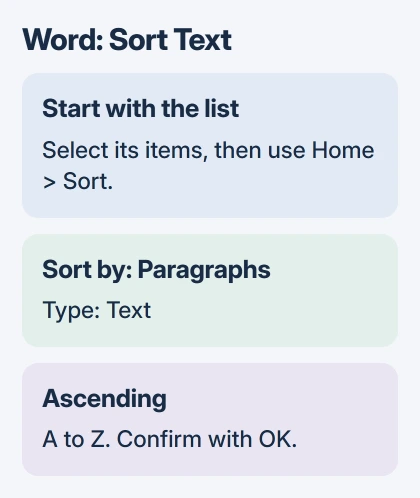
Select your list, then choose Home > Sort and set Paragraphs, Text and Ascending in the dialog. For a table, use its separate Sort command to keep each name beside the right details.
The Windows and Mac Word apps can sort ordinary lists. In Word for the web, you can sort a table, but ordinary bulleted and numbered lists don't have the same alphabetical-sort feature.
Prepare one complete item per paragraph
Select only the list you want to rearrange. Leave its title, introduction and closing notes outside the selection. Word rearranges everything you select, so a title or closing note can end up mixed into the list.
If the order matters for another purpose, save a separate Word copy before sorting. That keeps the starting document available after you save the alphabetical version.
Use Home > Show/Hide to see the invisible marks between items. The formatting-mark controls show paragraph endings, tabs and spaces without printing those marks on your document.
Give each item its own paragraph ending so Word can move it separately. A long name wrapping onto a second line is still one item. A line break within a paragraph keeps both lines together as one item when Word sorts them.
Split any items that share one paragraph. Keep explanations attached to the right item; an explanation in a separate paragraph can move away from it during sorting.
Sort the selected list on Windows or Mac
Open Home and choose Sort, usually in the Paragraph group. Word opens the Sort Text dialog. Microsoft says the list-sorting procedure works in Word for Windows and Mac.
Set Sort by to Paragraphs and Type to Text. Choose Ascending for alphabetical order from A to Z, then confirm with OK. Choose Descending when you want the reverse order.
Read the first few entries after sorting and check the last ones as well. Even if the start looks right, a title or blank entry may have moved elsewhere. Confirm that the selected list ends where you expected.
Use this for a bulleted or numbered list with just one level. An outline with nested levels needs different handling. Select just the list, leaving surrounding headings and sections out.
On Mac, the command also lives on Home. Choose Paragraphs, Text and Ascending or Descending in the dialog. You can sort directly in Word without moving the list to a spreadsheet.
If the result is wrong, use Undo immediately, then check which paragraphs you selected. I'd fix the selection before trying more sort options; even the right A-to-Z setting won't help if you've selected the wrong text.
Keep table rows together while sorting a column
For names beside phone numbers, addresses or amounts, select the table. Its Table Design and Layout tabs appear. Use Layout > Sort on that table tab to open the sorting controls.
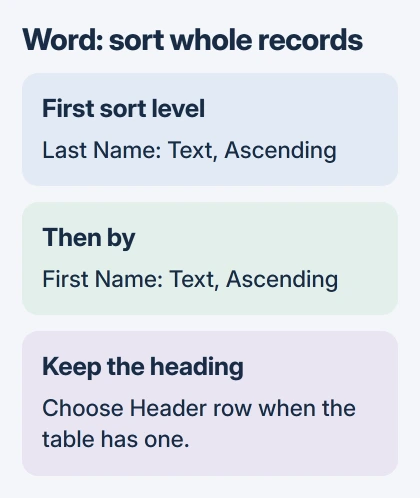
In the table sorting dialog, tell Word whether the first row contains headings. Under Sort by, choose the heading or column number for the names, then choose Text and Ascending.
Confirm the sort, then check a name you recognize and its accompanying details. They should still belong together. The heading should remain at the top when you told Word the table has a header row.
If the table has separate surname and given-name columns, sort by surname first. Use Then by for given name. That sorts people who share a surname by their given names.
Desktop Word can sort a table by up to three columns in order. Add a third, such as department or ID, when entries still match on the first two. Check the order before sorting; the first column you choose sets the main groups.
Turn a text roster into a table when fields matter
A plain list that starts with given names sorts by those names. To sort reliably by surname, put given names and surnames in separate columns. Don't rely on Word to pick out every family name from a full name.
In Word for Windows, put a tab between each name, number or other detail and a paragraph ending after each entry. Select the text and choose Insert > Table > Convert Text to Table. Check the row and column counts before confirming.
The text-to-table instructions use marks between details to decide where columns start. Choose Tabs under Separate text at if you used tabs. Commas in addresses make commas a poor way to split the columns.
Check a few converted rows before sorting. A missing tab or other separator can put a surname or phone number in the wrong column. Fix those rows first, then sort by the column you need.
If your list is already in a workbook, alphabetize the complete Excel records there instead. Moving it into Word just to sort it adds another chance to mix up the columns.
Choose the right browser route and check the result
To alphabetize an ordinary paragraph list in Word for the web, open it in desktop Word. Use Open in Word when you have the desktop application available, then follow the list steps there.
A browser table is different. Select the table and use Table Layout on the classic ribbon, or Table on the single-line ribbon. Its Sort control offers ascending or descending table sorting.
For the table dialog with multiple sorting levels, language choices or other advanced settings, use desktop Word. The browser doesn't offer every option in that dialog.
If the order still looks wrong, check the column, text type, header choice and paragraph breaks. For case-sensitive sorting or a particular language's order, check the desktop table dialog's Options before moving rows by hand.
If sorting still fails, give Microsoft Support a small sample without private names or addresses. Include your Word edition, whether it's a list or table and the sort choices. That helps support see the same problem.
The Short Version
For a paragraph list, use Home Sort with Paragraphs, Text and Ascending. Sort the whole table by its name column to keep related details together. Check the headings, paragraph breaks and entries you recognize before saving.
Checked November 5, 2026.

Isaac Smith is the founder and editor of PC Glance, a website that covers computers, laptops, and technology. He is a tech enthusiast and a computer geek who loves to share his insights and help his readers make smart choices when buying tech gadgets or laptops. He is always curious and updated about the latest tech trends.