
The Japanese version of Umamusume has an official Windows release through DMM GAMES. Install DMM GAME PLAYER from the Japanese game's official site, then use it to download and launch the game; an Android emulator isn't required.
Check availability before you start. The Japanese service is for Japan, and access from another country can fail. Changing another release's language won't turn it into the Japanese edition.
Check the Japanese edition and your PC first
Open the official DMM edition page. Its address is dmg.umamusume.jp, and its Japanese title is ウマ娘 プリティーダービー. Keep that edition separate from the English release when choosing a download.
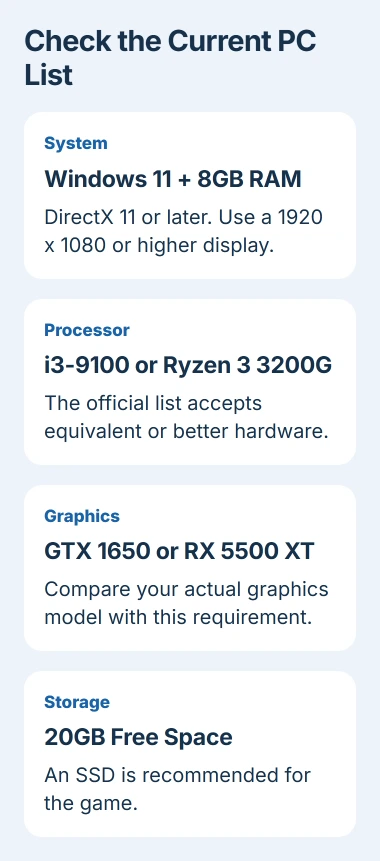
The current page lists Windows 11, 8GB or more RAM, DirectX 11 or later, at least 20GB free storage, and a 1920 x 1080 or higher display resolution. It recommends an SSD for storage.
The processor requirement is an Intel Core i3-9100, AMD Ryzen 3 3200G, or equivalent or better. Graphics are listed as NVIDIA GeForce GTX 1650, AMD Radeon RX 5500 XT, or equivalent or better.
Check the current requirements before following an old installation video. Your laptop might open the launcher but still fall short of the game's graphics requirement, so opening the launcher alone doesn't mean it'll run the game.
Use the PC specifications guide to find your processor, memory and graphics model. Compare those model names with the requirements; the gaming PC label alone doesn't tell you whether your computer meets them.
Install the player from the official game page
Select ゲームスタート, meaning Game Start, on the Japanese DMM page. The window that opens asks whether you've already installed DMM GAME PLAYER and offers a Windows installer if you haven't.
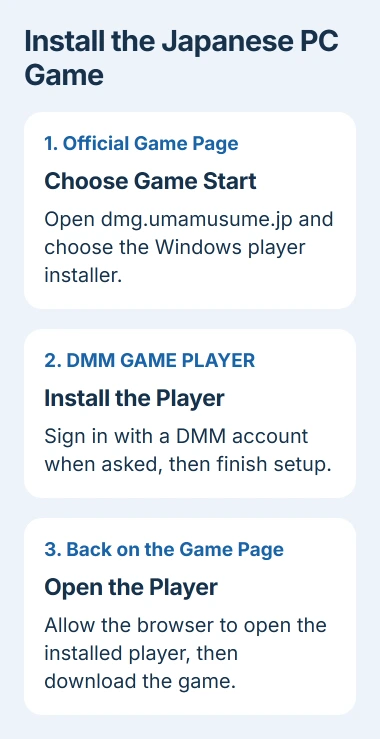
Choose the DMM GAME PLAYER Windows installation option. Sign in or create a DMM account when the official site asks, then finish installing the player. You'll need that account for the DMM edition.
After installing the player, return to the game page and select its launch or download control again. If your browser asks to open DMM GAME PLAYER, approve that request from the official game page and continue in the player.
Let the game finish downloading, then launch it through the player. It may download more game data once it opens, so leave enough free space for the game itself as well as the small launcher installer.
If the browser doesn't open the player, check that installation finished and that you can open the player yourself. Note whether you're stuck in the browser, player or game so support knows which part needs help.
Check Windows details without changing the system
Open Settings > System > About to read the installed Windows version and RAM. For graphics information, press Windows + R, enter dxdiag, then press Enter. Open its display tabs to read the detected graphics hardware.
The DirectX Diagnostic Tool instructions explain how to use this built-in tool. Laptops with two graphics devices can show multiple display or render tabs.
Write down your graphics model as well as the DirectX version on the first tab. The DirectX version tells you about the software; you need the model name to compare your graphics hardware with the game's requirements.
On a new computer, finish the gaming PC setup checks before working through a game problem. You'll have a record of the computer and its installed drivers to work from, rather than guessing from its branding.
Keep existing Japanese progress separate from a new game
If you already play the Japanese mobile edition, use データ連携 (data linking) to bring your progress across. Have that game's account information ready before choosing which account to use on the PC.
The Japanese support instructions describe setting a linking password from the existing game's Menu > Data Link, then using Data Link from the new installation's title-screen menu.
Follow the password-linking prompts for your existing account and check the trainer information shown before continuing. DMM linking can't simply be undone, so make sure you're linking the trainer account you want to keep.
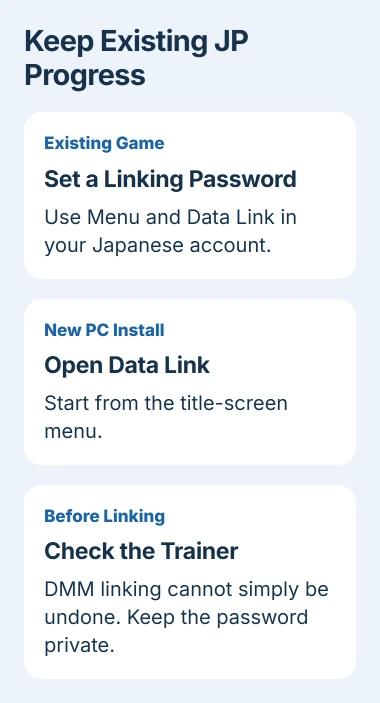
The linking password gives access to the game-transfer process, so keep it private when asking for help. If the trainer account shown isn't the one you expected, ask game support before continuing with the link.
Understand the regional limit and the Steam alternative
Cygames' Japanese FAQ says the service is for Japan. Access from another country can fail, and you can't count on a VPN to make it work. A regional availability error means checking the storefront's availability, rather than download speed.
The Japanese FAQ also links a Steam edition, app number 3564400. If you prefer Steam, check the official Japanese Steam listing to see whether that edition is offered in your region.
If the listing says the game isn't available in your region, save that error for support. It's about where the game is offered, rather than your graphics driver. Reinstalling Windows won't change that availability.
I'd choose an officially available PC edition before trying an emulator. Running the Windows version avoids the extra software needed to run a mobile game on your PC, and an emulator may not work with the Japanese service.
Get the right support for a failed launch
For an account or player error, contact DMM support and say which step failed. If the error appears after the game's title screen opens, use the Japanese game support form. Include the Windows and graphics details you checked.
Keep account-linking details out of public screenshots. Tell support whether you're installing for the first time, linking an existing Japanese account or seeing a regional error. That helps them choose the right next step.
The Short Version
Use the official Japanese DMM Windows route, check the current hardware list and finish installing the player. Link existing Japanese progress carefully. Overseas access and the Japanese Steam edition depend on regional availability.
Checked November 5, 2026.

Isaac Smith is the founder and editor of PC Glance, a website that covers computers, laptops, and technology. He is a tech enthusiast and a computer geek who loves to share his insights and help his readers make smart choices when buying tech gadgets or laptops. He is always curious and updated about the latest tech trends.