
Word can turn one address into a full sheet of labels, provided the document matches the label paper. Start in Mailings > Labels > Options, then choose the manufacturer and product number printed on the package.
After matching the stock, choose whether every label should repeat the same text or contain different information. Print a trial on ordinary paper before loading the adhesive sheets so a layout mistake does not waste them.
Match Word's label setup to the package
In desktop Word, open Mailings > Labels, then Options. On Windows, choose Label vendors and Product number. On Mac, the corresponding choices include Printer type, Label products and Product number.
Microsoft documents the product choices in its label creation instructions. Match the exact code; the number of labels alone does not identify a compatible layout.
Status: Microsoft's Windows, Mac and browser Word label instructions checked October 31, 2026. Product-code matching and a plain-paper trial are documented. No printer or label stock was tested.
If the product is not listed, New Label lets you enter a custom layout. Use the label maker's measurements for the page, margins, label dimensions and spacing. Guessing the dimensions can shift every printed row.
Repeat one address across the sheet
Enter the text in Address on Windows or Delivery Address on Mac. Select the text to adjust its font and paragraph settings, keeping it short enough for the chosen label dimensions.
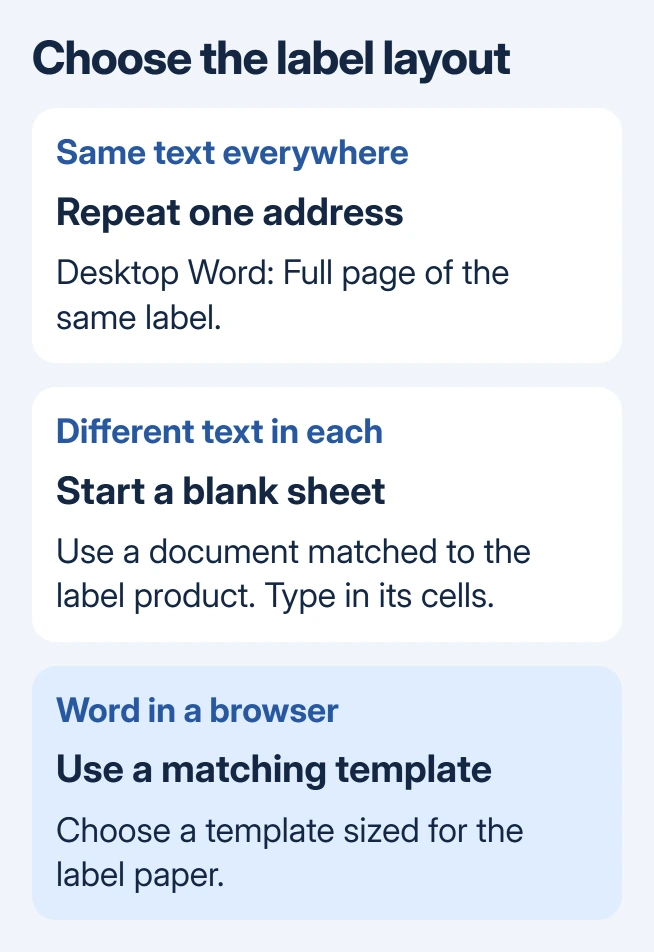
Choose Full page of the same label. On Windows, use New Document to create a sheet that can be inspected and saved before printing. The Mac workflow includes confirming the Labels dialog with OK.
Check that the repeated address appears where expected. For a saved document that will be reused for another address, keep a separate Word copy before editing the text.
Type different text into individual labels
Leave the address entry empty when starting a sheet of different labels. On Windows, choose New Document after selecting the stock. On Mac, confirm Options and then the main Labels dialog with OK.
Word creates a table whose cells follow the selected product's layout. Type each name or address into its own cell, preserving the table's dimensions. Changing the page margins afterward can break its alignment with the stock.
If the cell boundaries are hard to see, click inside the table and enable View Gridlines on its Layout or Table Layout tab. These guides help locate the cells; they are not extra printed label outlines.
Microsoft states that this different-label workflow opens a document sized to the label product. A mailing list already stored in Excel instead calls for Word's mail-merge label workflow.
Use a label template in Word for the web
Microsoft says browser Word lacks the desktop label-creation dialog. From its new-document choices, select More templates and search for a label template matching the paper.
Fill the template's cells, repeating text only when identical labels are intended. If its dimensions do not match the product, use a suitable template from the label maker or open desktop Word to configure the stock.
A missing Mailings tab in the browser is therefore not evidence that Word needs reinstalling. The available creation method differs between the web app and desktop Word.
Compare the trial print with the actual label sheet
Choose File > Print, confirm the physical printer and page size, and print one ordinary-paper copy. The Windows first-print checks explain destination, preview and page-range choices.
Hold the trial print against an unused label sheet with enough light to check each position. Check the top and bottom rows; spacing errors can grow down the sheet.
If the positions drift, recheck the product number, page size and any printer scaling before nudging individual addresses. Follow the printer maker's loading and media instructions when the alignment is correct.
For persistent misalignment, send the label maker or printer support the product code, Word platform and a photo of the trial print. Keep a correctly matched layout intact while checking for a paper-feed problem.
The Short Version
Match the label product first, then choose repeated text or a table of different labels. Browser Word needs a suitable template. Verify the entire sheet's alignment on ordinary paper before printing onto the labels.

Isaac Smith is the founder and editor of PC Glance, a website that covers computers, laptops, and technology. He is a tech enthusiast and a computer geek who loves to share his insights and help his readers make smart choices when buying tech gadgets or laptops. He is always curious and updated about the latest tech trends.