Choose Word Document (*.docx) in Word's Save As dialog to save a Word document as DOCX. Renaming an old .doc file doesn't convert it. Save a new copy, then reopen it to check the content.
Use DOCX for an ordinary document. If the file has macros you need to keep, choose DOCM instead, so check that distinction before converting an old business form or automated template.
In this guide
Choose the format before replacing the original
Keep your original file while you check the converted copy. That matters for older documents whose layout changes during conversion, and for files with automated actions that DOCX can't keep.
Look at the current filename and file type. A document may already be DOCX even when Word shows Compatibility Mode. That mode can also preserve older Word behavior inside a newer file format.
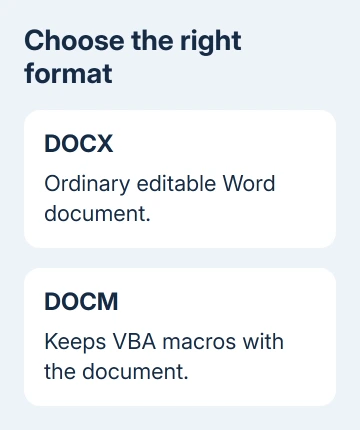
DOCX is the usual choice for a report, letter or assignment. A template is a different choice again; don't choose Word Template when someone asked for an editable document they can open and revise.
I'd use a new filename for the first conversion. It makes the original and converted versions easy to tell apart while you check page breaks, tables and any special content.
If Word keeps returning to the save dialog without creating a file, use the Word Save As loop fixes. Choosing DOCX won't by itself repair a document that can't save.
Save a DOCX copy in Word for Windows
Open the file you want to convert in desktop Word. Choose File > Save As > Browse, then select the folder where you want the converted file. Use a local folder if you're trying to make a copy on this computer.
Enter the new filename. Open Save as type and select Word Document (*.docx), then choose Save. Choosing the file type converts the document; typing a different ending in the name box isn't a substitute.
Microsoft recommends reopening the converted file in its DOC-to-DOCX steps. Close that copy first, then open it again.
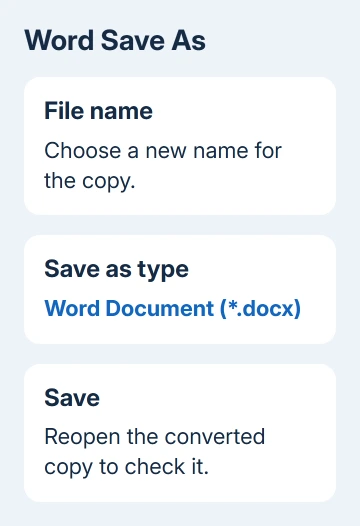
Reopen the copy from the folder you selected. Check its title and the latest edits, then review the first page, a page with a table or picture, and the final page. Confirm you're checking the new file rather than the original.
Before sending that copy, remove its document tags and personal properties with the Windows desktop Inspector when needed.
Word Document and Word 97-2003 Document are different entries. Choosing the latter produces the older DOC format, even if the document began as DOCX or its filename looks similar.
For a new blank document, the same Save As controls let you choose the folder and format at the first save. Later saves update that file unless you use Save As again to create another copy.
Pick Word Document in the Mac save dialog
In Word for Mac, open File > Save As, choose a name and location, and set File Format to Word Document (.docx). Some older dialogs call that menu Format.
Choose Save, then reopen your new file to review its layout. If the dialog initially shows only a few choices, expand it to see the folder and format controls rather than changing just the name.
Cloud documents can offer Save a Copy instead of the usual Save As wording. The important choices remain the destination and Word Document (.docx) as the format.
Check where the copy went. When preparing an attachment or a file for a USB drive, check whether you saved it in OneDrive or a folder stored only on this Mac.
If you need more detail on those locations, saving Word files on a Mac covers the save dialog separately. Once the file is DOCX, don't convert it again just to move it to another folder.
Understand why Compatibility Mode can remain
For an older document in Windows Word, File > Info > Convert changes the compatibility settings. That command differs from saving a new copy and can affect how older Word features behave.
To preserve the original while moving to the current format, choose File > Save As and select Word Document. Clear Maintain compatibility with previous versions of Word if that checkbox appears and you want the newer behavior.
Conversion may change the layout or make newer content harder to edit in older versions of Word. Review the result before replacing a shared working file, especially if another person still uses an older application.
A DOCX extension and Compatibility Mode can exist together. Judge the file format by the save type and extension, then decide separately whether you need to remove the compatibility setting.
Don't repeatedly convert a file because a title-bar label surprises you. Open File > Info > Check for Issues > Check Compatibility to review which older version's behavior the document preserves.
Keep macros in DOCM rather than DOCX
Macros are small programs stored with some documents. A DOCX file doesn't retain VBA macro code. If the document relies on those programs, choose Word Macro-Enabled Document (*.docm) instead.
On Windows, Developer > Macros lists the available macros for the document selected there. Check with the document's owner if an old form includes automated buttons or you don't know whether that code is needed.
When Word warns that content can't be saved in a macro-free document, stop and choose the format that preserves it. A request for DOCX may mean the recipient wants a version without macros, but keep your working original.
Word for the web can open some macro-enabled documents, but it doesn't run their macros. Use desktop Word if you need to keep those macros and check that they work.
Handle a document that starts in the browser
A document edited in Word for the web normally uses DOCX. An older DOC opened for browser editing is converted to a newer copy; renaming the downloaded file won't make it editable.
To get a local copy, use File > Create a Copy > Download a copy inside Word. Open that downloaded file and check its type and content before sending it.
If saving still fails in a new blank document, give Word support the app version, destination, chosen format and exact error. If only the older document fails, keep that original and describe the conversion step that triggers it.
The Short Version
Choose Word Document (.docx) in Save As, save a separate copy and reopen it. Keep DOCM when macros matter, and treat Compatibility Mode as a separate setting from the filename extension.
Checked November 13, 2026.