Copilot turns a Word document into a shorter overview of its main points. Ask for the summary in Copilot Chat, or open the summary preview at the top of the document when your license and settings provide it.
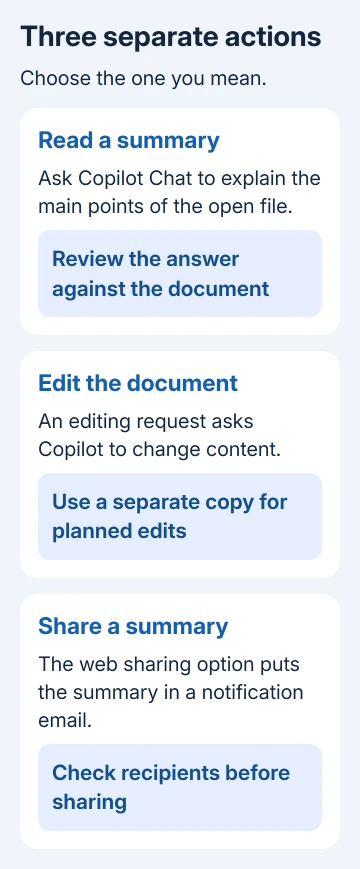
Asking for a summary isn't the same as asking Copilot to rewrite the document. Start in Chat if you want to understand a file before deciding what to change or share.
In this guide
Choose a summary rather than an editing request
Open the document you want to understand, then open Copilot in Word. Check that you've opened the right file, then ask Copilot to summarize it. Keep the request focused on explaining what's in the document.
A summary gives you generated text to review. Asking Copilot to edit, replace, or insert text tells it to do something else. Leave those instructions out of your first request if you only want an overview of the author's work.
For example, ask for the main decisions, their reasons, and unresolved questions. That gives the summary a purpose. Asking only for fewer words can lose the distinction between an agreed decision and an option still being considered.
I'd use the first summary to help with reading, then ask about anything that affects your decision. A polished paragraph can still leave out an exception that changes what a report actually recommends.
For a separate version you intend to edit, make a copy of the Word document first. That gives the edited file its own name rather than mixing your changes into the author's original.
Open the automatic summary when it appears
Depending on your license and organization settings, a summary preview can appear at the top of a document. Select View More to expand it. Suggested prompts beneath it open a conversation about the document in Copilot Chat.
Microsoft's document-summary instructions explain that automatically opened summaries require a Microsoft Copilot work license and a document saved in OneDrive or SharePoint.
A document saved elsewhere can instead offer an option to open and generate a summary. Seeing that option rather than an already expanded overview doesn't mean the document is damaged.
The automatic summary needs at least 200 words to work from. For a shorter document, select Summary at the top of the document to generate one yourself.
Those requirements apply to the automatic summary. Other Copilot features can have different limits, and the buttons you see depend on your version of Word and account.
If no preview appears, try the Copilot conversation available in your account. If Copilot itself is missing, check the account and license before moving the file or changing its contents.
Ask follow-up questions that check the important parts
Compare the summary with the original headings. Does it cover the conclusion, proposed action, and attached conditions? Ask a focused follow-up about missing points rather than assuming they weren't in the document.
For a project report, ask which deadlines are confirmed and which are estimates. For meeting notes, ask who's responsible for each task. You can check those answers against the original text rather than taking the summary on trust.
Open any references Copilot provides and read the surrounding passage. The summary feature currently doesn't always provide citations to content later in a document, even though it takes the whole document into account.
A missing citation doesn't mean Copilot ignored the ending. Read that section yourself. If the summary combines separate points, check each passage before using the combined statement in an email or decision.
The Word document search controls help you find a name, date, or quoted term in the original. Check the exact wording there when a small difference would change the meaning.
Ask Copilot to shorten or reorganize an answer when needed, but check exact length with Word's own Word Count. Generated estimates aren't the right tool for a submission with a strict word limit.
Use the controls for your phone or iPad
For iPhone and iPad, start in Word with a file containing at least 200 words. Tap Copilot to open its pane, then choose Summarize from the suggested prompts. Review the result before asking another question.
You can also type a question about the document in the pane. Keep the file open so you can compare names, figures, and any conditions in the answer with the original text.
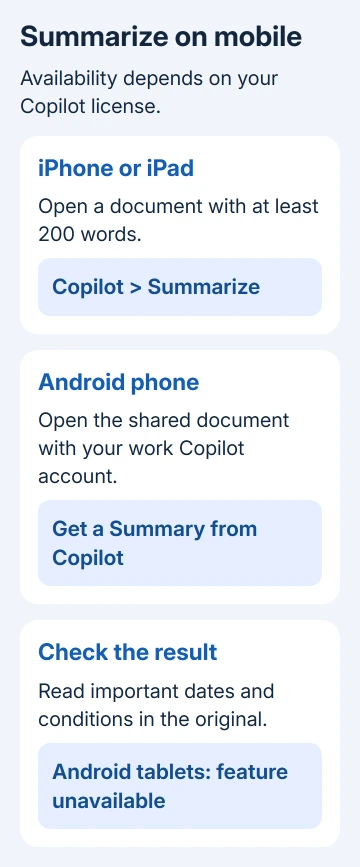
On Android phones, this summary feature requires a Microsoft Copilot work license. Open a document shared with you and tap Get a Summary from Copilot near the bottom of the app.
From that pane, choose a suggested question or type your own. The current instructions cover Android phones, not Android tablets. Installing the phone app on a tablet doesn't make this feature available there.
The mobile Copilot instructions describe those separate routes. A desktop screenshot won't necessarily match the controls at the bottom of a phone screen.
Decide whether the summary should leave your account
Reading a summary in Word is separate from sending one in a sharing notification. You don't need the sharing controls just to read a summary privately.
The sharing feature requires Word on the web and a Microsoft Copilot work license. It isn't the same feature in desktop Word or the mobile app, even when those versions can summarize a document for you.
In Word on the web, select Share, enter recipients, and review permissions. For files that support it, Add a file summary with Copilot appears under Write a message. The summary goes in the sharing-notification email.
Read it before completing the share. Check the recipient list and access settings as well as the generated text. A correct overview still shouldn't be sent to the wrong people.
For work material, keep the request inside your organization's approved Word and Copilot account. Pasting the file into a separate personal chatbot is another service and isn't required for this procedure.
When Copilot or its summary control is missing
Check that Word uses the account with Copilot access. Confirm that your subscription includes Copilot in Word and your organization permits it. Update Word, then reopen the document and check its controls again.
Features reach accounts gradually. A Copilot button doesn't mean every new editing or summary option is available yet. Check the missing feature's requirements before reinstalling Word.
For work accounts, ask the Microsoft 365 administrator to check your Copilot license, settings, and Word version. For personal subscriptions, tell Microsoft Support which subscription you have and which control is missing.
The Short Version
Use Copilot Chat or the document's Summary preview to get an overview. Check important claims in the original text, use your device's own controls, and treat adding a summary to a sharing email as a separate action.
Checked November 10, 2026.