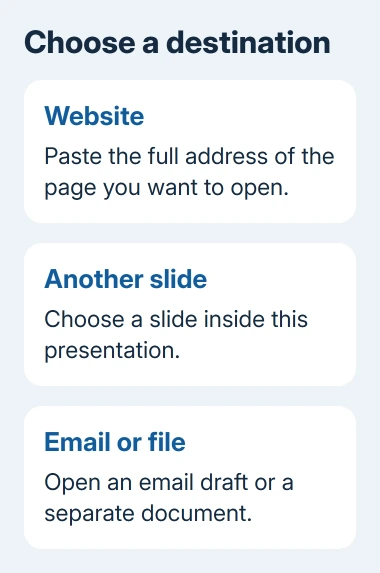
Select the words, shape, or picture to make clickable, then choose Insert > Link in PowerPoint. Paste the web address and confirm. For a jump within the presentation, choose the destination slide instead of a website.
Think about what the click should do: open a page, jump to another slide, open a file, or start an email. Windows, Mac, and browser PowerPoint put those choices in slightly different dialogs.
In this guide
Choose the clickable words or object first
Highlight the exact words you want people to click. For example, select Download the worksheet rather than pasting a long address onto the slide. That tells your audience what they'll open, while the link itself holds the full address.
For a shape or picture, select the object itself. Clicking the edge of a shape selects the whole object; clicking inside its text can start editing the words instead. Confirm what's selected, then open the link dialog.
If you want a button that's easy to click, use a filled shape with a readable label. Keep the label and the object together so people don't have to guess whether only a tiny piece of text responds.
An address you type directly can also become a link when you press Enter. I'd use the Link dialog for a finished presentation, because it lets you check the destination while keeping a short, useful label on the slide.
Add a website link in Windows PowerPoint
Use these steps in current Microsoft 365 desktop PowerPoint and the supported Windows editions. Microsoft says you can choose several destinations in its hyperlink instructions.
- Select the text, shape, or image.
- Choose Insert > Link > Insert Link. If the ribbon offers a Link menu, open it to reach Insert Link.
- Choose Existing File or Web Page in the dialog.
- Paste the complete destination into Address.
- Check Text to display when linking words, then choose OK.
Use the page's complete address, including https://. Open that destination in a browser first if you're unsure whether it's the page you intend to share. A home page and a specific download or article are different destinations.
Back in PowerPoint, your selected words or object now have a link. The text may change color, but that doesn't tell you whether the address is right. Open the link to check it before moving on.
Enter the destination in Mac and web PowerPoint
On a Mac, select the text or object in Normal view, then choose Insert > Link. In Insert Hyperlink, enter the website in Address. Check Text to Display, then confirm the dialog.
The Mac dialog also offers ScreenTip, the text that appears when someone holds the pointer over a link. Use it for extra context, such as the document name. Don't rely on a hover message to explain the button's main purpose.
In PowerPoint for the web, highlight the words and choose Insert > Link. Fill in Display text and Address, then choose Insert. Make sure the account you're using can edit the deck.
To test in the browser edition, open Slide Show > Play from Beginning. With the Simplified Ribbon turned off, use View to start the slide show instead. Then click the linked words as a viewer would.
If the correct page opens but asks your audience to sign in, the hyperlink works. They still need permission to open the document. Share it with them or choose a destination they can already access.
Link to another slide in the same presentation
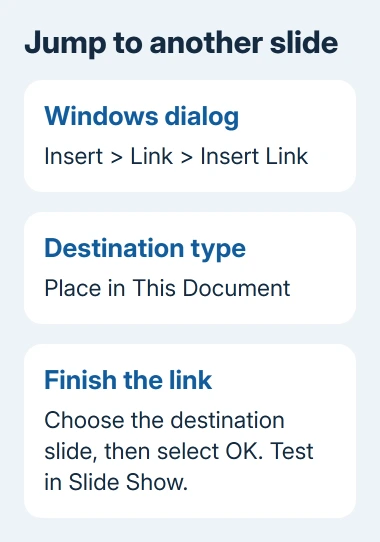
A slide link is useful for a contents page, question-and-answer deck, or a button that returns to the beginning. It doesn't need a web address, and it stays within the presentation when clicked.
On Windows, select the object, choose Insert > Link > Insert Link, then Place in This Document. Select the destination slide and choose OK. Read the title carefully when slides have similar names.
On Mac, open Insert > Link, choose This Document, and select the slide under Select a place in this document. Confirm the dialog. This is different from selecting another presentation file.
In PowerPoint for the web, choose Insert > Link > This Presentation, select the destination slide, and choose Insert. Play the slides and try the link to check its destination instead of relying on the slide number alone.
For a game with several destinations, the PowerPoint trivia layout shows how slide order and answer buttons fit together. Give the audience a clear route back after each jump.
Add an email address or a separate file
On Windows, choose E-mail Address in the link dialog and enter a recipient and optional subject. On Mac, choose Email Address, fill in the recipient and Subject, then confirm. The link opens the viewer's email program.
A file link points to a separate file rather than putting that file inside your slide. On Windows, choose Existing File or Web Page and select it. On Mac, use Web Page or File, choose Select, and locate the file.
Move linked files along with the presentation when changing computers. A link that points to your computer's own files won't give your audience access to them. For a PDF, consider inserting it into PowerPoint instead.
PowerPoint on Mac can't link to a specific slide in a different presentation. Choose a slide inside this deck or link to the other presentation as a file, keeping that limit in mind.
Test in the copy the audience will receive
In desktop Normal view, right-click the link and select Open Hyperlink. Then test it again in Slide Show. In editing view, a plain click often just selects an object. Slide Show lets you check what your audience will see.
Save and test the copy you'll share on the computer you'll use. If it opens the wrong place, right-click the link to edit it and check the address or slide. If a file is blocked, ask its owner for access.
If Link is missing or grayed out, check that you can edit the presentation and have selected the text or object you want. For a managed work account, tell IT your PowerPoint edition, file type, and which control is disabled.
The Short Version
Choose the clickable words or object, then use Insert > Link to set its destination. Use the platform's slide-link option for internal jumps. Test in Slide Show and check access to any separate document before sharing.
Checked November 10, 2026.