

An 80s music trivia game in PowerPoint works well as a question slide followed by an answer slide, with clickable buttons moving between them. Build one complete round first, check it in Slide Show, then duplicate the pattern for the rest.
Music clips are optional. A text-only round can ask about artists, albums, or release years, while a listening round uses audio you have permission to use. Keep the score on paper for a straightforward game without macros.
Plan the questions and the slide order
Create a list of questions, correct answers, and the source used to check each answer. For a quiz about the 80s, decide whether a date means the original release, a release in your country, or when it appeared on a chart.
Give each question one answer that fits that wording. An artist's recording year and a song's release year aren't interchangeable. Settle those details before making slides so players don't have to argue over the intended question.
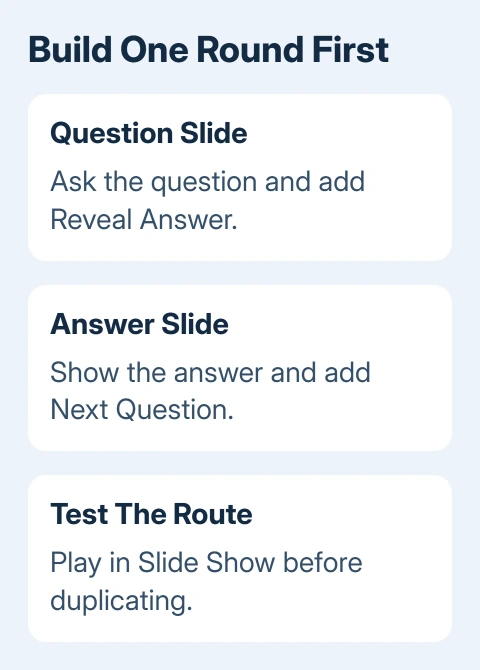
Open PowerPoint and create a new presentation. Add a title slide, a short rules slide, then a question slide and its matching answer slide. Give them distinct titles, such as Question 1 and Answer 1.
On the rules slide, state how many points a correct answer earns and when teams should stop writing. Choose your own scoring system. A simple one-point answer is easier to manage than separate bonuses for every detail.
I'd make the first round work before designing a large question board. That gives you a reusable slide pair and catches navigation mistakes before they spread through the deck.
Make the question and answer readable
On the question slide, type the question in a large text box. If it's multiple choice, put each choice in its own filled shape with equal padding. Use short labels so the answers don't crowd the question.
Choose Insert > Shapes to add a rounded rectangle for a Reveal Answer button. Give it a clear fill, remove its shape outline, and keep enough space between it and the answer choices.
On the matching answer slide, repeat enough of the question to identify it, then make the correct answer stand out. Add a short explanation only if the wording could cause confusion.
Add another filled shape labeled Next Question. Making the whole shape clickable gives the host a larger area to click than a small text link.
Use the same position for these controls on every slide. Players should concentrate on the question; the host should be able to find the next control without searching a different corner each time.
Connect the buttons to the correct slides
In PowerPoint for Windows, select the Reveal Answer shape and choose Insert > Link. Select Place in This Document, choose the matching answer slide under Slide Titles, and select OK.
In PowerPoint for Mac, select the shape and use Insert > Link. Choose This Document, select the target slide, then confirm. You're linking to a slide inside this presentation rather than a web address.
Microsoft's slide-link steps show both dialogs. Select the shape itself to make the whole button respond.
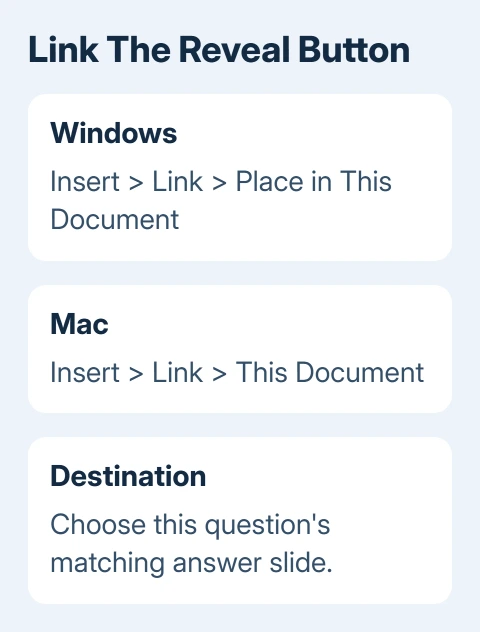
In PowerPoint for the web, select the button text, choose Insert > Link > This Presentation, and pick its destination. In the browser, you link the text instead of selecting the whole shape as you would in desktop PowerPoint.
Link the answer slide's Next Question button to the following question. On the last answer slide, link it to a final score or closing slide instead. Give a replay control its own link back to the first question.
If you prefer to have teams call out answers rather than click choices, one Reveal Answer control is enough. Each answer button needs its own destination and more testing. You don't need those buttons when a host is running the quiz.
Add a listening clip only to its question
For a listening round in Windows desktop PowerPoint, select the question slide and choose Insert > Audio > Audio on My PC. Choose an audio file saved on your computer that you have permission to use, and insert it.
On Mac, use Insert > Audio > Audio from File. Select the audio you inserted and check its Playback settings. Preview the clip with the play control before setting up the rest of the round.
Keep playback on this question rather than selecting Play Across Slides. A song that continues into the answer slide can interfere with the next question. Set playback to start on a click so the host can decide when listening begins.
Keep the speaker control visible if the host needs it to start the clip. Automatic playback is another option under Playback, but check that the clip starts at the right moment when the question opens.
For the full insertion and playback controls, use the PowerPoint music guide. A text-only quiz can skip this step completely and still use the same question-and-answer structure.
Use desktop PowerPoint for this local-audio workflow. If the game must run in a browser, try its audio in that browser before the event. It may not play the same way as it does in desktop PowerPoint.
Duplicate the round, then check every destination
Duplicate the question and answer pair for each new round and replace their text. Rename the slide titles as you go. A copied Reveal Answer button can still lead to the original answer slide until you edit its link.
Open each copied button's link settings and choose its new destination. Check the last round especially: a Next Question link pointing to an earlier round can send the game backward when you're trying to show final scores.
Use Slide Show > From Beginning to play the deck. Click every Reveal Answer and Next Question control in order. In editing view, a normal click can select an object instead of following its presentation link.
If the deck looks confusing at presentation distance, simplify it before adding animations. The PowerPoint setup guide covers the basic editing and presentation controls.
Rehearse on the computer that will host the game
Open the saved presentation on the event laptop, connect the intended display and speakers, and run a full round. Check that the audience can see the question and the host can use the buttons and audio controls.
Keep the editable .pptx file. On Windows, File > Save As > PowerPoint Show (.ppsx) creates a copy that opens as a slide show. On Mac, use Save As and choose the PowerPoint Show file format.
A show file changes how the deck opens; it doesn't check answers or calculate team scores. Keep your score sheet and answer key ready. Press Esc to leave the slide show when you need to fix something.
If a link or clip fails, note the slide and whether it fails in Slide Show or editing view. Search PowerPoint Help for hyperlink or audio playback with those details, or ask the event's IT contact to check it.
The Short Version
Build and test one question-and-answer pair before duplicating it. Link each button to the right slide, add permitted audio for listening questions, and practice using the actual host laptop.
Checked November 9, 2026.

Isaac Smith is the founder and editor of PC Glance, a website that covers computers, laptops, and technology. He is a tech enthusiast and a computer geek who loves to share his insights and help his readers make smart choices when buying tech gadgets or laptops. He is always curious and updated about the latest tech trends.