
To turn off Now Brief on a Samsung Galaxy lock screen, open Settings > Lock screen and AOD > Now bar and switch off Now brief. If Now Brief also has a widget on your Home screen, hold that widget and choose Remove.
It can seem to stay on after you've disabled it because each location has its own control. The lock screen, Home widget and Edge panel offer different ways to open the same briefing, and removing one doesn't clear the others.
Switch off the lock screen briefing
Unlock the phone and open Settings. Select Lock screen and AOD, then Now bar. On some software, the first menu is simply Lock screen. Find the Now brief switch and turn it off.
Samsung's lock screen removal instructions confirm this route. Lock the phone and wake the display to check the result. The briefing should no longer appear in that Now bar position.
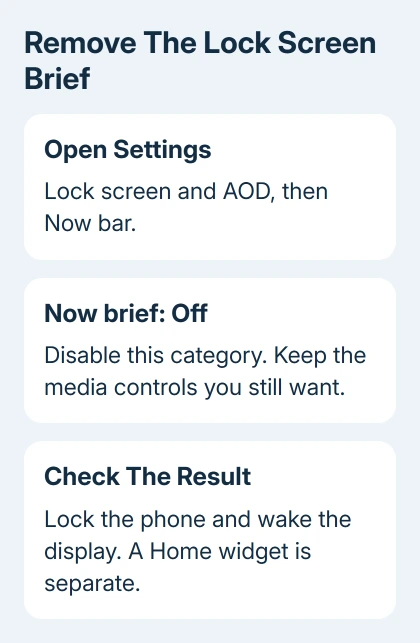
The Now bar can also show an active music player, timer or other live information. Those items aren't Now Brief. Keep the features you still use switched on. Turning off every category just to remove the briefing would disable those too.
For example, a card carrying playback controls belongs to the media player. A morning, afternoon or evening collection of weather and suggestions is the briefing. Read the card's label before changing another switch.
That switch controls Now Brief on the lock screen. It doesn't uninstall Galaxy AI, delete calendar events or remove a briefing widget you've placed on Home. Check Home separately if that's where you still see it.
Remove its Home screen widget
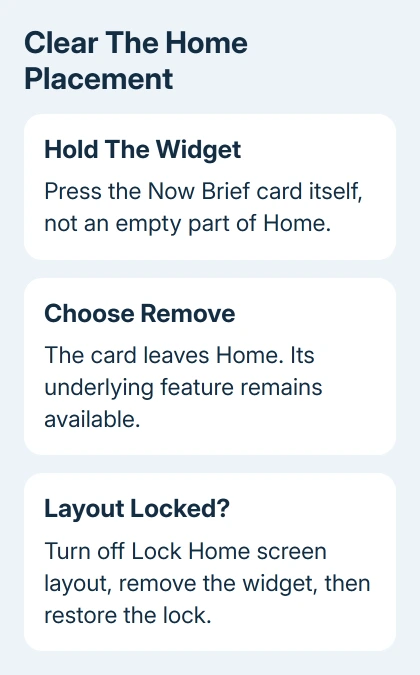
Return to the Home page containing the Now Brief widget. Touch and hold the widget itself, then tap Remove. Holding blank wallpaper opens Home editing instead; press the briefing card for its own menu.
The widget should disappear and leave its space available. Removing it doesn't delete Now Brief or its settings. You can keep using the briefing through Settings if you want occasional access without a permanent Home card.
That distinction also applies to removing Android Home widgets. Removing a screen item and uninstalling an app are different actions; choose Remove for this job.
If the widget won't move or the removal control is unavailable, check Settings > Home screen > Lock Home screen layout. Turn that layout lock off, remove the widget, then restore the lock if you normally use it.
Some layouts place widgets in a stack, with several sharing the same space. Swipe through the stack if the briefing appears only occasionally. Use the stack's editing controls to remove Now Brief and keep your other widgets.
The Samsung widget guide explains stack editing and the difference between removing and resizing a widget. The widget and installed One UI release determine which controls appear.
I'd remove it from the screen where you see it first. Resetting the whole phone is a lot of disruption, especially when the briefing is just a widget left on another Home page.
Check the Edge panel only if that shortcut remains
Now Brief can also open from an Edge panel, the tray revealed by swiping its handle near the side of the screen. A shortcut there can remain available after the lock screen switch is off.
Open the handle and check which panel contains it. If you don't use Edge panels at all, open Settings > Display > Edge panels and turn that feature off. This removes access to the other panels too.
If you use other Edge panels, keep the feature enabled. A remaining Now Brief shortcut lets you open a briefing when you want one. The Edge handle itself doesn't mean that the briefing is still appearing on the lock screen.
The Now Brief setup page describes these separate access points. It also explains that the feature's appearance changes with the time of day.
Morning and evening greetings can both identify Now Brief. You don't need to search for a separate app with each greeting's name.
Reduce its content if you still want part of the briefing
If you still want a briefing with less in it, open Settings > Galaxy AI > Now brief > Content to include. Review the categories and turn off those you don't want included.
The choices can cover schedules, health, news, travel and other information. Available categories vary with the device and software. Keep only the categories you actually want to read, then return to the briefing to review the change.
The Expand Now brief without unlocking option is a separate choice. It controls whether a full briefing opens while the screen is locked. Turning that off isn't the same as removing its Now bar entry.
Likewise, audio briefing and partner-app personalization settings change the experience inside Now Brief. They aren't substitutes for the lock screen toggle or Home widget removal when the goal is to stop seeing it there.
Changing content categories doesn't remove the original appointments or information from their own apps. If a calendar event itself is wrong, correct it in the calendar; removing its briefing category only changes the briefing display.
Match missing menus to the phone's software
Now Brief is available on selected Galaxy devices, not every Samsung phone. Current support information covers selected devices on One UI 7 or newer, with availability expanding to additional models through later releases.
Open Settings > About phone > Software information to record your Android and One UI versions. The Samsung model lookup steps help identify the exact phone when similar model names cause confusion.
If the named path differs, search Settings for Now bar and Now brief separately. The Galaxy AI result changes what's in the briefing; the Lock screen result changes where it appears on the lock screen. Open the one matching your goal.
If the Now Brief card returns with its Now bar switch off, capture the card and record its location: lock screen or Home. Report that through Samsung Members > Support, including the model and One UI release.
Tell support which screen keeps showing the briefing after you've turned it off. Hide appointments and private content in the screenshot. A report about that one screen is clearer than saying all Galaxy AI features remain enabled.
The Short Version
Turn off Now brief in the Now bar settings for the lock screen. Remove its widget separately for Home. Edge panel access and briefing content have their own controls, so check the place where it still appears.
Checked November 9, 2026.

Isaac Smith is the founder and editor of PC Glance, a website that covers computers, laptops, and technology. He is a tech enthusiast and a computer geek who loves to share his insights and help his readers make smart choices when buying tech gadgets or laptops. He is always curious and updated about the latest tech trends.